O365 Groups Sync
Sync users based on their O365 Groups membership to target training for specific teams, projects, or departments.
Overview
O365 Groups sync allows you to:
- Select specific O365 Groups for user synchronization
- Automatically trigger sync after configuration changes
Prerequisites
Before configuring Groups sync, ensure you have:
- Completed the O365 setup in the Adding Users section
- Granted the necessary permissions to INFIMA
- Admin access to the INFIMA Dashboard
- O365 Groups configured in your tenant
Configuring Groups Sync
Steps
- Log into the INFIMA Dashboard
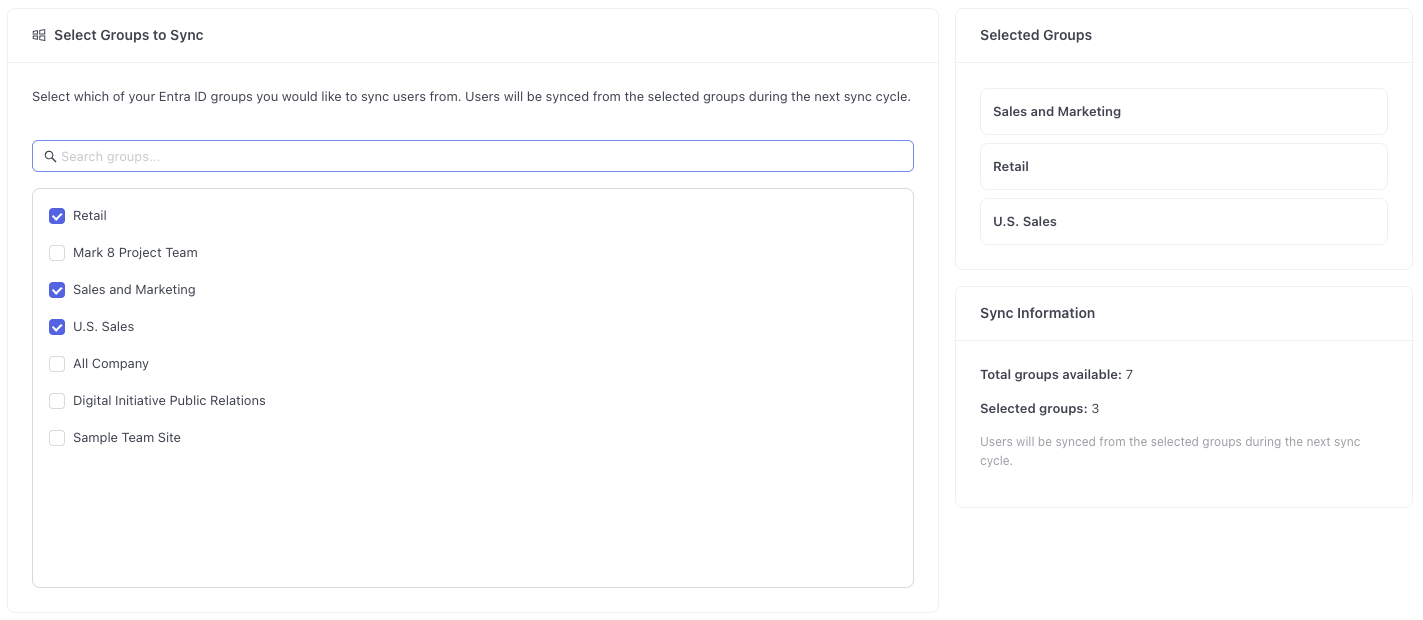
- Navigate to Users and click Sync by O365 Groups
- The page displays your current O365 Groups
- Select groups to sync by checking the boxes next to each group name
- You can select multiple groups
- Review the Selected Groups shown on the right
Sync Behavior
When you select specific groups, only users within those groups will remain in INFIMA. Users outside the selected groups will be removed from the platform.
- Click Save to apply the configuration
- Click Refresh Users Now to update the users after saving
- Changes will take effect after the refresh completes
Best Practices
Group Selection Strategy
- Department Groups: Select groups for specific departments like Sales, Engineering, or HR
- Security Groups: Focus on users with elevated permissions or access to sensitive data
- Distribution Lists: Target communication groups that need security awareness
Troubleshooting
Groups Not Appearing
If your groups aren't showing:
- Verify you have granted the necessary permissions to INFIMA
- Ensure the admin account has permission to view all groups
- Try refreshing the page or logging out and back in
Members Not Syncing
If group members aren't being synchronized:
- Verify users are active in your O365 tenant
- Check if members have valid licenses
- Ensure members aren't blocked or disabled
- Confirm group membership in the O365 admin center
User Count Mismatch
If the displayed user counts seem incorrect:
- Note that service accounts and shared mailboxes may be excluded
- Guest users are not included in sync
- Recently added users may take time to appear