Google sync authorization error
Error
Authorization Error
Error 400: admin_policy_enforced
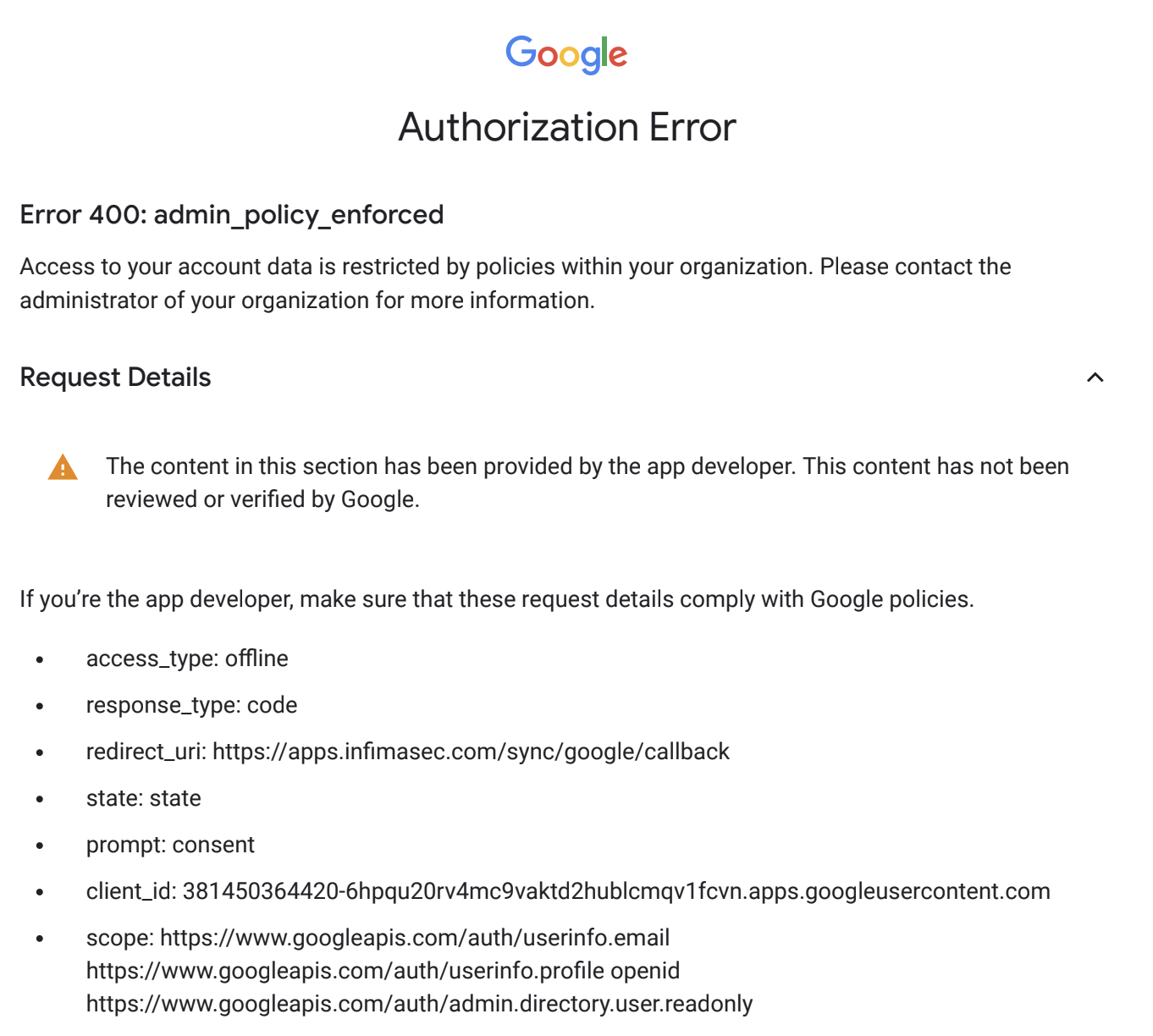
Resolution
This is a Google feature for enhanced security that some organizations choose to enable within their tenant. When this feature is enabled, each OAuth application has to be manually trusted before a sync can occur.
Here are the instructions for manually trusting an application in the Google Admin panel:
- Login to the Google admin console for the tenant - https://admin.google.com
- Type API Controls into the search bar at the top. The first result should be API controls and say "Security" underneath it. Click on that.
- On the App Access Control Panel that appears, there will be a button on the right hand side to Manage Third-Party App Access. Click that button.
- Click the button to Add app. Select OAuth App Name or Client ID from the drop down.
- In the search bar, type in INFIMA and click search.
- Select the INFIMA app (not INFIMA Login) and configure it as "Trusted".
The INFIMA app has been successfully trusted. You can now sync users by following the syncing process in the INFIMA Dashboard.
Admin Account Issues
If your Google sync fails due to admin account problems (such as the admin account being deleted or permissions being revoked), INFIMA now includes automatic failover functionality:
Automatic Admin Failover
INFIMA automatically handles admin account failures by:
- Detecting failed admin accounts - When a sync fails due to admin permissions, the system identifies the issue
- Trying alternate admins - The system maintains a list of admin users and will automatically try each one until finding a working account
- Reordering for efficiency - Once a working admin is found, it's prioritized for future syncs
- Updating admin list - After successful sync, the admin list is refreshed with current data
No Action Required
This failover process is automatic. If your primary admin account is removed or loses permissions, INFIMA will find and use another admin account without manual intervention.
Best Practices for Admin Accounts
- Multiple admins: Ensure multiple users have admin permissions in Google Workspace
- Service accounts: Consider using dedicated service accounts for integrations
- Regular audits: Periodically review which accounts have admin access
- Permission monitoring: Set up alerts for admin permission changes in Google Workspace