
What we run for you
You’ve signed up and you’re staring at a fresh dashboard. Before you onboard your first client, here’s the lay of the land — what we run for you automatically once a client is set up, and what you decide along the way.
The short version: most things are on, sensible by default, and don’t need babysitting. You configure scope (which templates, which clients, what cadence) and we handle the work.
Phishing tests
Section titled “Phishing tests”We send phishing tests to each client’s users automatically, at randomized times, drawing from the templates you’ve enabled for them. There’s no “send a campaign” step. You decide which templates are eligible — partner-wide defaults plus per-client overrides in Tailor — and we handle which test lands and when.
If a user clicks, opens an attachment, or submits credentials on a simulated page, they’re routed into the landing experience you’ve configured. If they catch the test using the Report Phishing button (Microsoft 365 clients), they get positive reinforcement instead.
Training
Section titled “Training”Every client you onboard gets our Security Awareness Foundations curriculum assigned automatically — a NIST-aligned baseline covering phishing, password hygiene, social engineering, and the core topics every employee should be trained on. You don’t have to pick courses. If a client needs compliance against a specific standard (HIPAA, PCI, SOC 2, etc.), you can add a framework on top.
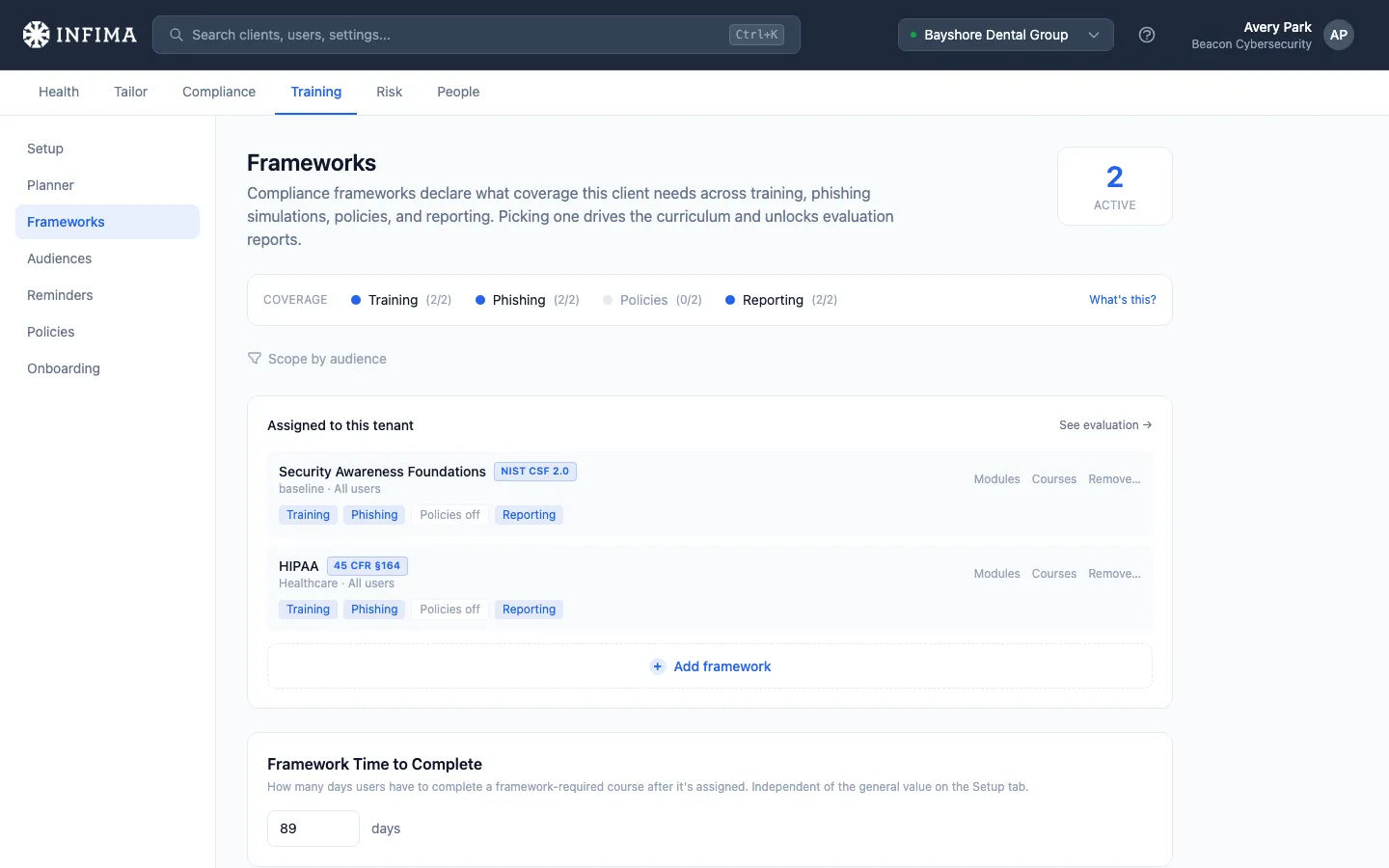
When a course is coming due or already overdue, we send the user a reminder. You set the cadence, subject, body, and sender at the partner level, and override per-client where needed. Reminders can be paused for clients who don’t want them.
Welcome emails
Section titled “Welcome emails”When a new user lands in a client — via directory sync or manual add — we can send them a short welcome email pointing them at their learning portal. Welcome emails are off by default. Turn them on in partner settings if you want new users to be welcomed, and override per-client where useful. If a client adds people before their start date, you can hold each welcome email for a set number of business days after the user is added.
Risk scoring
Section titled “Risk scoring”Every user gets a risk score that reflects how they’re doing — training completion, phishing engagement, and breach exposure all roll into it. Scores stay current as data comes in; you don’t refresh anything. The grade buckets on the dashboard (A through F) tell you who needs attention, and clicking through to a user shows the per-signal breakdown.
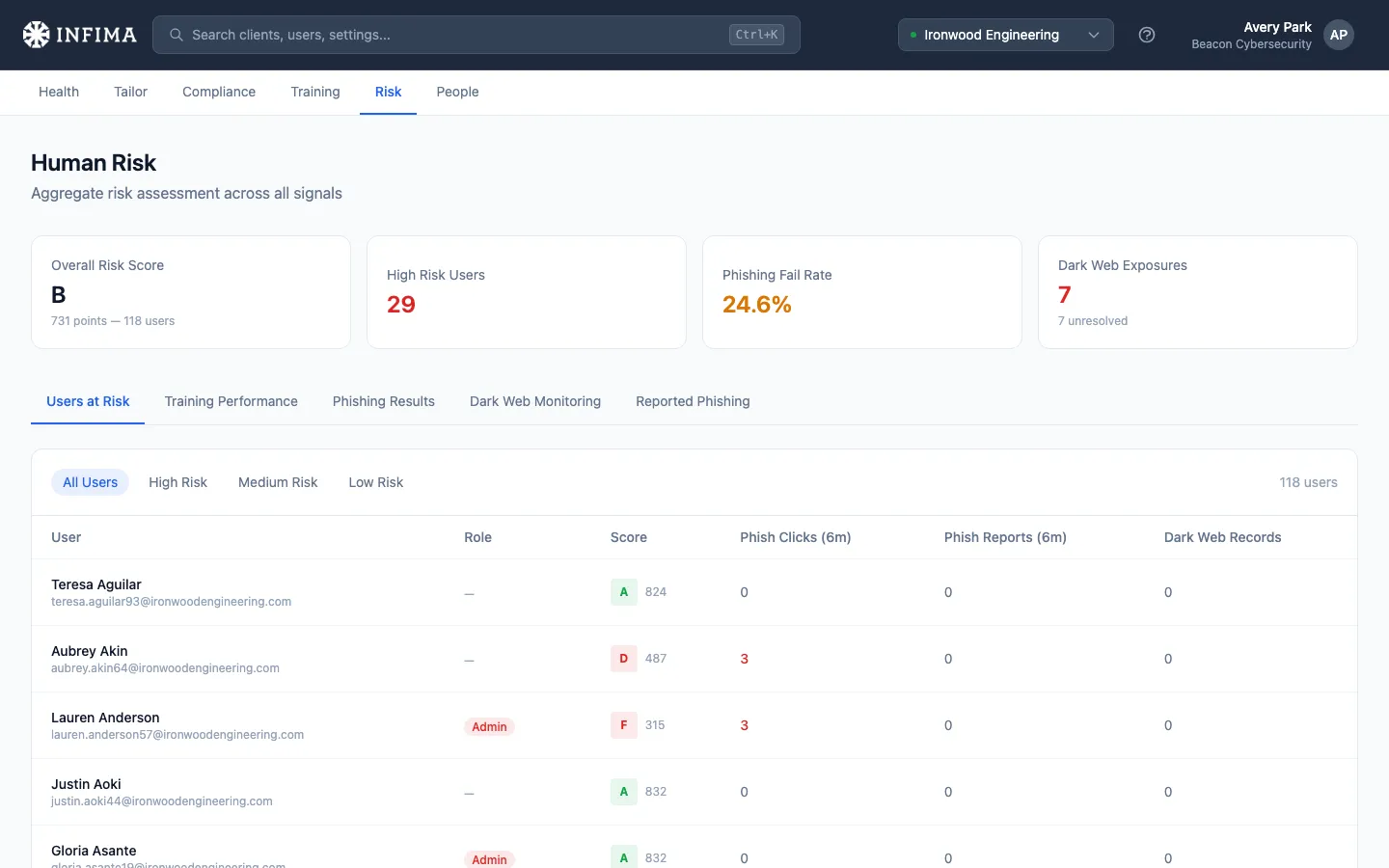
The same scoring rolls up at the client level so you can compare clients at a glance.
Dark Web Monitoring
Section titled “Dark Web Monitoring”When a user’s email appears in a newly reported breach, we flag them. If you’ve enabled user notifications, they get an email explaining the exposure so they can change their password. Exposed passwords from breaches more than a year old are marked resolved automatically, so a new client starts with only the past year’s breaches to work through. Dark Web Monitoring is per-client — set it as your partner-wide default for clients who want it, or leave it off for those who don’t.
Health pills on the dashboard
Section titled “Health pills on the dashboard”Each client on your dashboard gets a status pill — Good, Heads-up, Review, or At Risk. It rolls up three quick checks: are users syncing healthily, is training landing, and is phishing engaging users. When the pill is anything other than Good, click into the client and the per-check detail tells you what to look at and how to act on it.
Reports
Section titled “Reports”We deliver scheduled monthly reports automatically based on the report types you’ve enabled in partner settings, with the recipients you’ve configured. Inside a client you can also generate any of our reports on demand — open it as soon as it’s ready or have it emailed to you; either way it’s saved to the client’s archive. The Risk Progress report shows how a client’s risk moved over the last 12 months, person by person — generate it on demand or turn it on in the client’s monthly reports.
Frequently asked
Section titled “Frequently asked”I’m coming from another tool. Do I need to whitelist anything to make email delivery work?
For sync’d Microsoft 365 or Google Workspace clients — no. We send through the directory provider’s own mail APIs, which bypass mailflow rules entirely. Whitelisting only comes up for the manual-setup path.
How do I see exactly what’s been sent to a specific user or client?
Open the client and head to the Emails page. The Sent Email Log shows every email we’ve sent on their behalf — phishing tests, training reminders, welcome emails, breach alerts — with delivery status, opens, and clicks. If a user says they didn’t get something, this is the first place to look.
Can I pause any of this?
Yes — every automated feature has a switch. Phishing tests can be disabled per user group. Training reminders can be paused at the client level. Welcome emails can be turned off. Dark Web Monitoring can be turned off per client. The defaults work for the typical setup; you only touch the switches when a client wants something specific.
Where should I start?
Onboarding a real client is three clicks. Head to Add your first client and the rest of the get-started journey walks you through it.
Related
Section titled “Related”- Add your first client — start the three-click onboarding flow
- Sync users — connect a client’s directory
- Tailor to your client — per-client overrides
- Pick a framework (optional) — add compliance frameworks on top of Foundations