
Report Phishing button
The Report Phishing button is a one-click Outlook add-in your client’s users get in their inbox. When a user spots something suspicious — one of our phishing tests, an actual phishing attempt, anything they’re unsure about — they click the button, get an immediate confirmation that tells them what kind of email it was, and the report flows to both your security team’s mailbox and our system.
This article covers Microsoft 365. For Google Workspace clients, see Report Phishing (Google Workspace) — same destination mailbox, different install path.
You’ll need
Section titled “You’ll need”- Microsoft 365 admin access on the customer’s side — yours if you have it, theirs if you don’t. You’ll need it to upload the manifest in Microsoft 365 admin center.
- A destination mailbox for the customer’s security team to receive phishing reports (a shared mailbox, a security distribution list, or wherever they want reports to land). Optional but strongly recommended.
Choose a version
Section titled “Choose a version”Two versions are available. Most new deployments should be v3.
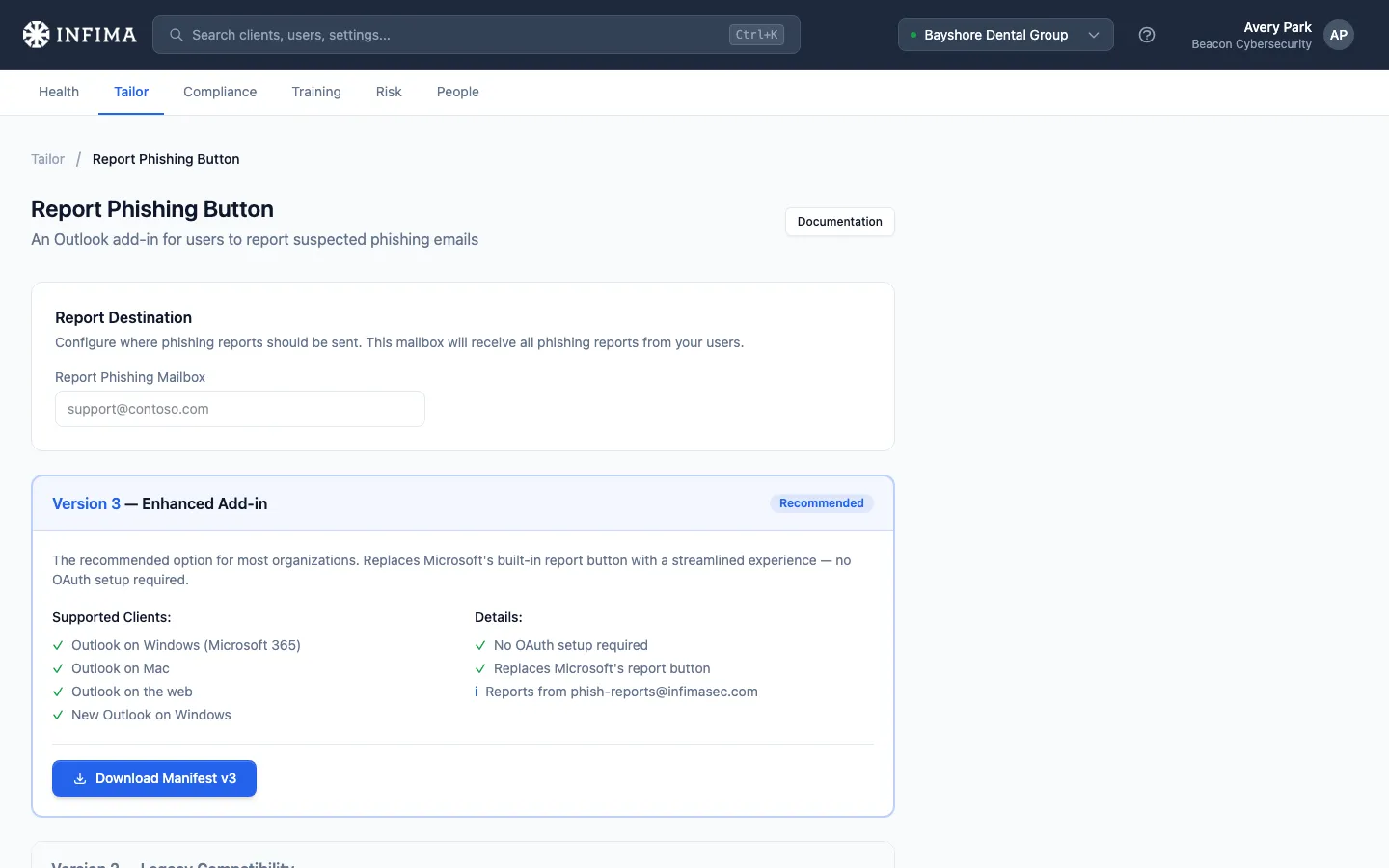
Version 3 — recommended
- No OAuth approval required.
- Replaces Microsoft’s built-in “Report” button with our streamlined experience.
- Reports come from
phish-reports@infimasec.com(unified sender — easier email rules on the destination side). - Subject line format:
3| Phishing Reported by <user email> from <sender>. The reporting user is identified in the body and subject. - Supports modern Outlook clients only: Outlook on the web, New Outlook on Windows, Classic Outlook on Windows (build 17530.15000+), Outlook on Mac (16.81+ Preview). Mobile and older desktop versions come later.
- Comes as two manifests, Standard and With report categories. See Which v3 manifest? below.
Version 2 — legacy compatibility
- Requires a one-time OAuth approval step.
- Reports come from the user’s own email address (the reporting user is the sender).
- Adds support for iOS, Android, older Outlook desktop, and Microsoft 365 consumer accounts.
- Use this only when you have users on platforms v3 doesn’t support yet, or when you specifically need user-email attribution.
Which v3 manifest?
Section titled “Which v3 manifest?”The Tailor page offers two v3 downloads. They are the same add-in with the same add-in ID; the only difference is what the user is asked when they click the button. Pick one per client.
| Standard | With report categories | |
|---|---|---|
| Button label | Report Phishing | Report Message |
| What the user is asked | Confirm the report | Confirm, and pick Phishing, Junk or spam, or Not junk |
| Best for | The simplest experience; every report is a phishing report | Security teams that want to know what was reported, or Defender clients who want submissions filed under the right category |
| What happens to the message | Moved to Deleted Items | Depends on the pick — see Report categories |
Not sure? Start with Standard. Because both manifests share an add-in ID, you can switch a client later with Update on the existing app in Microsoft 365 admin center rather than a fresh install — see Switching between the two v3 manifests.
Walkthrough
Section titled “Walkthrough”Three actions in two places: configure the destination mailbox in our app, upload the manifest in Microsoft 365, and (v2 only) approve the OAuth scopes.
-
Configure the destination mailbox. Open the client → Tailor → Report Phishing Button. Enter the mailbox that should receive reports and save. The mailbox is technically optional but we strongly recommend setting one — without it the customer’s security team has nowhere to see real phishing reports.
-
Download the manifest. Under Version 3, click Download Manifest v3 for the standard experience or Download Manifest v3 with categories if the client wants users to say what they are reporting (see Which v3 manifest?). Choose v2 only if you went legacy. Either way you get an XML file.
-
Upload the manifest in Microsoft 365 admin center.
- Go to
https://admin.microsoft.com→ Settings → Integrated Apps. - Click Upload custom apps.
- Select Upload manifest file (.xml) from device and choose the file you just downloaded.
- Choose the deployment scope. Recommended: Entire organization so every user gets the button.
- Accept the permissions and finish the deployment.
- Wait up to 24 hours for Microsoft to propagate the add-in to users.
- Go to
-
(Version 2 only) Approve the OAuth scopes. Click Configure OAuth on our Tailor page, or visit
https://apps.infimasec.com/rpbdirectly, and complete the consent flow. v2 won’t work until this is done.
What the end user sees
Section titled “What the end user sees”The point of the button is the in-moment feedback the user gets when they click. That’s where the training happens.

Version 3, standard — single Report Phishing button on the Outlook ribbon or message actions, replacing Microsoft’s native report button. Clicking opens a short confirmation dialog with Report and Don’t Report, plus a Don’t show me this message again checkbox on current Outlook clients. A user who ticks it skips the confirmation on later reports and sees a brief generic thank-you from Outlook instead. Result depends on what they reported:
- A phishing test from us — educational feedback confirming the email was a simulated phishing test, with a brief teachable note. The user shows as Reported in our phishing activity — the success state.
- A real suspicious email — the message moves to Deleted Items and the report goes to the security team. There is no second dialog to dismiss; the confirmation the user already gave is the only prompt.
- A trusted email from your organization — a dialog telling the user the email is safe; nothing is moved.
Version 3, with report categories — the button reads Report Message and the confirmation dialog adds one question: What kind of message is this? with Phishing, Junk or spam, and Not junk. Because the dialog now collects an answer, Outlook does not offer the “don’t show again” checkbox for this variant. The outcomes above still apply; what changes per pick is covered in Report categories.
Version 2 — same outcomes, slightly different UX. The user selects Report Phishing from the mail dropdown menu; a panel opens prompting them to confirm; on submission they get the same three feedback variants (simulated campaign, real threat forwarded, trusted email).
The immediate-feedback message is what makes the button a training moment, not just a reporting mechanism. Users learn the difference between simulated and real phishing every time they use it.
Report categories (optional)
Section titled “Report categories (optional)”Some security teams want to know what a user thinks they are reporting, and Microsoft Defender files submissions under a category. For those clients, deploy Manifest v3 with categories from the Tailor page instead of the standard v3 manifest. Everything else about the deployment is identical.
What changes for the user: the ribbon button reads Report Message, and the confirmation dialog asks What kind of message is this? with three choices. What changes for you is where each kind of report ends up:
| User picks | What happens to the message | Where the report goes |
|---|---|---|
| Phishing | Moved to Deleted Items | Report mailbox, our system, and Defender (as phishing) if connected |
| Junk or spam | Moved to the Junk folder | Report mailbox with a 3| Junk Reported by … subject, our system, and Defender (as spam) if connected |
| Not junk | Stays in the inbox | Our system, and Defender (as not junk) if connected. Not forwarded to the report mailbox |
If the user clicks Report without picking anything, the report is treated as phishing.
Reporting one of our phishing tests as Phishing or Junk or spam counts as Reported, the same as with the standard manifest. Marking a test Not junk does not count — the user has judged it legitimate — and the message is left where it is with no feedback.
On Outlook for Mac the three choices may render as checkboxes rather than radio buttons. If a user ticks more than one, the most serious one wins: phishing over junk, junk over not junk.
You’ll know it worked when
Section titled “You’ll know it worked when”- Open Outlook as one of the customer’s users (or have them check). The Report Phishing button appears in the ribbon or message actions. Allow up to 24 hours after deployment for it to propagate.
- A test report from any user lands in the destination mailbox you configured.
- That same report appears in our system associated with the user. For a reported phishing test, the user’s status in Risk → Phishing for that test reads Reported.
Upgrading or removing the add-in
Section titled “Upgrading or removing the add-in”From v1 (legacy): Uninstall v1 in Microsoft 365 admin center, then follow the deployment steps for v2 or v3.
From v2 to v3: Uninstall v2, then deploy v3. Update any email filtering rules on the destination mailbox so they accept reports from phish-reports@infimasec.com rather than individual user addresses.
Switching between the two v3 manifests
Section titled “Switching between the two v3 manifests”The standard and report-categories manifests share one add-in ID, so this is an update, not a reinstall:
- Download the manifest you want from the Tailor page.
- In Microsoft 365 admin center → Settings → Integrated Apps, select the existing Report Phishing app.
- Choose Update (not Upload custom apps) and upload the new file.
Users see the new button and dialog after Outlook picks up the change, which can take up to 24 hours. Uploading the other manifest as a new app instead would give users two report buttons.
Remove entirely: In Microsoft 365 admin center → Settings → Integrated Apps, find the Report Phishing app, click it, then Remove app under the Actions header.
Frequently asked
Section titled “Frequently asked”Do I need to do this for every Microsoft 365 client? Yes — the mailbox configuration and the manifest deployment are both per-client because each customer has their own Microsoft 365 tenant. Once deployed, users see the button on their next Outlook restart (up to 24 hours).
My client is on Google Workspace. What’s the equivalent? Our Gmail add-on, Report Phishing (Google Workspace). It uses the same destination mailbox you configure on the Tailor page and installs from the Google Workspace Marketplace.
A user reported one of our phishing tests. Does that count as “reported”? Yes — that’s the design. Reporting our test is the correct action and the user shows as Reported in the phishing activity. They also get the educational feedback message in the moment, which is the training payoff.
A user reported a real phishing email. What happens next? The report lands in the destination mailbox you configured (your security team investigates), and a copy comes to us so the activity shows in their phishing history. The user gets immediate confirmation the report was forwarded to the security team.
A user reported a legitimate email by mistake. Is that a problem? Not destructive — the report sits in the destination mailbox and the message is in the user’s Deleted Items, where they can recover it. If this happens often, the report categories variant gives users a Not junk choice that leaves the message in place.
Can I turn report categories on from the Tailor page? No. The categories live in the manifest, and Outlook draws the dialog from the manifest before our code runs, so the only way to give a client categories is to deploy the With report categories manifest. Our side accepts reports from either manifest without any configuration.
Should I use v3 or v2? Use v3 unless you have a specific reason not to — older Outlook desktop versions that v3 doesn’t support yet, mobile users (v3 mobile is “coming soon”), or a deliberate need for user-email attribution on reports. Otherwise v3 is simpler (no OAuth) and the better long-term choice.
The reports are all coming from phish-reports@infimasec.com — how do we tell which user reported?
That’s v3 behavior. The reporting user is identified in the report’s body and subject line (3| Phishing Reported by <user email> from <sender>). If your security team specifically needs user-email attribution at the SMTP envelope level, v2 sends reports from the user’s address.
The button isn’t showing up for users. What do I check?
- It can take up to 24 hours after deployment for Microsoft to propagate the add-in to users. If you just uploaded the manifest, wait.
- Confirm the manifest was actually deployed to those users in Microsoft 365 admin center. Manifests can be scoped to specific users or groups — if a user isn’t in scope, they won’t see it.
- For v3, confirm the user’s Outlook client version is in the supported list above. If they’re on classic Outlook on Windows, they need build 17530.15000 or later. Older versions need v2.
- Have them restart Outlook — new add-ins don’t always appear until the client restarts.
How do reports integrate with Microsoft Defender or other security tooling? For Microsoft Defender, use the built-in integration: connect it from the same configuration page and every reported suspicious email is submitted straight to the client’s Defender Submissions page — no mail rules needed. See Microsoft Defender integration. For other tooling (Sentinel, a SOAR, a ticketing system), the destination mailbox remains the integration point — reports follow Microsoft’s standard reporting format, so point the tool at that mailbox.
Related
Section titled “Related”- Microsoft Defender integration — submit reported emails straight to the client’s Defender.
- Report Phishing (Google Workspace) — the Gmail add-on for Google Workspace clients.
- Phishing templates — choose which tests are eligible to send.
- Tailor to your client — RPB is one of the recommended Tailor steps after onboarding.