
Send a phishing test on demand
The automatic phishing rotation handles the day-to-day — randomized tests at the cadence you’ve set. When you need to send a specific test to specific users on a schedule you control, use Send Simulated Phishing. Typical reasons:
- A real phishing attempt got through — send a similar template to the rest of the team as reinforcement.
- A new hire missed the most recent rotation — send them a make-up.
- A specific user has been failing tests — send a targeted template you want them to see.
- Testing the deployment — confirm the Report Phishing button + landing pages work end-to-end before users do.
This is one-off, in addition to the automatic rotation. The automatic schedule keeps running for the users you target.
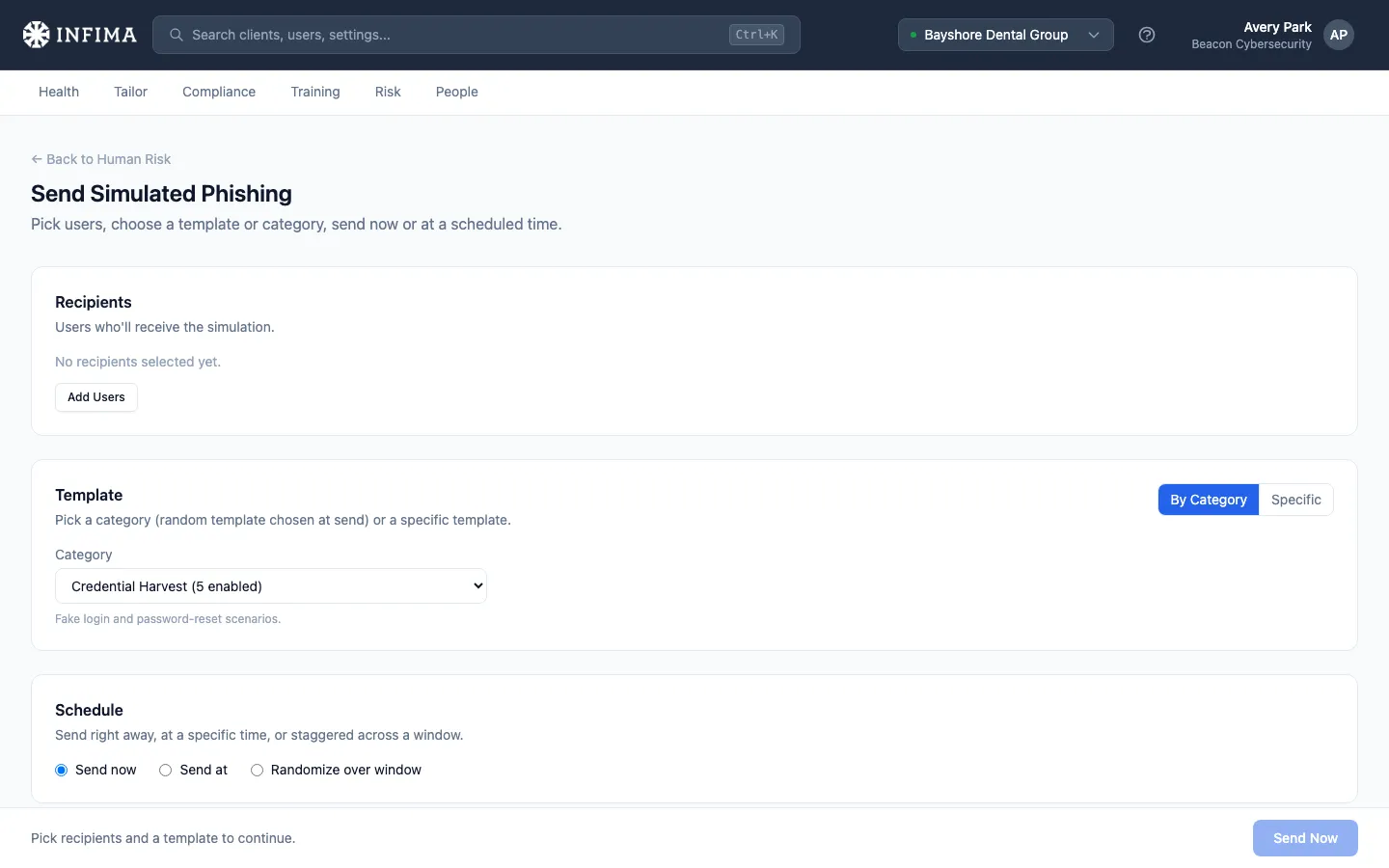
You’ll need
Section titled “You’ll need”- Whose inbox should get the test — one user or several.
- What you’re sending — either a category (we pick a random template from it at send time) or a specific template.
- When you want it to land — now, at a specific time, or randomized within a window.
Walkthrough
Section titled “Walkthrough”Open the client → Risk → Phishing → Send Phishing (or navigate directly to the Send page). The form is three sections, top to bottom.
-
Pick recipients. Click + Add User, search by name or email, click users to add them. Repeat for everyone you want included. Remove with the × on a chip.
-
Pick a template — two modes.
- Category (default). Pick a category. We choose a random template from the ones enabled for this client at send time. Useful when you want “any credential-capture test, surprise me.”
- Specific. Search the enabled templates by subject, sender name, or sender email. Pick the one you want. Useful when you have a specific template in mind.
Only templates that are currently enabled for the client appear (the same set the automatic rotation draws from — see Phishing templates).
-
Pick a schedule.
- Now — sends immediately.
- At a specific time — pick a date and time.
- Randomize within a window — pick a start and end; we’ll choose a random send time inside that range for each recipient. This is the realistic option for groups, so users don’t all receive the test at the same minute.
-
Send. A summary line at the bottom shows what you’re about to do (e.g., “Send a random template from Credential Capture to 8 users randomized between 09:00 and 17:00”). Click Send. We tell you how many got queued and whether any were skipped (inactive users, recent sends, etc.).
You’ll know it worked when
Section titled “You’ll know it worked when”- The send confirmation shows the queued count matching the requested count (or close to it; skipped users get a reason).
- Within a few minutes (for Now) or at the scheduled time (for At / Randomize), the test starts landing in users’ inboxes.
- The test appears in Risk → Phishing with status Sent for each recipient, transitioning as users interact with it. See Read phishing activity for the status walkthrough.
Frequently asked
Section titled “Frequently asked”Does this change the automatic rotation for those users? No. The on-demand send is independent. Users continue to receive automatic tests at the cadence you’ve set in Tailor.
A user shows up as “skipped” — why? The most common reason is recent activity for that user — we don’t pile on phishing tests if the user just received one. Deactivated users are also skipped (they shouldn’t be in your phishing rotation at all). The skip reason is shown so you can decide whether to retry later.
Can I send a template that’s currently disabled for this client? Not from this page — the picker only shows templates currently eligible for the client’s rotation. To send a disabled template, enable it first on Tailor → Phishing → Open template library, send the on-demand test, then disable again if you don’t want it in the regular rotation.
Can I see what I sent later? Yes. Risk → Phishing shows the full activity log, including on-demand sends alongside the automatic ones. See Read phishing activity.
Does on-demand respect the simulation frequency setting? No — that’s the point. Simulation frequency governs the automatic rotation. The on-demand send always fires (subject to the skip rules above).
Can I cancel a scheduled send before it goes out? Not directly from the UI today. If you need to cancel before send time, contact our support team with the schedule details.
Related
Section titled “Related”- Phishing templates — choose which tests are eligible for the client’s automatic rotation.
- Read phishing activity — what to look at after a test has been sent.
- Report Phishing button — the user-side action that resolves a test to “Reported.”