
Control how training is scheduled
If you opened the Planner and saw courses you didn’t explicitly pick, that’s adaptive scheduling at work. Here’s how it lines up, where you steer it, and how to make day-to-day adjustments when a specific user, course, or date needs hands-on attention.
The model has four inputs:
- Cadence — how often training is scheduled.
- Frameworks — which courses are required.
- Topic priorities — which categories fill the remaining slots, in what order.
- Audience — which group of users this all applies to.
Cadence and topic priorities live on Training → Setup. Frameworks live on Training → Frameworks (see Assign a compliance framework). Audience picking lives on the audience picker at the top of each Training page (see Set up audiences).
The Setup page
Section titled “The Setup page”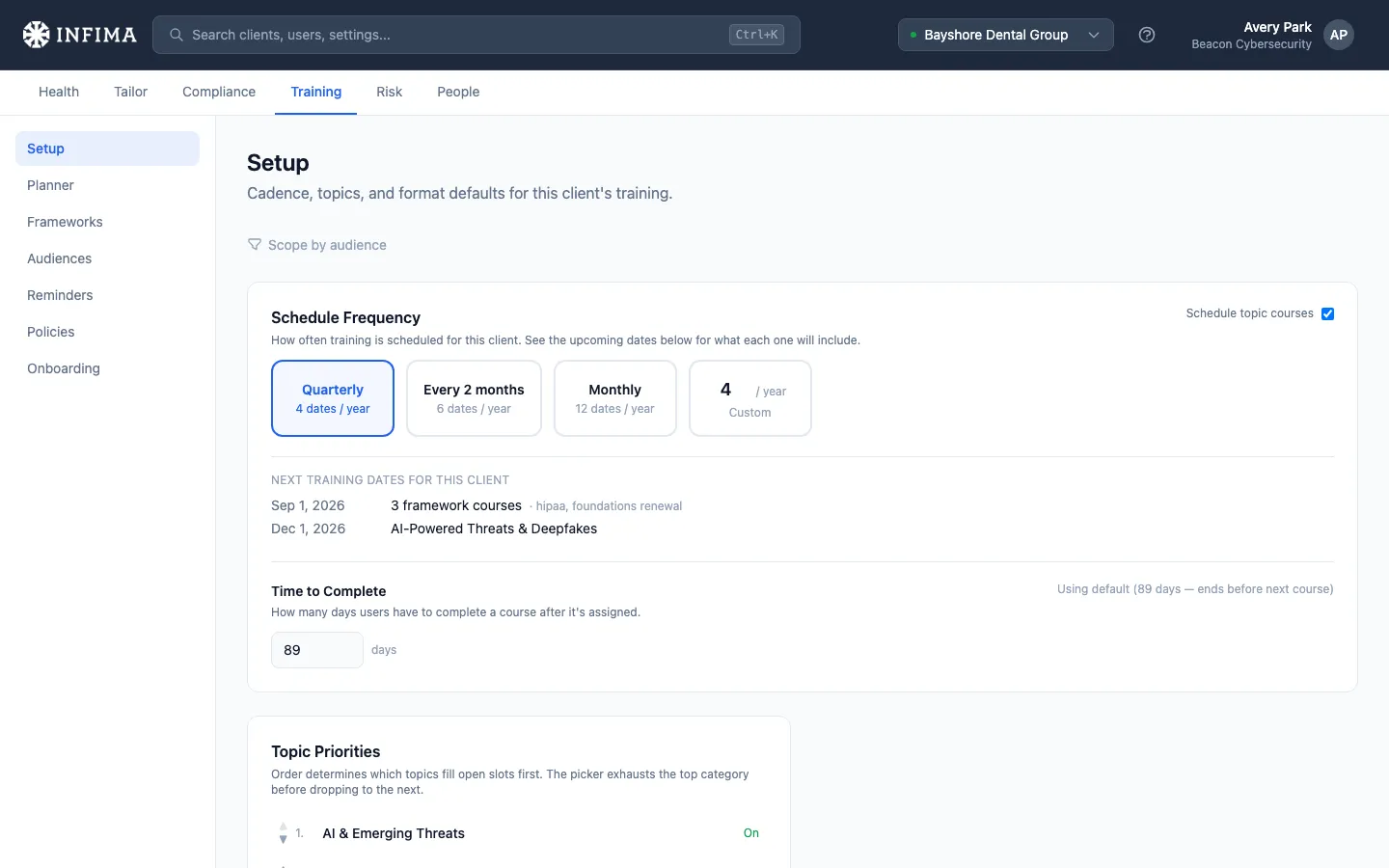
Schedule frequency
Section titled “Schedule frequency”How often a training date lands. Quarterly (4 dates/year), Every 2 months (6/year), Monthly (12/year), or a custom number from 1–12. On each scheduled date, any framework courses that are due land first; adaptive scheduling fills any remaining slots from your topic priorities.
The Next training dates preview right below the chips shows you the actual calendar this produces — a useful sanity check before saving.
Schedule topic courses (the adaptive toggle)
Section titled “Schedule topic courses (the adaptive toggle)”The toggle in the top-right of the Schedule Frequency card. When on (the default), adaptive scheduling fills cadence slots that aren’t claimed by a framework. When off, only your framework courses and manually-added courses get scheduled — your topic priorities are ignored, and dates with no framework due stay empty.
Turn it off when a client only wants framework-driven training (audit-heavy environments, clients that hand-pick everything themselves). Leave it on for everyone else — it’s the engine that gives users a steady flow of relevant courses between framework requirements.
Topic Priorities
Section titled “Topic Priorities”Categories grouped from our master catalog: phishing, password hygiene, social engineering, and so on, plus Spanish-language and Video-format which ship off-by-default and turn on when a client wants those variants.
The order matters. Categories are filled in order — one course per category, then we loop back to the top. Reorder by clicking the up/down arrows on each row; toggle a category off if you don’t want it scheduled at all.
The defaults are the system master order — if you don’t override anything, that’s what’s used.
Time to Complete
Section titled “Time to Complete”How many days users have to complete a course after it’s assigned. Defaults to a cadence-aware value (a window that lands before the next training date), but you can override it explicitly here. Framework-required courses have their own grace setting on the Frameworks page — independent of this general value.
Per-audience overrides
Section titled “Per-audience overrides”The audience picker at the top of Setup is how you give one group different settings than the tenant default. Switch to a collection or container, change a setting, save — that audience now has its own override. A Reset to inherit from tenant link appears next to each overridden setting so you can undo cleanly.
The Planner
Section titled “The Planner”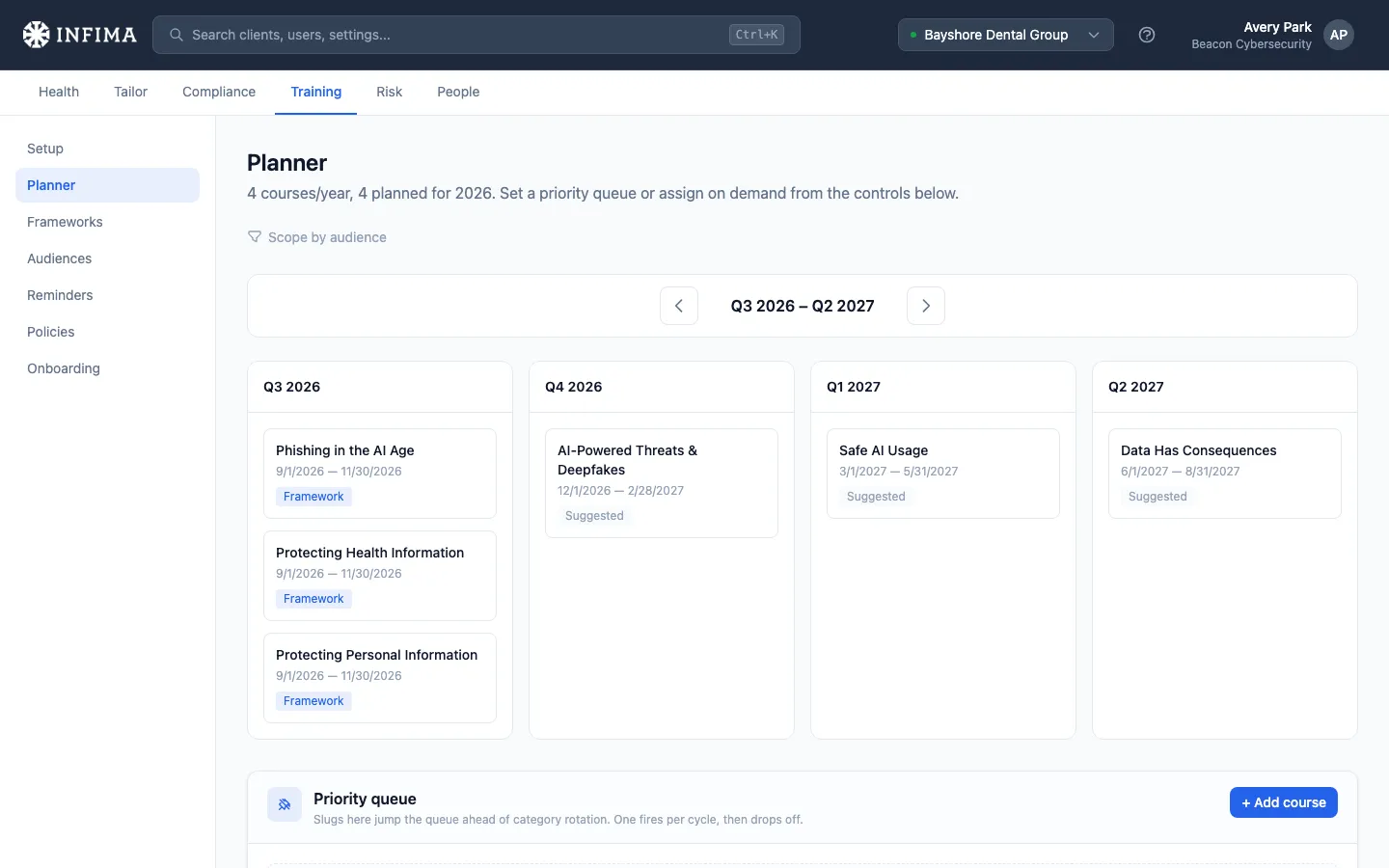
The Planner is the calendar view: a rolling 4-quarter grid of what’s already scheduled and what’s coming up next. Navigate forward and backward in time with the quarter buttons.
Each course card on the grid shows:
- Title of the course.
- Start and due dates if set.
- A source pill telling you why the course is there:
- Adaptive — picked from your topic priorities.
- Framework ·
<framework_id>— required by an assigned framework. - Injected — manually added (see Injecting a specific course below).
- Pinned 📌 — picked from the priority queue you set further down the page.
- From
<scope>— inherited from a broader audience.
- A completion pill for locked rows, telling you how the cohort is doing (Started / Completed / Overdue).
- Locked label on the right side if this row has a real schedule entry. Suggested-future rows that are going to be scheduled don’t have one yet — they show as plain text rather than as a link.
Click a course to drill in
Section titled “Click a course to drill in”Locked rows are clickable. That opens the course detail page for the specific scheduled slice you clicked — meaning the user list and stats show only the people assigned through that schedule row, not every user who’s ever taken this course at this client.
Priority queue (steering what’s next)
Section titled “Priority queue (steering what’s next)”Under the planner grid, the priority queue lets you pin specific courses to come up next in the adaptive rotation. It’s how you say “schedule this course soon” without overriding the whole topic order. Pinned courses show with the 📌 Pinned pill on the planner.
Course detail
Section titled “Course detail”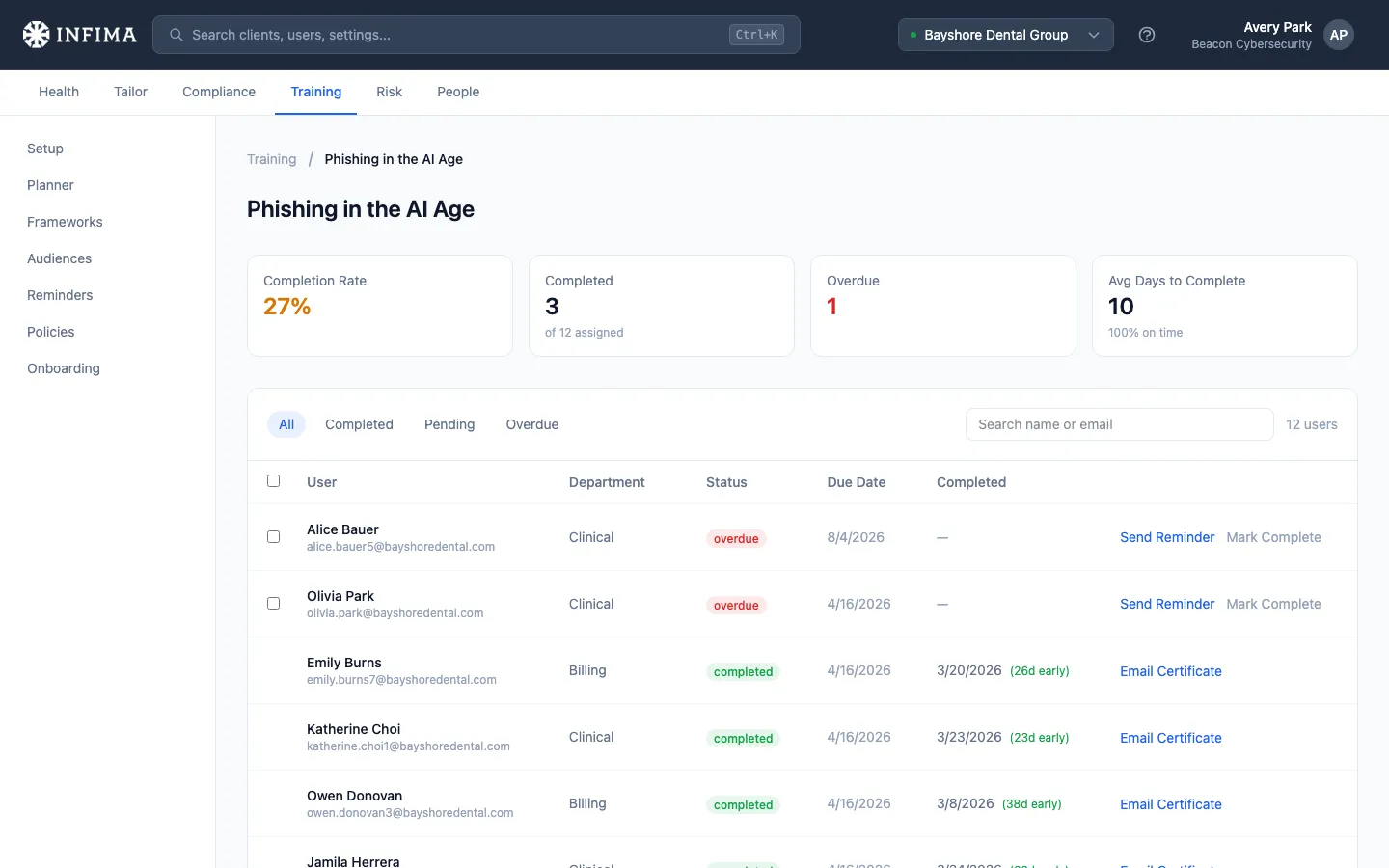
This page shows the course itself plus the list of users assigned through the schedule row you clicked. The actions here are how you handle the small-scale exceptions a generated schedule throws at you.
Edit the schedule (dates and priority)
Section titled “Edit the schedule (dates and priority)”The Edit assignment panel lets you adjust a scheduled row. What you can change depends on where the course is in its lifecycle:
- Past (the due date has already gone by) — you can still change the due date to give people more time or fix a wrong date. The start date is locked.
- In flight (started, not yet due) — the due date is editable; the start date is locked.
- Future (not yet started) — both the start and due dates are editable, and you can swap the course for a different one.
For a manually injected course, you can also change its priority here — Normal, High, or Urgent. See Set course priority for what each level does. Framework courses follow the same date rules, but the course itself can’t be swapped and its priority is fixed — the framework requirement is what it is.
Archive a scheduled course
Section titled “Archive a scheduled course”Need a course off the schedule entirely — not rescheduled, not swapped, gone? The Archive button on the assignment panel removes it: every in-scope user who hasn’t completed the course loses it from their queue, while users who already finished keep their completion record. Any assignment can be archived, including past ones.
Two boundaries to know:
- Framework courses can’t be archived here. They exist because a compliance framework requires them — removing one would silently break the framework’s evaluation. Remove the framework on Training → Frameworks instead; that flow lets you choose keep-vs-archive for each of its courses.
- Archiving is permanent. There’s no un-archive — if you need the course delivered again later, schedule it fresh with Inject a specific course.
Send a reminder
Section titled “Send a reminder”A user hasn’t taken the course yet and the date is approaching? Send reminder on their row. We send our standard reminder email immediately. Bulk action: tick multiple users with the checkboxes, then Send reminders to N users.
Generate a certificate
Section titled “Generate a certificate”For users who completed the course, the Send certificate action emails them a PDF certificate of completion stamped with the date they finished.
Mark complete (admin override)
Section titled “Mark complete (admin override)”When you know a user completed the training but our system didn’t capture it — they finished on a different account, the status was lost, training was completed out-of-band — use Mark Complete on the user’s row. Pick the completion date and we record it. The user counts as completed from that point on.
Injecting a specific course
Section titled “Injecting a specific course”The regular curriculum (adaptive + framework) covers the long-term pattern. Injection is how you schedule a specific course on a specific date for a specific group — outside that pattern. Use it when:
- A client asks for a one-off course you don’t want to permanently change their topic priorities for.
- A user needs a make-up course they missed.
- A specific event (a new tool rollout, a recent incident) calls for targeted training.
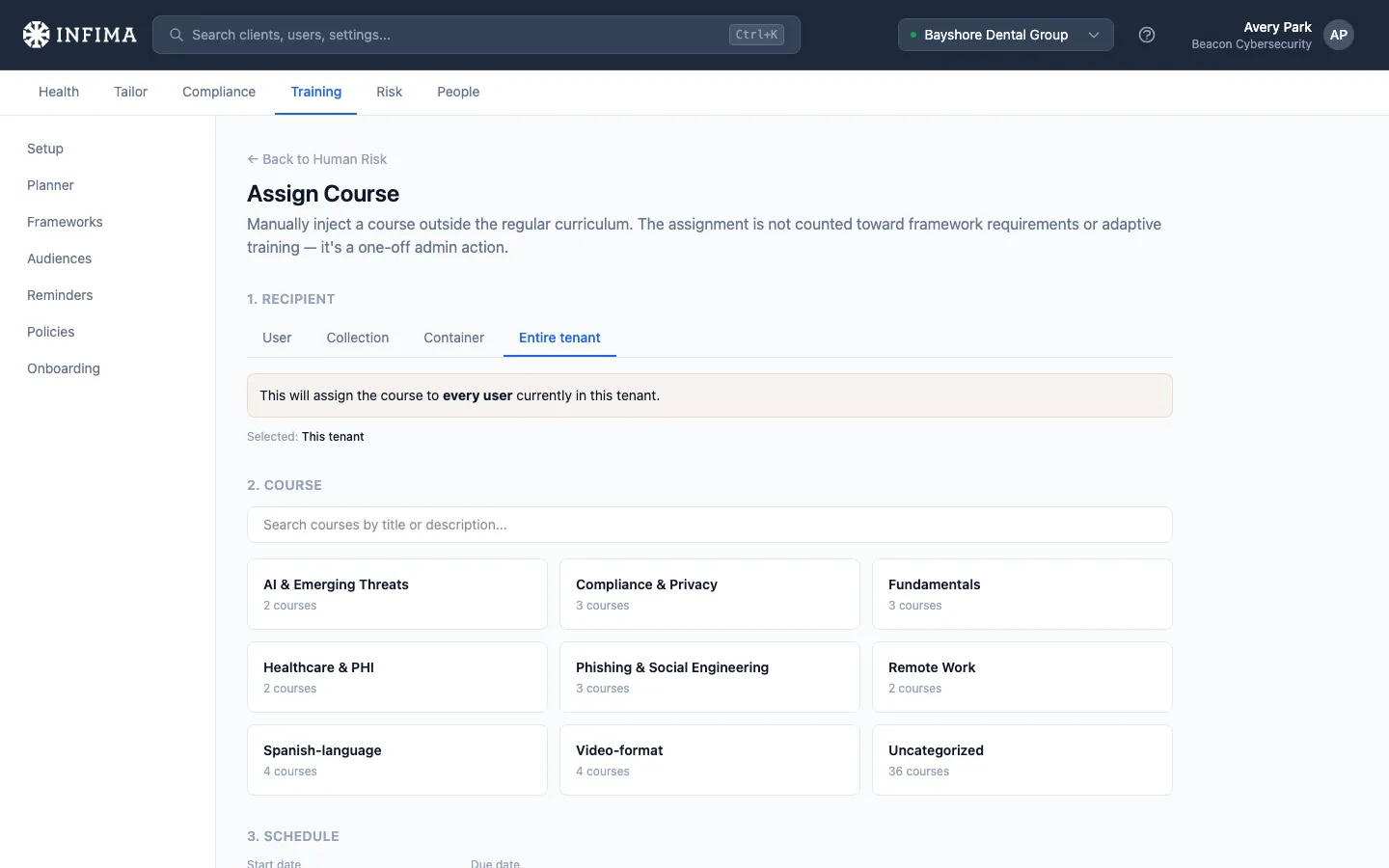
Two entry points:
- From the Planner. “Need to schedule a specific course on a specific date? Assign a course on demand →” link below the grid. Lands you on the Assign Course page with the current audience pre-selected.
- From a user. The Risk → User page has a shortcut that pre-fills the user as the recipient.
Four scopes
Section titled “Four scopes”Pick the scope tab at the top of Assign Course:
- User — one person.
- Container — a sync-derived group.
- Collection — an admin-managed group.
- Tenant — every user at the client.
Then pick the course, set start and due dates, choose a priority (Normal, High, or Urgent — see Set course priority), and submit.
What it does — and what it doesn’t
Section titled “What it does — and what it doesn’t”We insert a single course assignment for the scope you chose. Injected courses do not count against adaptive cadence or framework requirements — they’re additive, not substitutions. They show up on the Planner with the Injected pill and stay there until they’re completed (or the schedule row is removed).
There’s no automatic renewal. An injection is a one-time scheduling, not a recurring requirement. If you want the course on the rotation forever, add it through a framework or topic priority instead.
Inspecting what a specific user will take
Section titled “Inspecting what a specific user will take”When a user asks “why am I getting this course?” the Planner’s audience picker has a user option for read-only inspection. Switch the picker to that user and you’ll see their effective schedule: framework requirements, adaptive picks from their audience, manual injections targeted at them. Each row’s source pill answers the why.
The user view is read-only — you can’t edit a user’s schedule directly from this scope. To make changes, switch the audience picker to the broader scope (their collection, container, or the tenant) and steer from there, or use injection if the change is one-off.
The Planner across audiences
Section titled “The Planner across audiences”For clients who use multiple audiences, the Planner switches its whole view based on what the audience picker is set to:
- All users (tenant default) — what every user gets unless their audience overrides something.
- A collection or container — what users in that group get, including anything inherited from the tenant (“From
<tenant>” pill) plus the group’s own assignments. - A specific user — that user’s effective schedule, read-only.
This is how you verify a CMMC-style role split looks right: switch to the role audience, confirm you see both the inherited core courses and the role-specific course; then switch to a user outside the role and confirm they see only the core.
Frequently asked
Section titled “Frequently asked”Why did adaptive scheduling pick a course my client doesn’t need? Check Topic Priorities on Setup — the category that course belongs to is probably enabled and high in the order. Toggle the category off (or move it down) and it’ll be skipped going forward. Already-scheduled courses stay until they’re completed or you cancel them.
Can I prevent a specific course from being scheduled? The priority queue (under the Planner grid) is the right tool — it pins what comes up next so you have positive control over the rotation. There’s no per-course “never schedule this” toggle today; if you don’t want a course at all, deselecting it from a framework’s Courses list (if it’s there) or turning off its category in Topic Priorities are the two levers.
A user completed a course but their status shows as not completed. What now? Mark Complete on their row in the course detail page. Pick the date they actually finished. We treat it as an admin override and the row counts toward compliance from then on.
What happens to in-flight assignments when I change cadence? Already-scheduled courses keep their original dates. New cadence applies to courses scheduled going forward.
The Planner shows a course as “Suggested” — what does that mean? The schedule is going to fill this future slot, but the entry hasn’t been locked in yet. Suggested rows are read-only previews. Once the entry locks, the course becomes editable.
Why is the audience picker missing on a fresh client? By design — until a client has a collection, an audience-scoped override, or a per-user injection, every user is at the tenant default and there’s nothing to switch between. The picker appears as soon as you create something at a narrower scope.
Related
Section titled “Related”- Pick a framework — Get Started step for adding compliance frameworks.
- Assign a compliance framework — full walkthrough of framework controls.
- Set up audiences — different training for different users.
- Set course priority — steer which course a user tackles first when several are outstanding.
- Welcome email and onboarding — first-impressions configuration for new users.