
Client admins
A client’s IT lead, security manager, or vCIO often wants visibility into their own training and phishing results — without seeing your other customers’ data. Client admins give them exactly that: an account scoped to one specific client.
This is different from your own team’s accounts. For the partner-level admins who see every client, see Manage your admin team.
Where this lives
Section titled “Where this lives”Open the client → People → Admins. Everything on this article happens here.
You have two ways to add admins:
- Invite by email — works for any email address. We send the recipient a sign-up link they accept to activate the account.
- Add from your SSO directory — works once you’ve connected Microsoft 365 or Google Workspace SSO for the client. The admin signs in with their existing identity-provider account; no code-entry step on their end.
SSO is the recommended path for clients whose IT team is already on Microsoft 365 or Google Workspace. Once it’s connected, you can also enforce SSO so admins are required to use it (no email/password fallback).
Invite by email
Section titled “Invite by email”Use this when the recipient doesn’t have an account in your connected SSO directory, or you haven’t connected SSO yet.
-
Click Invite Admin.
-
Enter the recipient’s email address.
-
Pick a role:
- Administrator — full access to this client’s settings, training, phishing, and reports.
- User — read-oriented access; can see the client’s data but can’t manage admins, integrations, or take destructive actions.
-
Click Send Invite. They receive a branded email titled “You’ve been invited to the client’s name” with an Accept invitation button.
-
They click the button, sign in (or sign up), and the invite is consumed — they appear in the Client Admins list.
The invite stays in the Pending Invites section until accepted. If you sent it to the wrong address or the recipient changed jobs before accepting, click Revoke on the row.
Connect SSO
Section titled “Connect SSO”Connect your client’s Microsoft 365 or Google Workspace once, then provision admins directly from their directory.
-
From the Admins tab, click Connect Microsoft SSO or Connect Google SSO.
-
A consent popup opens on the identity provider’s site. Sign in with an admin account on the client’s tenant and approve the requested permissions.
-
The popup closes and the SSO banner switches to SSO Connected, showing which provider is connected and the directory tenant name.
If the popup is blocked or the admin cancels, click the button again — each attempt is independent.
Add from directory
Section titled “Add from directory”After SSO is connected, the Add Admin button opens a searchable list of every user in the client’s directory.
-
Click Add Admin.
-
Search by name or email. Users who already have admin access here are filtered out so you only see candidates.
-
Click Add on the row of the person you want to provision. They’re added as an Administrator by default.
-
A prompt appears: “Send a welcome email?” Choose:
- Send welcome — we send a code-less email telling them they’ve been added and pointing them at
dashboard.infimasec.com. They sign in with their existing Microsoft / Google account; no further steps. - Skip — they have access immediately but you’ll need to tell them another way (Slack message, calendar invite, etc.).
- Send welcome — we send a code-less email telling them they’ve been added and pointing them at
The new admin signs in once with their Microsoft or Google account and lands directly on the client’s dashboard — no code-entry step, no separate password to remember.
If the directory list fails to load
Section titled “If the directory list fails to load”The most common cause is a stale SSO grant — the consent expired or was revoked on the client’s side. The page shows a Reauthenticate button (labelled with the connected provider) right next to the error. Click it, run through the consent popup again, and the directory reloads with fresh credentials.
What the emails look like
Section titled “What the emails look like”The two paths send different emails — worth knowing the difference so you can preview what your client’s IT lead will see.
Email invite
Section titled “Email invite”Sent when you add an admin via Invite Admin. Carries an invitation code the recipient clicks to accept.
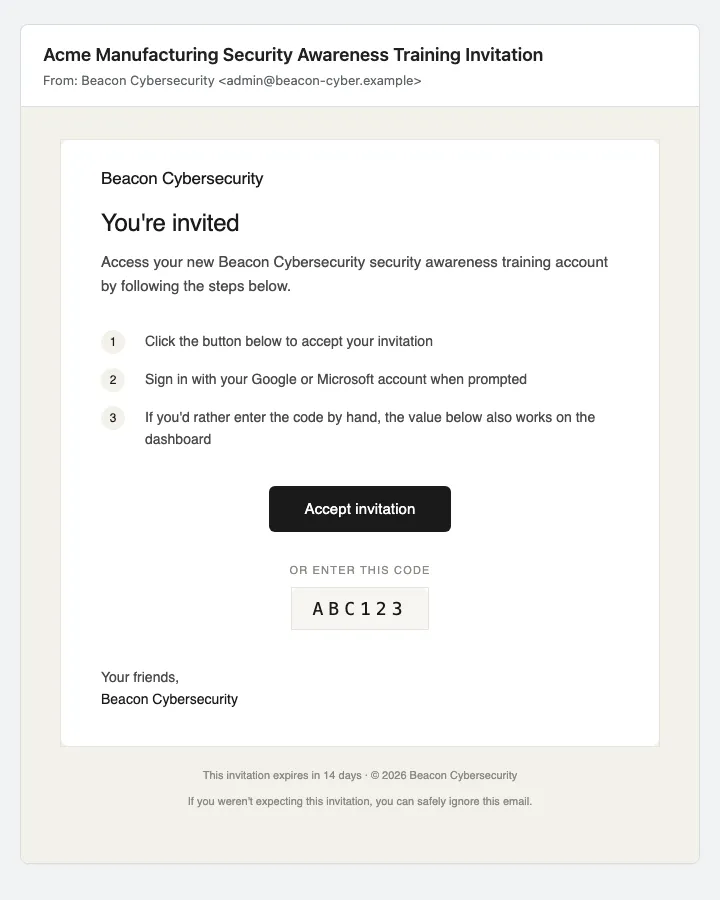
The subject is partner-branded — “<Your Partner Name> Security Awareness Training Invitation”. The body explains it’s an admin account, the recipient signs in (with Google / Microsoft SSO or by entering the code), and they land on the dashboard. The code is also rendered in the body as a fallback in case the click-through link doesn’t work in their mail client.
SSO welcome (no code)
Section titled “SSO welcome (no code)”Sent when you add an admin via Add from Directory and pick Send welcome at the prompt.
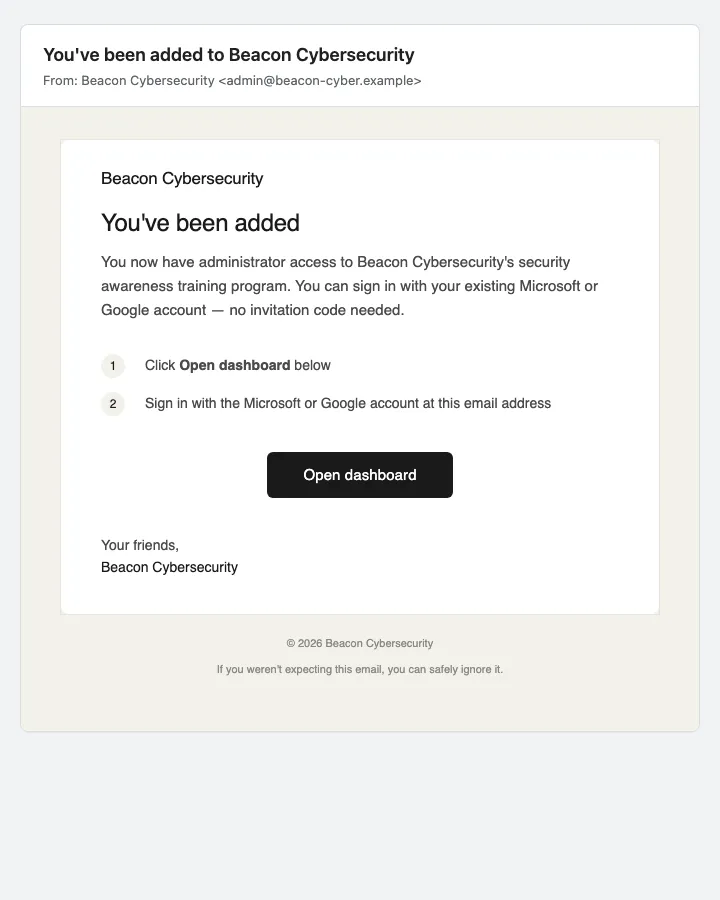
The subject is “You’ve been added to <Your Partner Name>”. The body tells the recipient they’ve been added as an admin, points them at dashboard.infimasec.com, and explains they can sign in with their existing Microsoft or Google account — no invitation code needed. There’s nothing for them to type or paste.
Enforce SSO
Section titled “Enforce SSO”Once SSO is connected, you have a second toggle in the banner: enforcement.
- Not enforced (default after first connect) — admins can sign in with SSO or email/password. Existing email-invited admins keep working as before.
- Enforced — sign-in is restricted to SSO only. Email/password no longer works for any admin on this client.
To enable enforcement, click Enable enforcement in the banner — it fires immediately, no confirmation. To disable it, click Disable enforcement; you’ll get a confirmation prompt explaining what changes (sign-in restriction widens, existing admin access stays the same). Enforcement is reversible at any time.
Edit a role or remove access
Section titled “Edit a role or remove access”On any admin’s row in the Client Admins list:
- Edit — open the role picker, choose Administrator or View Only, the change saves immediately.
- Remove — open a confirmation, then revoke the admin’s access to this client. Their historical activity stays in audit records; only future access is revoked.
Removing the last Administrator from a client doesn’t lock you out — your partner-level admins still have access through the partner-side admin team.
You’ll know it worked when
Section titled “You’ll know it worked when”- Invite path — the recipient appears in Client Admins with the role you picked. The corresponding row in Pending Invites disappears.
- SSO provision path — the new admin appears in Client Admins immediately. If you sent the welcome email, they receive the “You’ve been added to the client’s name” message within a couple of minutes.
- Enforcement — the banner subtitle reads “Enforcement enabled — admins must sign in with SSO” and the button label flips to Disable enforcement.
Frequently asked
Section titled “Frequently asked”What’s the difference between a client admin and one of my partner-level admins? Partner-level admins (managed at Settings → Admins) see every client you onboard. Client admins (managed here) see only the one client whose People page they were added on. Same dashboard URL, different scope.
Can a client admin add other client admins? Administrators on a client can manage that client’s admin list, including adding and removing other admins for the same client. Users cannot.
The admin I added isn’t seeing this client’s data. Three things to check, in order: (1) they’re signed in with the email you added — not a similar one on a different account; (2) they’re an Administrator, not a View Only admin, if they need to make changes — View Only admins can’t change anything; (3) the SSO grant is still valid — if directory operations are failing, reauthenticate from this page.
Can I scope an admin to a subset of clients — not all, not just one? Yes, for your own team. Add them under Settings → Admins with Scoped access and pick the clients they should see (or the ones to exclude). That’s the path when someone on your team should cover several specific clients but not the rest. See Manage your admin team. The per-client flow on this page is for giving a single client’s own IT lead access to just their account.
I enabled SSO enforcement and now an admin who used email/password can’t sign in. That’s the design — enforcement blocks email/password. Either disable enforcement, or add the admin again from your SSO directory so they have an SSO identity bound to their account. They’ll sign in with Microsoft / Google going forward.
I sent an invite to the wrong email. Did they get a code that still works? The pending invite is single-use and tied to that email address. Revoke it from the Pending Invites section; the code is invalidated immediately and you can re-invite the correct address.
Can I see what a client admin has done in the dashboard? Audit logging isn’t surfaced in the UI today. If you need an activity export for a specific admin, contact our support team.
Related
Section titled “Related”- Manage your admin team — partner-level admin management (your own team, not the client’s).
- Sync users — the other tab on this same People page; covers the end users who take training, not the admins.
- Partner-level settings — where your partner-side defaults live.