
Send training reminders and check they went out
A client calls: “my staff say they never got the training email.” Or compliance season is closing and you want one more push to the stragglers without waiting for the next scheduled send. The Reminders page — open the client, then Training → Reminders — is where you handle both: see exactly who’s due for a reminder, when reminders last went out and when the next ones will, send on demand, and confirm after the fact that every send completed.
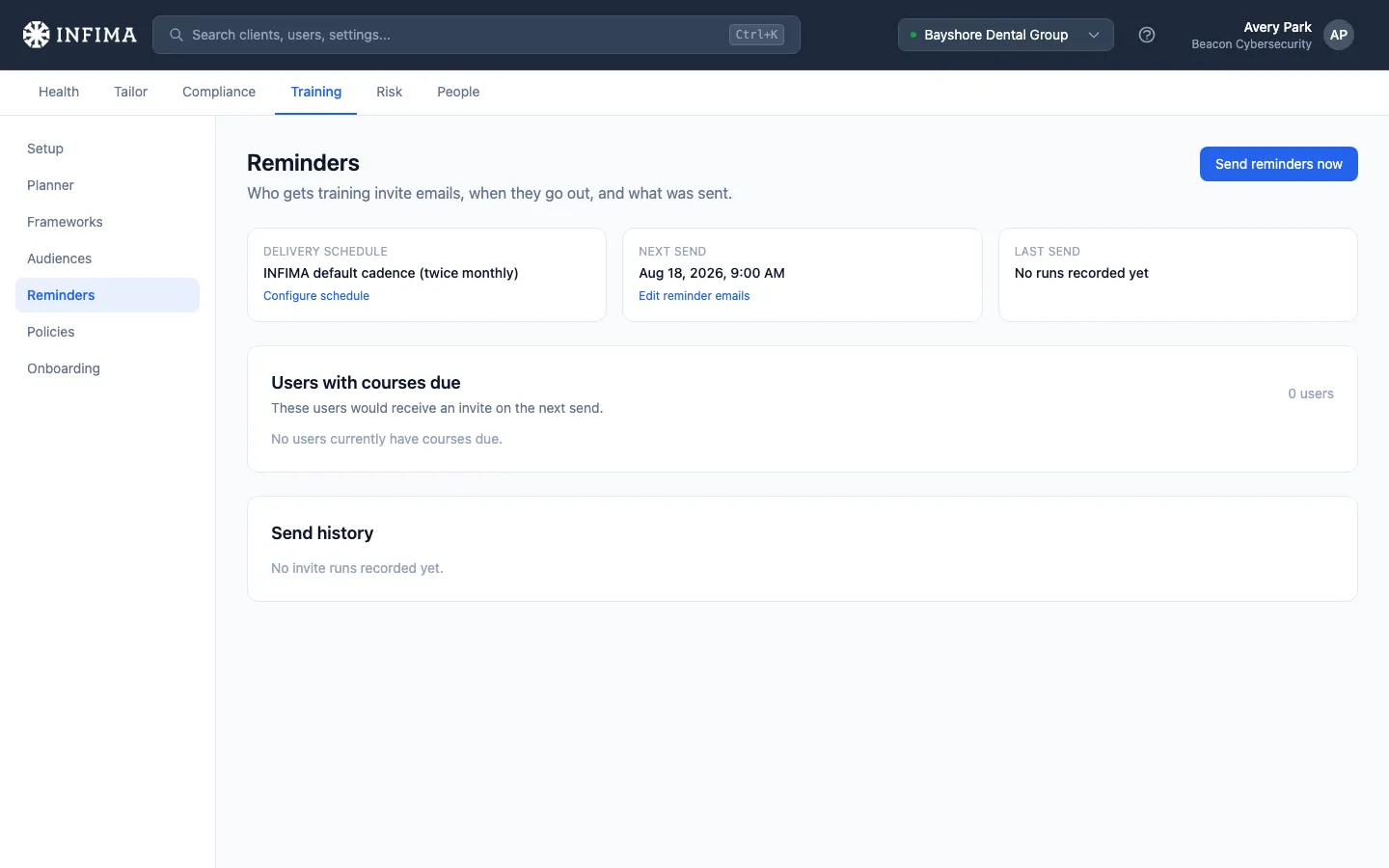
What you’re looking at
Section titled “What you’re looking at”Three cards across the top:
- Delivery schedule — which schedule governs this client (your partner-wide schedule, a custom one for this client, or our standard twice-monthly cadence), with a link to change it.
- Next send — the date and time of the next automatic send.
- Last send — when reminders last went out and how many were sent.
Below that, Users with courses due lists everyone who would receive an email on the next send — their next course, how many courses are due and overdue, and when we last sent them a reminder. The Send history table at the bottom records every send.
Send reminders to everyone who’s due
Section titled “Send reminders to everyone who’s due”-
Click Send reminders now in the top corner.
-
The confirmation tells you how many users will receive an email. If reminders already went out in the last few days, the dialog warns you in red — those users will get a second email if you proceed.
-
Confirm. The send is queued; within a couple of minutes it appears at the top of Send history with the Manual trigger source.
Send a reminder to one user
Section titled “Send a reminder to one user”In the Users with courses due table, click Send reminder on the user’s row. The confirmation shows when that user last received a reminder so you can judge whether another one helps or just annoys. The email invites them to their next due course.
Verify reminders went out
Section titled “Verify reminders went out”Each row in Send history is one send for this client:
- Source — what triggered it: Platform default (standard cadence), Custom schedule, or Manual trigger.
- Groups — progress through the client’s user groups, shown as completed/total.
- Users due / Invites sent — how many users had outstanding training, and how many emails we queued. These two should match.
- Status — Completed when every group was processed; In progress while a send is still working; Completed with errors or Errors when something needs attention (hover the status for the error detail).
To confirm a specific user got their email, click the date in the Last reminder column — it opens that user’s sent email log, where you can see the message, which folder it landed in, and open the full detail.
You’ll know it worked when
Section titled “You’ll know it worked when”- A new row appears in Send history with the right source and today’s date.
- The row reaches Completed and Invites sent matches Users due.
- Clicking a user’s Last reminder date shows the email in their sent email log.
Frequently asked
Section titled “Frequently asked”A user I expected isn’t in the “Users with courses due” list. Why? The list shows users with a course currently due or overdue, in groups that have training enabled. A user with no outstanding training — or in a group where training is switched off — won’t appear, and wouldn’t receive a reminder either.
A send has been “In progress” for hours. Is something wrong? Sends to large clients go out in waves rather than all at once, so an hour or two is normal. If a run still isn’t Completed by the next day, contact our support team — the row tells us exactly where it stopped.
Will “Send reminders now” double up with the schedule? A manual send counts as a send: automatic sends for this client pause for the next few days afterward so users don’t get back-to-back emails. The first scheduled occurrence after that window runs normally.
Does sending a single user a reminder affect anything else? No — it emails that one user about their next due course and shows up in their sent email log. The client’s schedule and pending sends are untouched.
Who exactly receives a “Send reminders now” email? Every user in the list — anyone with a course due or overdue at that moment. Users who already completed their training never get one.
Related
Section titled “Related”- Control when training reminders go out — set the automatic cadence these manual sends supplement.
- Training reminders — customize the email content itself.