
Custom reports
The standard monthly report bundle covers most clients (see Scheduled reports). For everything else — a quarterly board recap, a single-course progress report, a real-time alert when someone clicks a phishing test — use Custom reports.
Three types of custom schedule
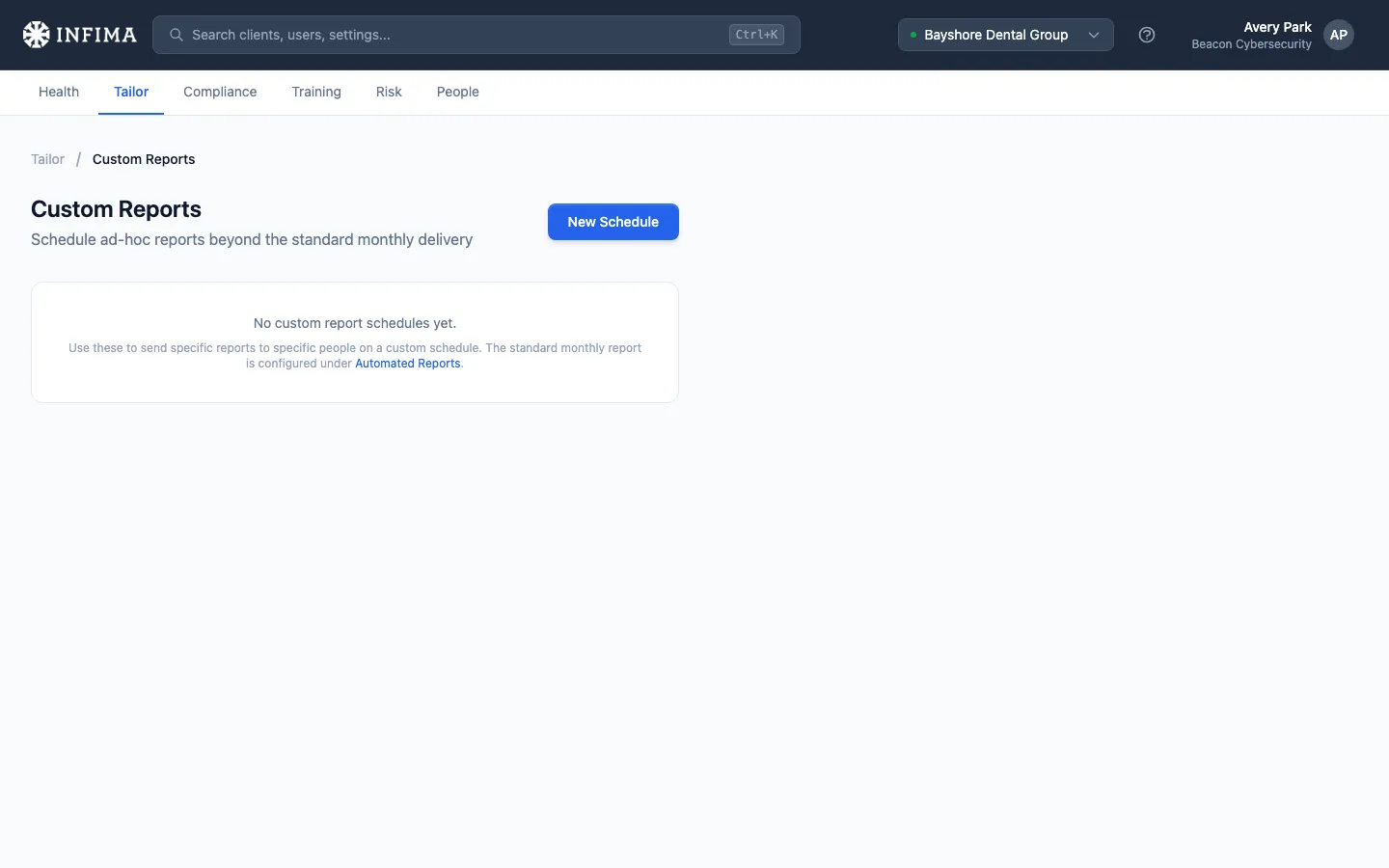
Section titled “Three types of custom schedule”Open the client → Tailor → Custom Reports. Click New Schedule to start one. The first decision is what kind of schedule.
- Multi-report bundle. Same nine report types as the monthly bundle, but on your chosen cadence (quarterly board summary, weekly phishing snapshot to a specific stakeholder, etc.) and to your chosen recipients. Independent of the monthly delivery.
- Single course report. A progress report for one specific course at the client. Useful when a department needs to confirm completion on a specific compliance course before an audit deadline.
- Phish click alert. Real-time, not scheduled — fires the first time any user at the client clicks a simulated phishing test. The recipients get an email immediately. Useful for security teams who want to act on a click before training ramps up.
Walkthrough — bundle or single course
Section titled “Walkthrough — bundle or single course”-
Click New Schedule and pick the type (multi-report bundle or single course).
-
Name it — defaults to something generic; rename for clarity if you’ll have multiple (e.g., Quarterly Board Recap, HIPAA Course Compliance).
-
Pick a schedule with the picker. Weekly, monthly, quarterly, whatever fits. The next-run time updates as you adjust.
-
(Multi-report) Pick the report types that should go in the bundle. (Single course) Pick the course from the dropdown.
-
Add recipients — the email addresses that should receive the report.
-
(Optional) Custom sender — by default we send as the client’s branding. Override the From name / From email if the customer wants reports to look like they’re from their internal team.
-
Save. The schedule appears in the list on the Custom Reports page.
Walkthrough — phish click alert
Section titled “Walkthrough — phish click alert”-
Click New Schedule and pick Phish click alert.
-
Add recipients — the security team or stakeholders who should know about clicks immediately.
-
Save. The alert is now armed. The next time anyone at this client clicks a simulated phishing email, the recipients get an email.
There’s no schedule for phish click alerts because they’re event-driven. They fire on the click itself.
What the alert email looks like
Section titled “What the alert email looks like”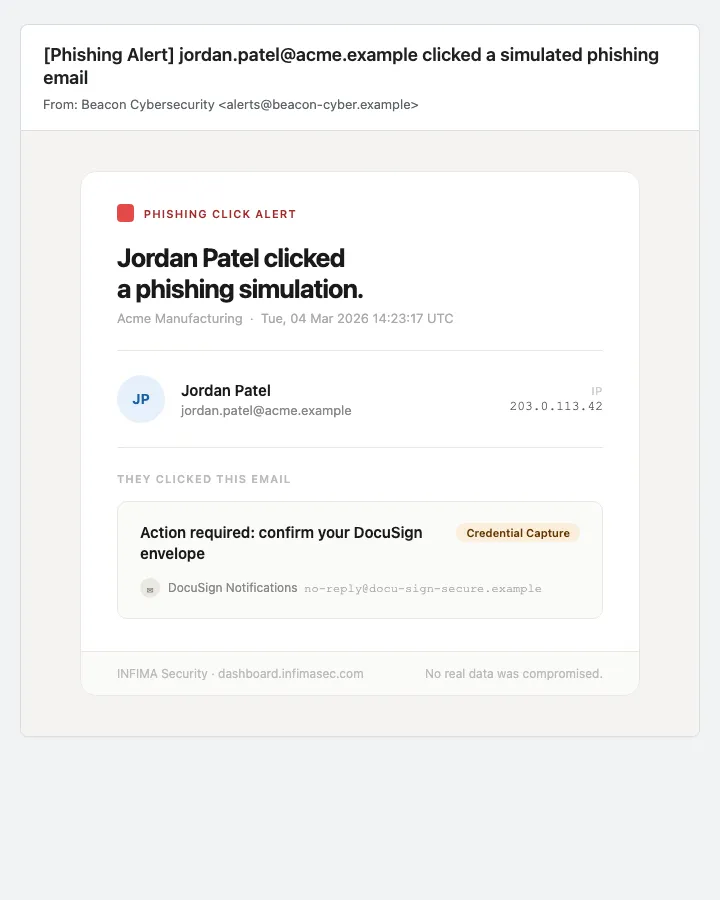
The alert names the user who clicked, the template they fell for (subject, sender name, sender email, category), the time of the click, and the source IP — enough for the security team to decide whether to escalate or just file it for the user’s next coaching conversation.
Managing the list
Section titled “Managing the list”Each schedule shows its name, status (Active or Paused), type, schedule (or trigger for click alerts), next run, report types or course, recipients, and any sender override.
- Trigger Now — fire the schedule immediately. Useful for testing or for sending an ad-hoc copy outside the normal cadence. Not available for phish click alerts (they’re event-driven, no manual trigger).
- Pause / Activate — toggle without losing the configuration.
- Edit — change anything about the schedule.
- Delete — remove permanently. Past sends aren’t undone.
You’ll know it worked when
Section titled “You’ll know it worked when”- The new schedule appears in the list with Active and a sensible next-run time (for scheduled) or Trigger: First click… (for phish click alerts).
- Trigger Now on a scheduled report queues a delivery and recipients receive it.
- At the scheduled time, the schedule runs without manual intervention.
Frequently asked
Section titled “Frequently asked”Can I customize what’s in a report? Not from this page — you pick from the nine standard report types. The contents of each report are fixed; you control which reports go in a bundle and when they’re sent. For deeper customization, contact our support team.
Can the same recipients get both the monthly bundle and a custom quarterly recap? Yes. The monthly bundle (Scheduled reports) and custom schedules are independent. Recipients listed on both will receive both.
Phish click alerts feel spammy on a chatty client. How do I throttle? Today they fire on every first-click event. If your security team wants a digest instead, pause the alert and set up a daily / weekly bundle that includes the Phishing Overview report. That gives the rollup without the per-click noise.
Can I scope a custom report to a department or audience? The bundled reports use whatever scope they’re defined with (most are tenant-wide). For department-scoped data, the Manager/Dept Training report inside a bundle is the closest fit. Per-audience custom reports aren’t supported today.
A schedule keeps failing. How do I diagnose? Trigger Now surfaces the error inline (the row shows Failed with a hover tooltip). Common causes: invalid recipient address, the configured course was deleted, or our system being temporarily unable to render the report. Retry after fixing the input; persistent issues warrant contacting support.
Related
Section titled “Related”- Scheduled reports — the standard monthly bundle that covers most clients.
- Read phishing activity — the in-app view that the Phish click alert complements with a real-time push.
- Tailor to your client — custom reports are a Tailor-time setup step.