
Assign a compliance framework
Your client needs compliance reporting against a specific standard — HIPAA, SOC 2, PCI DSS, a federal framework, or something else. This is where you assign it.
Every client already has Security Awareness Foundations auto-assigned (our NIST-aligned baseline). The framework you add here layers on top — Foundations stays in place, and the new framework’s required courses are added to the client’s training schedule alongside the baseline.
You’ll need
Section titled “You’ll need”- The compliance standard the client needs to report against — HIPAA, SOC 2, etc. We’ll list the available frameworks in the picker, grouped by category.
- A start date for any courses the framework introduces that aren’t already in the client’s curriculum.
Walkthrough
Section titled “Walkthrough”-
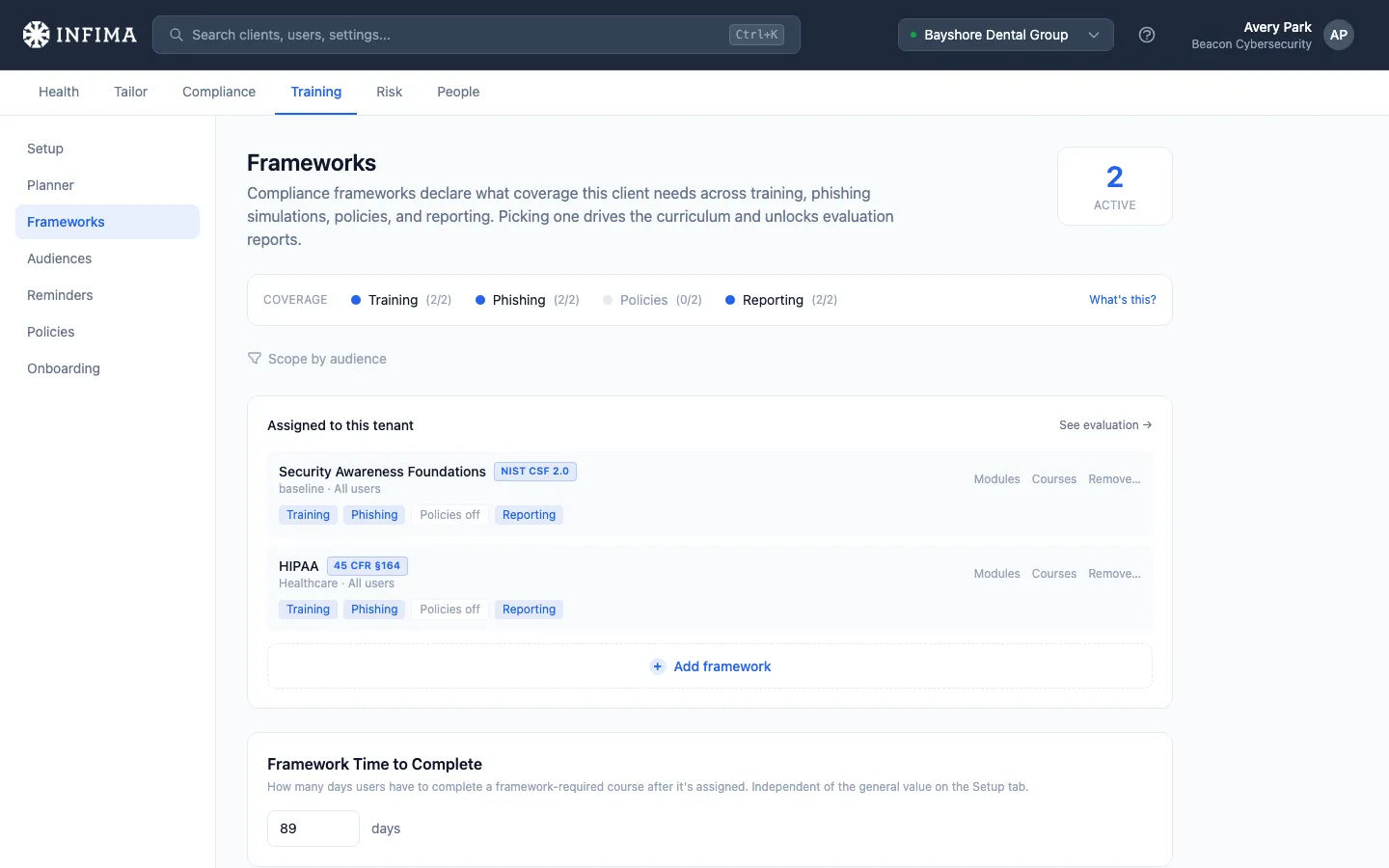
Open the client and go to Training → Frameworks. Foundations is listed as the only assigned framework on a fresh client.
-
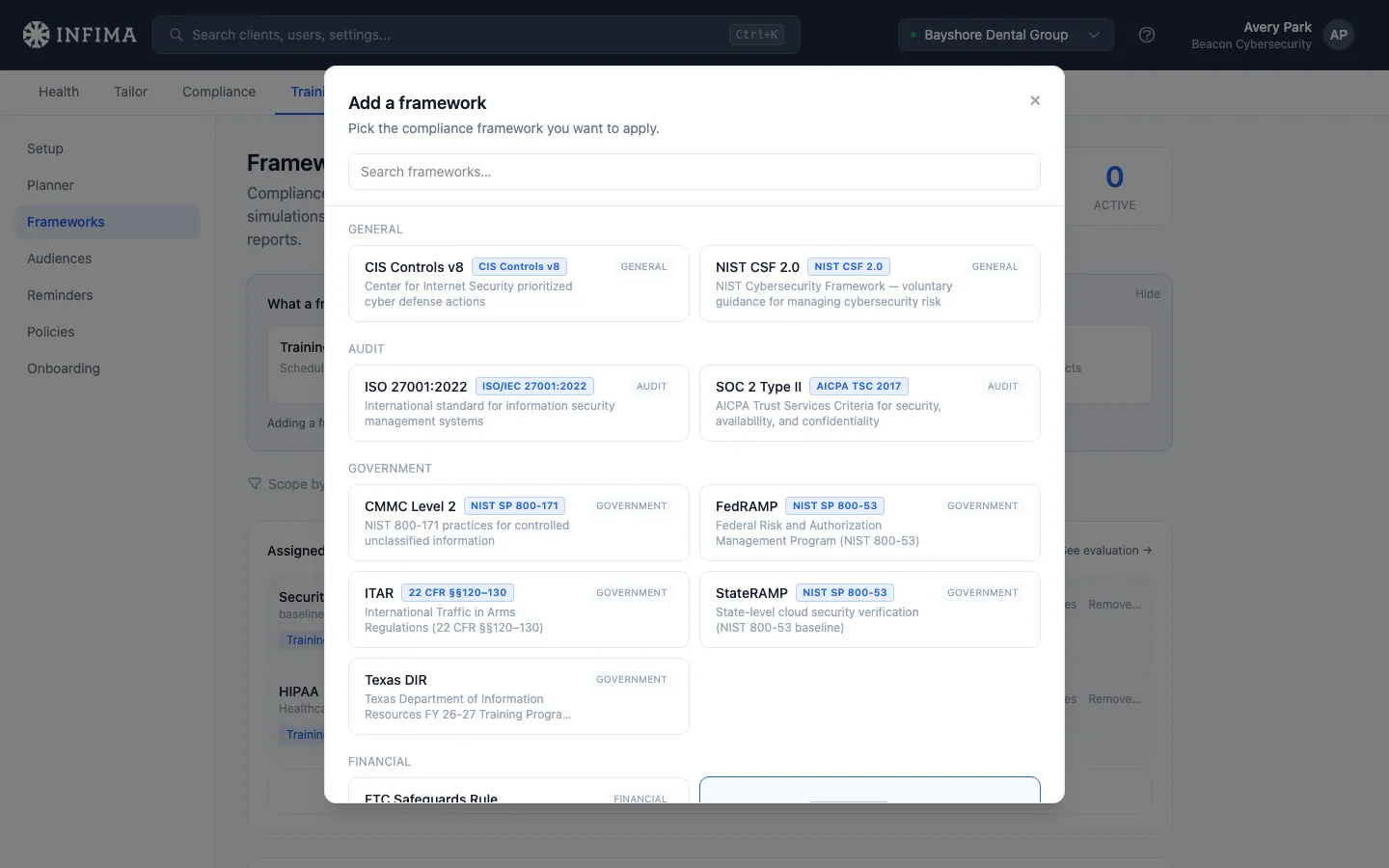
Click Add framework. A picker opens with every available framework, grouped by category — baseline, healthcare, financial, audit, government, privacy, education, and more. A search field at the top filters as you type.
-
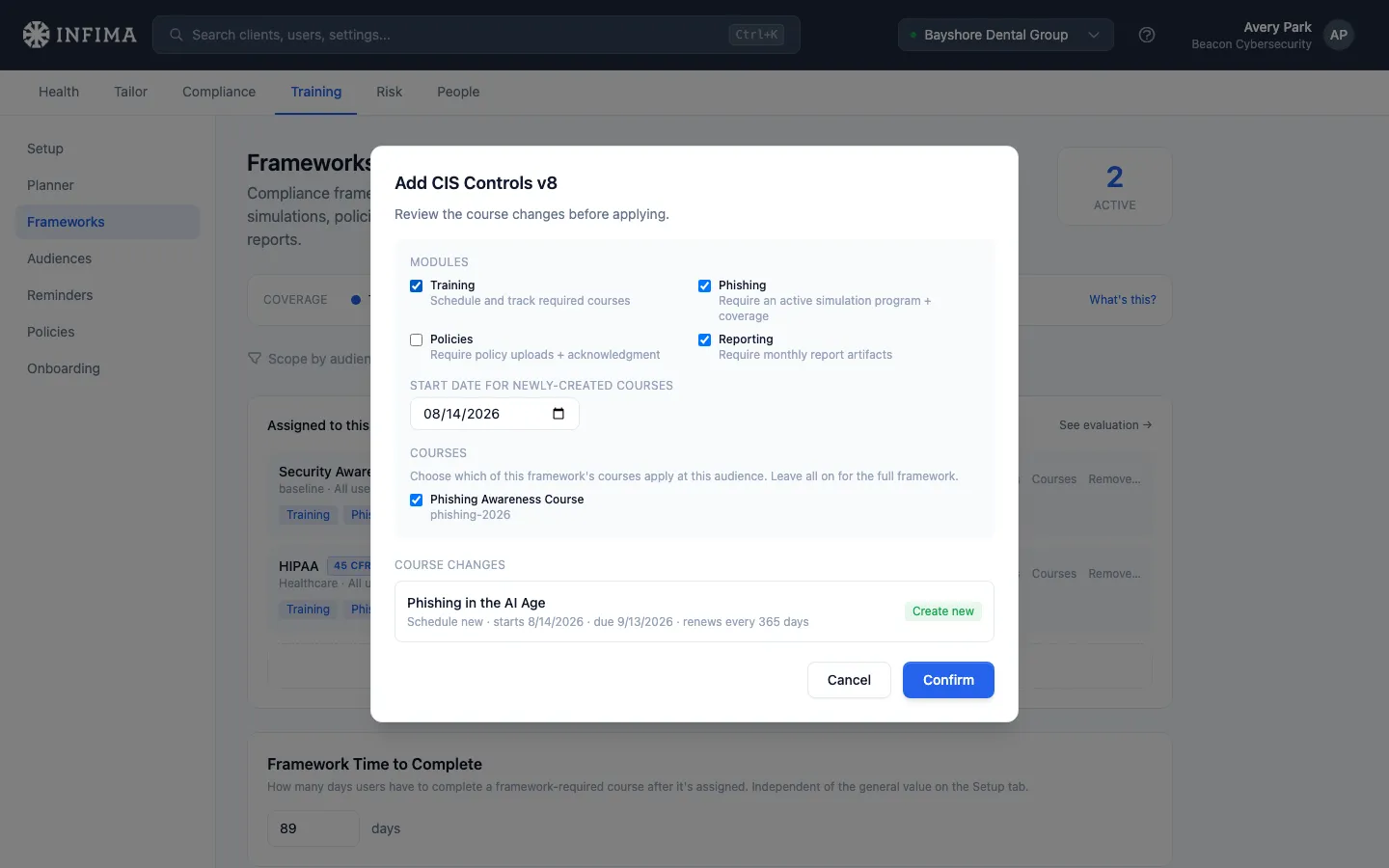
Click the framework you want to assign. We open a review screen so you can preview the change before applying.
-
Review what the framework will change.
- Modules. The framework can include training, policies, phishing, and reporting modules. Toggle off any you don’t want this framework to drive for this client.
- Courses. A list of the framework’s required courses with a checkbox each. Leave all on for the full framework, or deselect any you don’t want scheduled here. This is also how you express role-based training patterns — see Set up audiences for the CMMC-style split-by-audience pattern.
- Start date. When any newly-introduced courses should first land on the client’s training schedule.
-
Click Confirm. We add the framework. You’re back on the Frameworks page, with the new framework now in the assigned list alongside Foundations.
You’ll know it worked when
Section titled “You’ll know it worked when”- The new framework appears in the list of assigned frameworks, next to Foundations.
- The client’s training schedule reflects the framework’s required courses, starting on the date you picked.
Role-based training (multi-level frameworks)
Section titled “Role-based training (multi-level frameworks)”Some frameworks (CMMC is the canonical example) define different requirements for different roles within the client — administrators get one set of courses, general users get another, contractors get a third. This is multi-level: each audience under the client gets its own slice of the framework’s courses.
The pattern:
-
Set up audiences first. Open the client → Training → Audiences and define each role group (administrators, general users, contractors, etc.). This is where the role split lives. See Set up audiences for the full walkthrough.
-
Assign the framework to each audience separately. On the Frameworks page, when you click Add framework, pick which audience the assignment applies to. The course-list controls on the review screen let you toggle off courses that don’t apply to this audience.
-
Repeat per audience. A CMMC-style split typically means assigning the same framework two or three times — once per role — with different subsets of courses checked.
The result: one user gets the admin-tier courses, another gets the general-user tier, both under the same overall framework. The framework’s compliance reporting rolls everything up together.
If your client only needs one role tier (everyone gets the same courses), skip audiences entirely and assign the framework at the tenant level — the default scope.
Adjusting an assigned framework
Section titled “Adjusting an assigned framework”Each assigned framework has inline controls on the Frameworks page:
- Modules — open the same module checkboxes you saw on the review screen. Useful if the client decides later that they only want, say, training and policies but not the phishing module driven by this framework.
- Courses — open the same course checkboxes. Narrow which of the framework’s courses apply if the full set is overkill.
- Remove… — remove the framework. See the next section for what happens to the framework’s courses.
Foundations shows the same controls — you can adjust modules and courses on the baseline too, though most partners leave it alone.
Removing a framework
Section titled “Removing a framework”When you click Remove…, we open a modal that lets you decide what should happen to each course the framework had been driving.
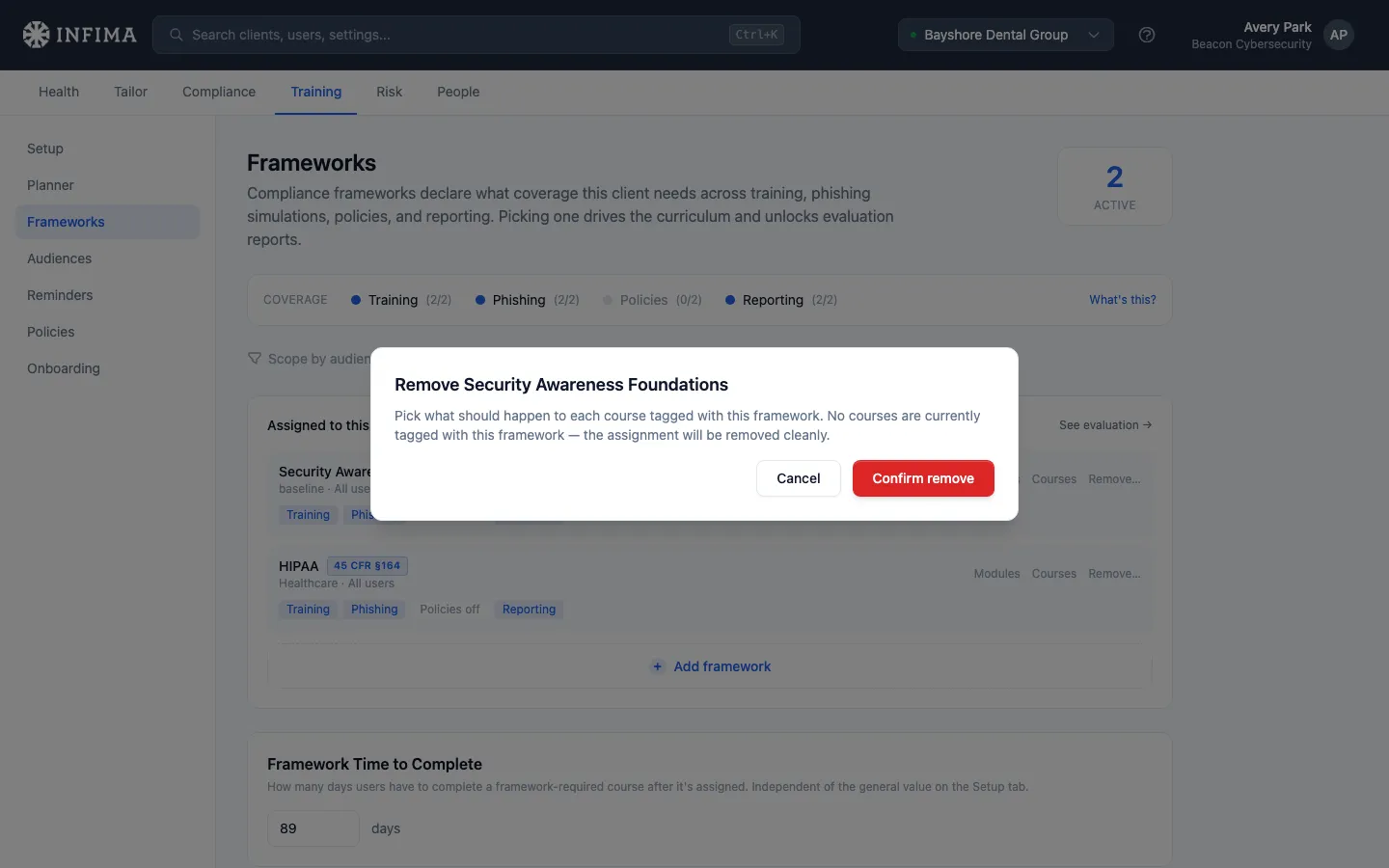
For each course tagged with this framework, you choose:
- Keep as non-framework. The course stays on the client’s schedule, but the framework requirement is dropped. Useful when you’ve decided this client doesn’t need the specific framework anymore but the courses themselves are still worth running.
- Archive. The course is removed from the schedule entirely.
If a course is also required by another assigned framework, we re-tag it to that other framework automatically — there’s no decision to make.
The Apply to all shortcut at the top lets you set every course to Keep or Archive at once, then adjust individual rows from there.
Click Confirm remove to apply.
Frequently asked
Section titled “Frequently asked”Can I assign more than one framework? Yes — a client can be assigned as many as they need. A healthcare provider serving government contracts might need both HIPAA and a federal framework alongside Foundations. Each framework adds its required courses; we deduplicate courses that appear in multiple frameworks.
What does the start date control? It’s the date any new courses (ones not already on the client’s schedule) first start. Courses the client is already running keep their existing schedule.
The framework I need isn’t in the picker. The picker lists every framework available in our catalog. If yours isn’t there, contact us — we’ll let you know whether it’s on the roadmap or whether the closest match would cover your client’s needs.
Can I remove Foundations? You can, with the same Remove… flow. We generally don’t recommend it — Foundations is the security awareness baseline and most clients should keep it — but the controls are there if a specific client doesn’t need it.
What happens to user training progress if I remove a framework? The Remove modal’s per-course choice controls this. Keep as non-framework preserves the schedule and any in-flight user progress. Archive drops the schedule rows; progress on already-completed courses isn’t deleted (it stays in the user’s history).
Related
Section titled “Related”- Pick a framework — the Get Started step that points partners here.
- Set up audiences — assign different frameworks (or different subsets of the same framework) to different groups of users.
- Tailor to your client — the post-onboarding settings that come before framework selection.