
Datto Autotask PSA
The Datto Autotask integration writes INFIMA’s per-client user count to the matching Contract Service in Autotask on the 1st of each month. By the time your monthly billing run kicks off, the quantities are already current — no manual edits before invoicing.
You’ll need
Section titled “You’ll need”- Admin access to Autotask and your INFIMA partner settings.
- A Software as a Service billing code in Autotask (Admin → Finance, Accounting, & Invoicing → Billing Codes). Validate it exists or create one before continuing.
- For each client you want to sync: a Contract in Autotask containing a Contract Service with our line item.
Walkthrough — Autotask side
Section titled “Walkthrough — Autotask side”-
Create an API User. Admin → Resources (Users) → New API User. Use a clear name like INFIMA API and an email address you control.
-
Set the Security Level to “API User (system)”. This is the dedicated security level for API users — don’t use a regular Account Manager / Service Desk level.
-
Generate the API Key and Secret. Both are shown only once; store them where you can retrieve them later. The Username is the API user’s username; the Password is the API Secret.
-
Set the API Tracking Identifier to
Infima - Security Training. Autotask uses this to identify which integration the API user is associated with. -
Confirm the Software as a Service billing code exists under Admin → Finance, Accounting, & Invoicing → Billing Codes. Create it if needed.
Walkthrough — INFIMA side
Section titled “Walkthrough — INFIMA side”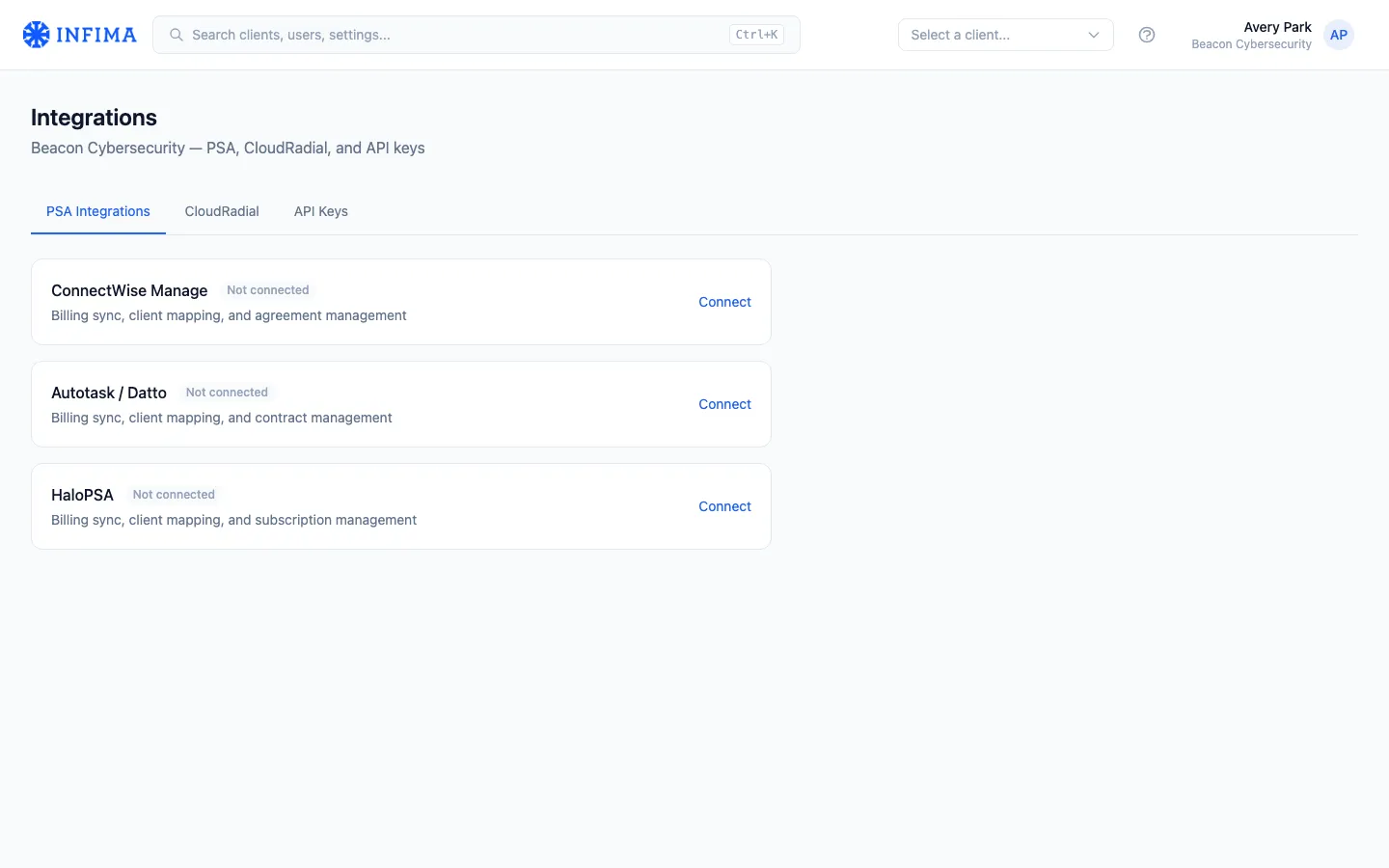
-
Open Settings → Integrations in your partner menu, then the PSA tab.
-
Click Connect on Autotask / Datto. A form appears for the connection details:
- Username — the Autotask API user’s username.
- Password — the API Secret you generated.
-
Save. We test the connection. If it succeeds, the integration shows as Connected.
-
Map each INFIMA client to an Autotask Contract. For each, search for the matching Autotask account and select the Contract with the Software-as-a-Service line for INFIMA. Then pick the specific Contract Service that should receive the synced user count.
-
(Optional) Enable Overwrite Cost. Check this if you want the unit cost value in Autotask updated alongside the user count on the monthly sync. Useful when you change INFIMA’s per-user pricing and want it reflected without manual edits in Autotask.
What syncs and when
Section titled “What syncs and when”- Monthly sync on the 1st — for every mapped client, we count active INFIMA users and write the number as the Units value on the Contract Service.
- Unit cost (if Overwrite Cost is enabled) — updates alongside the count on the same monthly run.
We don’t create tickets, push time entries, or touch anything outside the Contract Services you’ve mapped.
You’ll know it worked when
Section titled “You’ll know it worked when”- The integration shows Connected on the integrations page.
- Each mapped client has a paired Autotask account, Contract, and Contract Service listed.
- On the 1st of next month, the Contract Service quantities in Autotask reflect actual INFIMA user counts.
Frequently asked
Section titled “Frequently asked”Why monthly instead of nightly? Autotask is set up for monthly billing cycles, and per-day changes don’t translate cleanly into Contract Service quantities. The sync runs on the 1st to capture the count for that month’s invoice run.
A client added users mid-month — they won’t be billed until next month? Right. The Autotask integration captures user count at the start of each month for that month’s bill. If you need mid-month billing adjustments, that’s a workflow you’d handle in Autotask directly.
I edited a Contract Service’s name in Autotask. Did I break the sync? No. Descriptions, names, prices, and costs are safe to edit. Don’t delete the Service, Contract, or Contract Service itself — that breaks the mapping and re-implementation is required.
The sync didn’t update one client’s count. Verify the client’s mapping still points at the right Contract Service in Autotask. The Contract may have been replaced (a renewal often creates a new Contract record); if so, re-map to the new Contract.
Can I connect Autotask and ConnectWise simultaneously? Yes — connect each in the integrations panel. The clients you map to one don’t sync to the other. Most partners run one PSA, but migrations or pilot rollouts work fine with both connected.
Sync failed for one client this month — how do I diagnose? Check the mapping (the Contract or Contract Service may have been removed in Autotask). If the mapping looks intact, contact our support team with the client name and the date you’d expected the sync to run.
Related
Section titled “Related”- Integrations overview — partner-level vs per-client.
- ConnectWise PSA — the alternative PSA, nightly sync with pro-rata option.
- HaloPSA — third option, subscription-based, requires a manual recurring-invoice step.