
Manager reminders
Manager reminders are recurring summary emails sent to a user’s manager listing the direct reports who have overdue training. They’re useful when chasing individual users isn’t scaling — managers see who on their team is behind and can lean on them directly. You set them up here once and they run on a schedule until you turn them off.
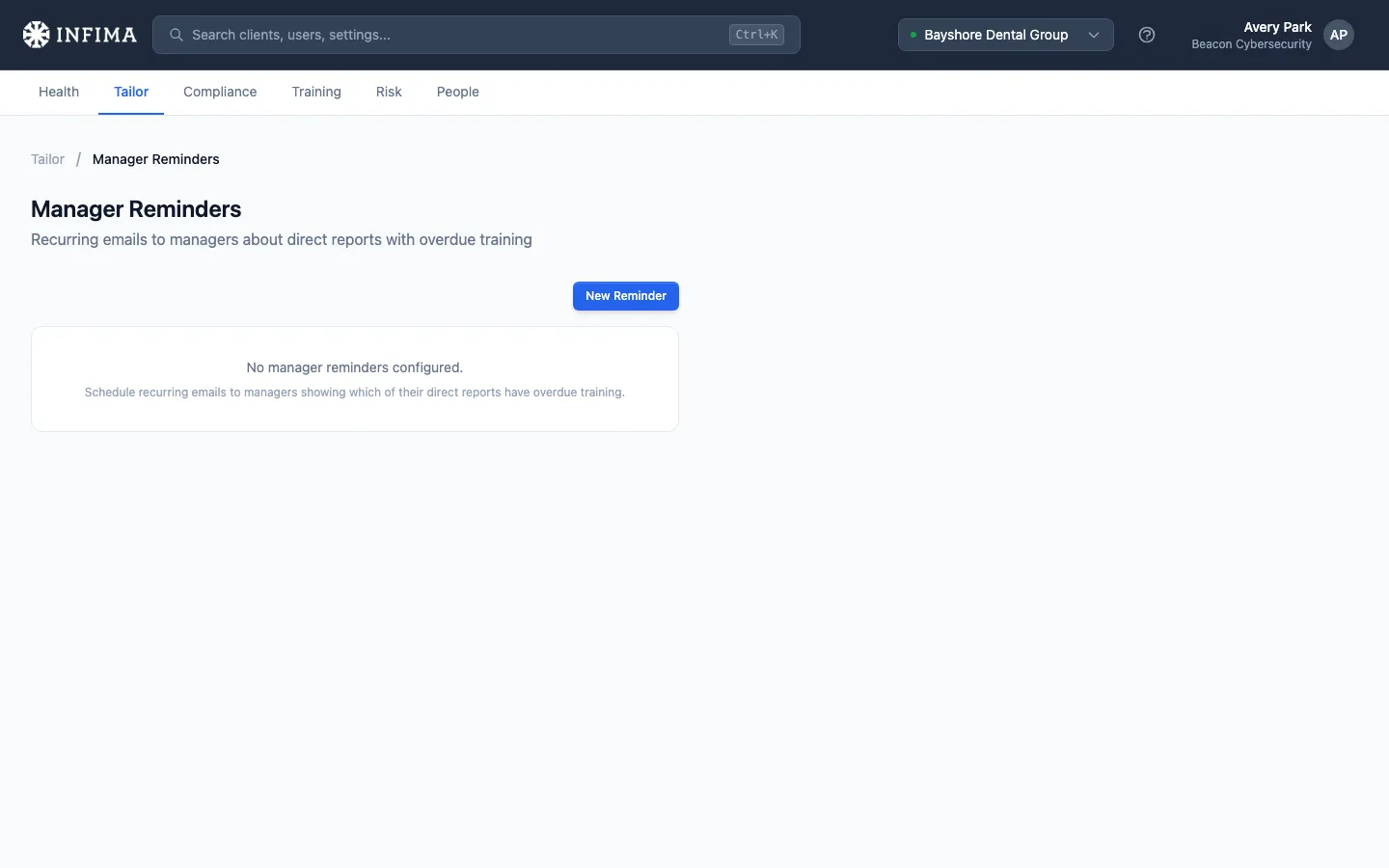
Configure for a client
Section titled “Configure for a client”Open the client → Tailor → Manager reminders. The page lists every scheduled reminder for this client; the New Reminder button creates one.
-
Click New Reminder.
-
Name it. Defaults to Weekly Manager Reminder. Use something descriptive if you’re going to set up more than one schedule (e.g., Monday morning recap, Mid-week catch-up).
-
Pick a schedule using the picker. The default is Monday at 9 AM — sensible for most clients. Adjust for the customer’s working pattern.
-
(Optional) Customize the sender. By default we send as the client’s branding. Click Customize sending name and email to override — useful when the customer wants reminders to look like they’re coming from their internal security team or HR.
-
Active. Leave checked to start sending immediately. Uncheck to save the schedule without firing it yet.
-
Save. The reminder appears in the list and fires on its next scheduled time.
Managing the list
Section titled “Managing the list”Each saved reminder shows its name, status (Active or Paused), schedule, and next run time. The row actions:
- Trigger Now — fires the reminder immediately for testing. Useful when you want to confirm formatting or check who actually appears on the list before the next scheduled run.
- Pause / Activate — toggle whether the schedule fires. Pause when the client is on holiday or going through a freeze.
- Edit — change the name, schedule, sender, or active state.
- Delete — remove permanently. Past sends aren’t undone.
What the email looks like
Section titled “What the email looks like”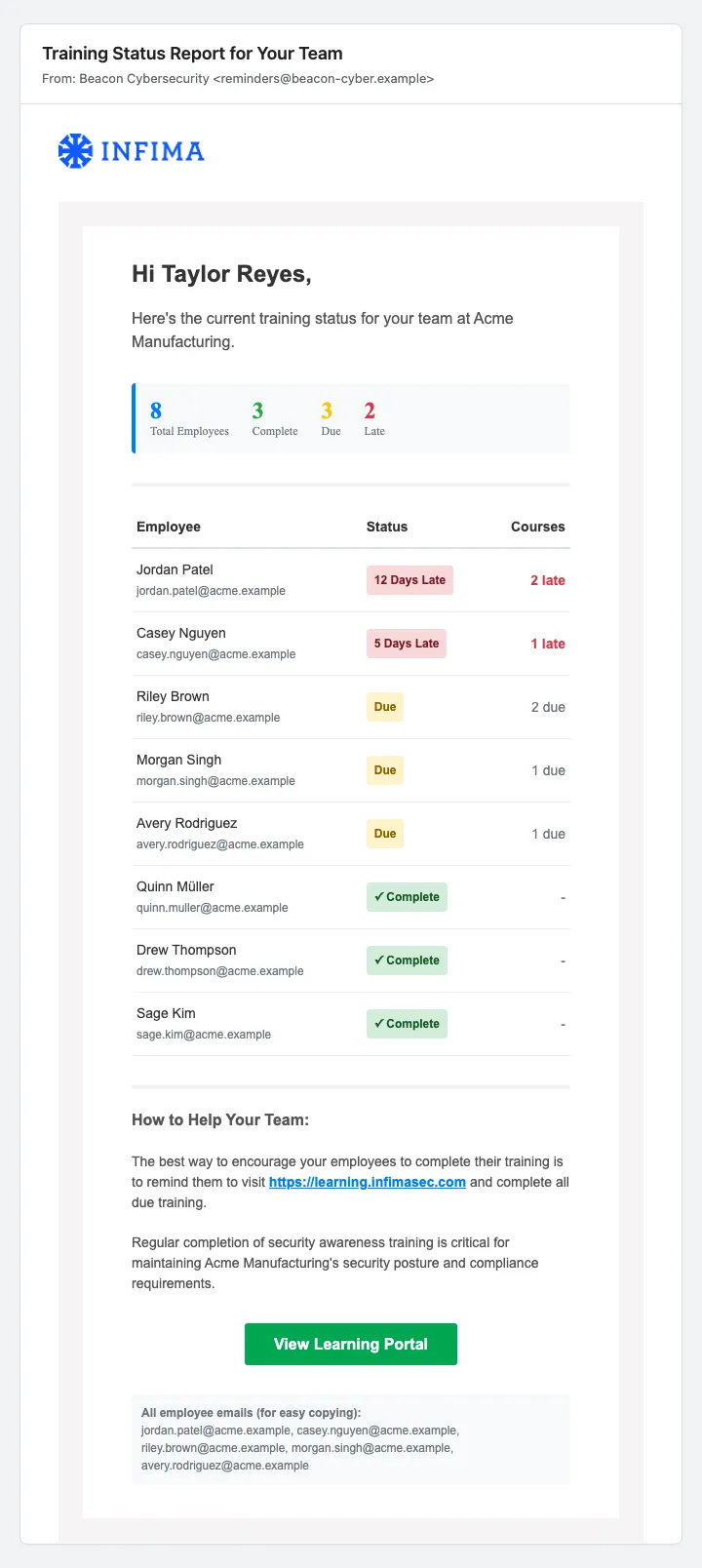
The email leads with the count of overdue employees and the client name, then lists each direct report with their name and email, plus a copy-all-emails line for quick triage.
You’ll know it worked when
Section titled “You’ll know it worked when”- The reminder shows in the list with Active and a sensible next-run time.
- Trigger Now queues a send and managers receive an email listing their direct reports’ overdue training.
- On the next scheduled run, the reminder fires automatically.
Frequently asked
Section titled “Frequently asked”How does the system know who a user’s manager is? Manager information comes from directory sync — Microsoft 365 or Google Workspace expose the manager relationship and we pick it up there. Users without a manager set in the directory aren’t included in any manager’s email (their training still shows in the main reports, just not in this rollup).
Can I include managers who don’t have direct reports with overdue training? No — the reminder is built around the “you have overdue people” message. Managers with all-completed reports won’t get an email that week. They’re not silenced for cosmetic reasons; the reminder simply doesn’t have anything to show them.
Can I customize the body of the reminder email? Not from this page today. The template is standard. If your client has specific wording or layout requirements, contact our support team.
Why are multiple reminders allowed on the same client? Some customers want different schedules (e.g., a weekly summary plus a monthly executive-only roll-up). Each schedule is independent — names them however you want and turn them on / off individually.
A manager said they’re getting reminders but never see anyone overdue. What’s going on? Either their direct reports have no overdue training (good outcome — the reminder is doing its job by virtue of being empty), or the directory sync isn’t capturing the manager-report relationship correctly. Check the user’s manager field on People → User and resync if needed.
Can I see what the reminder will look like before it fires? Trigger Now is the closest thing to a preview — it sends a real reminder immediately to managers who currently have overdue reports. Test on yourself by temporarily setting yourself as your test user’s manager.
Related
Section titled “Related”- Training reminders — emails sent to users about their own training (this article covers emails to managers about their teams).
- Sync users — where the manager / direct-report relationship comes from.
- Partner-level settings — the Settings page hub if you’re configuring partner defaults at the same time.
- Tailor to your client — manager reminders are a Tailor-time configuration.