
Branding defaults and per-client overrides
Branding is what makes our product look like yours — and (per-client) what makes it look like the customer’s. Set defaults once at the partner level and every client you onboard inherits them. Override per client for the ones who need their own logo, sender name, or address.
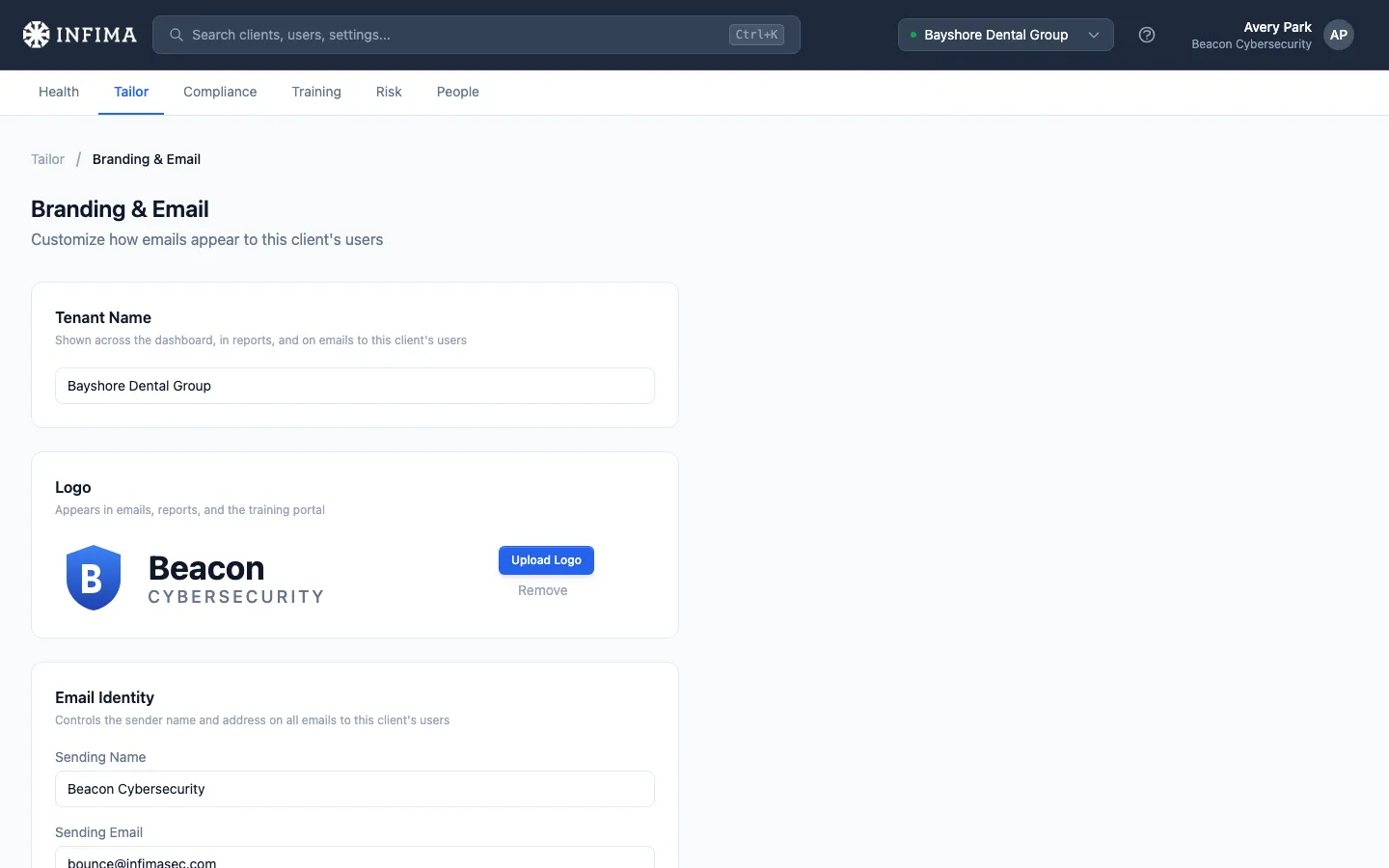
What branding covers
Section titled “What branding covers”Open the client → Tailor → Branding & Email. Three fields, all of which appear in training emails, phishing tests, the learning portal, and report headers:
- Tenant name — the client’s display name. Shown across the dashboard, in reports, and on emails to the client’s users.
- Logo — JPG or PNG. Appears in emails, reports, and the training portal.
- Email identity — the Sending name (e.g., Security Training) and Sending email (e.g.,
training@company.com) that appear in the “From” field of outbound mail.
Configure for a client
Section titled “Configure for a client”-
Open Tailor → Branding & Email.
-
Edit any field that should differ from the partner default. Tenant name, logo (upload or remove), sending name, sending email.
-
Save. The change applies to future emails and report generation immediately.
Leave a field blank to inherit the partner default. There’s no third state of “blank means blank” — empty values always inherit.
Set the partner default
Section titled “Set the partner default”Configure your defaults under Settings → Whitelabel & Branding (in the partner menu). Same three concepts: your logo, sending name, sending email. Set there once and every client onboards branded as yours by default; per-client overrides come in only when a customer wants their own. See Partner-level settings for the full overview of the Settings page.
Which value wins
Section titled “Which value wins”For each field, the effective value is: per-client value (if set) → partner default. Blank at the client level means “use the partner default” — never “show nothing.”
You’ll know it worked when
Section titled “You’ll know it worked when”- The Tailor page shows your saved values without the placeholder hints.
- A test email to a user from this client (training reminder, welcome message, phishing test) shows the configured sender name + email, and the body / footer renders the logo.
Frequently asked
Section titled “Frequently asked”Where exactly does the logo show up? Email headers/footers, the learning portal that users land on, and report PDFs. Anywhere our product surfaces to a user, the logo is the partner default by default and the per-client override when set.
My customer doesn’t want my MSP brand at all — they want it to look like it’s from them. Set tenant-level overrides for sending name, sending email, and logo. Their users see their company’s branding; the fact that you’re the MSP behind it stays out of view. (Sometimes called “whitelabel” — same idea.)
Can I have different branding per audience inside one client? No. Branding is per-client. If the customer has multiple business units that need different branding, set them up as separate clients in our system.
The logo is too large / wrong shape. What format do you accept? JPG or PNG, ideally a square or horizontal logo with transparent or white background. Keep it under ~200KB for fast email rendering.
Can users see the sending email is a no-reply or shared address?
The sending email appears literally — what you type is what they see. Use a real, monitored address (e.g., training@company.com) so users who reply actually reach someone. A no-reply address works mechanically but leaves replies stranded.
I deleted the logo by mistake. Can I recover it? No — the upload replaces the previous logo. Re-upload the file you have on hand; if you don’t have it, contact us and we can sometimes recover from a recent backup.
Related
Section titled “Related”- Welcome email and onboarding — the first email users see; the welcome email picks up the configured branding.
- Training reminders — the Whitelabel checkbox in the reminder editor falls back to these branding values when on.
- Tailor to your client — branding is step 1 of the post-onboarding Tailor sequence.