
Training reminders
When a user has training assigned but hasn’t completed it, we send reminder emails. Two variants:
- Course due soon — fires before the due date as a heads-up.
- Course overdue — fires after the due date when the user still hasn’t completed.
Both have default content that works for most clients. This page is where you customize either of them — subject, body, sender — for clients who want a different tone, language, or branding.
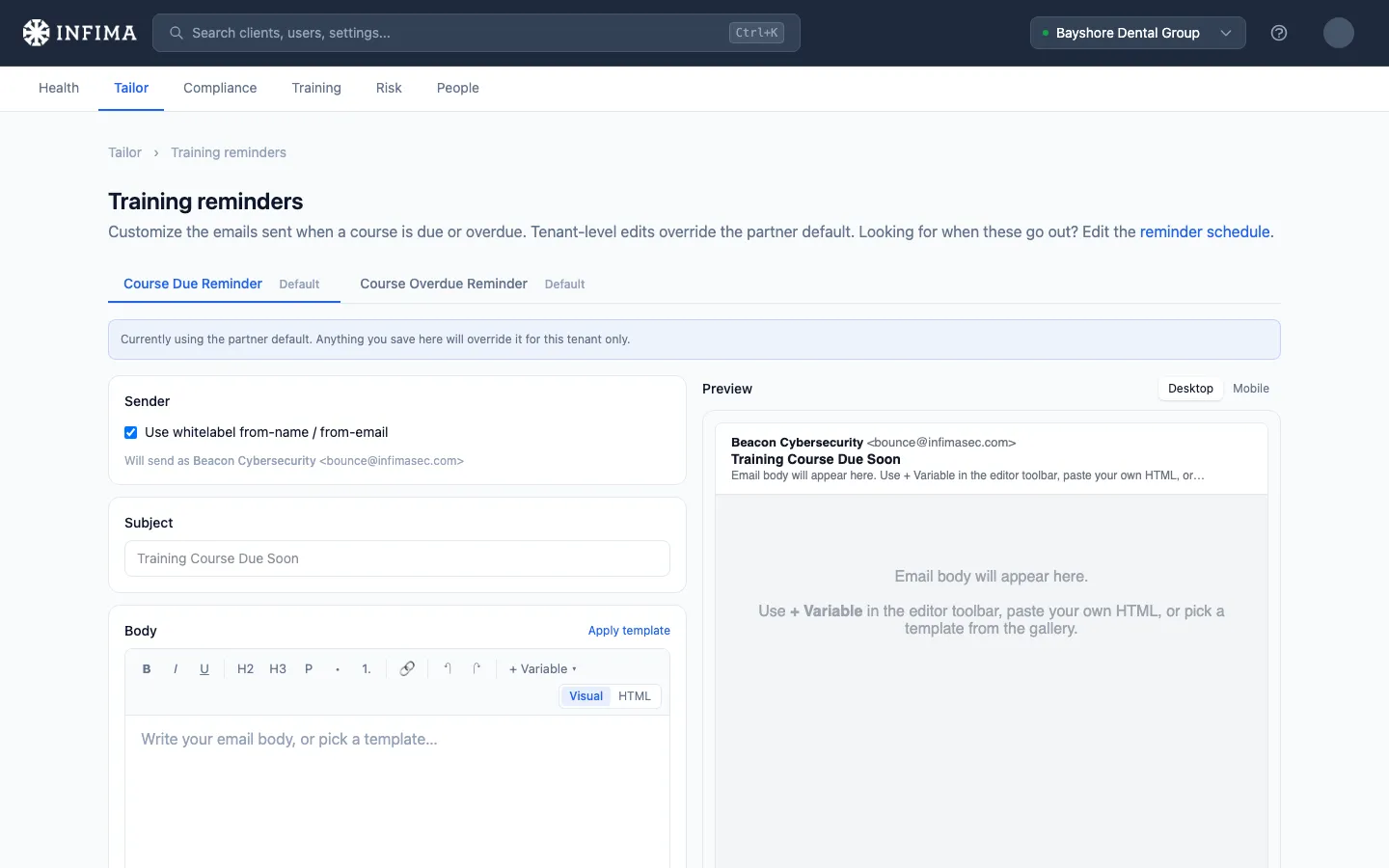
Configure for a client
Section titled “Configure for a client”Open the client → Tailor → Training reminders. The editor has two tabs at the top — Course due and Course overdue — for the two reminder types. Switch between them freely; unsaved edits on one tab persist while you flip to the other.
Fields per reminder
Section titled “Fields per reminder”- Subject — the email subject line.
- From name and From email — who the email looks like it’s from. By default we use the client’s branding (the Whitelabel checkbox below). Uncheck Whitelabel to set custom sender info.
- Body — rich text editor for the email content. Mobile and desktop previews on the right update as you type.
Template variables
Section titled “Template variables”Drop these into the subject or body and we substitute the right value at send time:
{{.firstName}}— recipient’s first name{{.partnerName}}— your MSP / partner name{{.companyName}}— the client’s company name{{.courseName}}— the course they need to complete{{.courseDueDate}}— when the course is due{{.link}}— direct link to the course{{.brandingLogo}}— branding logo URL (for embedding in your HTML)
The preview pane renders placeholder values so you can see roughly what the user will receive.
Whitelabel
Section titled “Whitelabel”The Whitelabel checkbox (under the From fields) is on by default. When on, the From fields are saved blank and at send time we fall back to the client’s branding settings (or your partner default). Uncheck it to set explicit sender info that overrides the cascade.
You’ll know it worked when
Section titled “You’ll know it worked when”- The subject and body on each tab match what you typed.
- The preview pane (desktop and mobile) renders cleanly with no broken HTML.
- A test send (or a real assignment hitting the due window) produces an email that matches the edited content.
Frequently asked
Section titled “Frequently asked”How do I revert back to the partner default? Clear the field. Empty values inherit from the partner default; the default is shown as placeholder text so you know what you’d be inheriting.
When does each reminder actually fire? The “due soon” reminder fires before the due date; the “overdue” reminder fires after it. By default they go out on our standard cadence — twice a month — but you can set your own delivery schedule, partner-wide or per client. See Control when training reminders go out.
Can I use a different language / locale? Yes. Type the subject and body in whatever language fits the customer. The template variables stay the same regardless of language — they substitute the value, not a label.
Can I customize per-user or per-course? Customization is per-client (with partner-default cascade). Per-user / per-course reminders aren’t supported today.
Where do I configure the partner default these clients cascade from? Settings → Training Reminders in the partner menu. Same editor, same variables — set there once and every client without a custom override picks it up. See Partner-level settings for the rest of the Settings surface.
Related
Section titled “Related”- Control when training reminders go out — this article covers what the emails say; that one covers when they’re sent.
- Send training reminders and check they went out — manual sends and the per-client send history.
- Welcome email and onboarding — the first-impression email; this article covers the follow-up reminders.
- Customize the welcome email — the same kind of editor for the welcome email’s subject, body, and sender.
- Manager reminders — recurring summary emails to managers about their direct reports’ training.
- Branding defaults and per-client overrides — the source the Whitelabel checkbox inherits sender info from.