
Training languages
You’ve added a client with Spanish-speaking technicians, or a Quebec-based team that prefers French, and you want their training in their language without having to set it on every user individually.
Each user has a training-content language preference. Setting it changes the courses they’re served, the certificate they’re emailed, and the portal chrome they see. Three languages today:
- English (default)
- Español (Spanish)
- Français (Canada) (Canadian French)
How a user’s language gets set
Section titled “How a user’s language gets set”Two layers, in order of precedence:
- From sync. When a user comes into our app through your Microsoft 365 or Google Workspace sync, we read their preferred language from the directory profile and apply it. Update the directory and the next sync brings the change through automatically.
- Manual override. If sync doesn’t have the right value — or the client hasn’t set language preferences in their directory at all — set it per user in our app. Setting it manually flags the user as overridden, so future syncs leave the value alone.
Set or change one user’s language
Section titled “Set or change one user’s language”-
Open the client → People → click the user’s name to open their detail page.
-
Find the Training language pill. It sits with the rest of the user’s identity at the top of the page — name, email, job title, language. Click Change.
-
Pick a language and click Save. The pill flips immediately. An Override tag appears next to it.
You’ll know it worked when
Section titled “You’ll know it worked when”- The Training language pill shows the new language.
- An Override tag is visible next to it. From this point, sync won’t touch the value.
- The next time the user signs into the portal, the chrome and any translated course they open are in the new language.
Translated courses today
Section titled “Translated courses today”Four of our security-awareness courses ship in all three languages today:
- Phishing in the AI Age
- The Human Hack
- Data Has Consequences
- Small Habits, Big Protection
Every other course in the catalog renders in English regardless of the user’s language preference. We add translations on a rolling basis — this list grows over time.
Certificates
Section titled “Certificates”For the translated courses, certificates come out in the user’s language — the course title and the certificate template (date label, “Certificate of Completion,” signature line) all switch. For a course we haven’t translated yet, the certificate uses the English title and template even when the user’s preference is Spanish or French.
End users can change it themselves
Section titled “End users can change it themselves”Users have a self-service Account page in the portal. They open the user menu in the portal header, click Account, pick a language, and save. The chrome flips on the next page load.
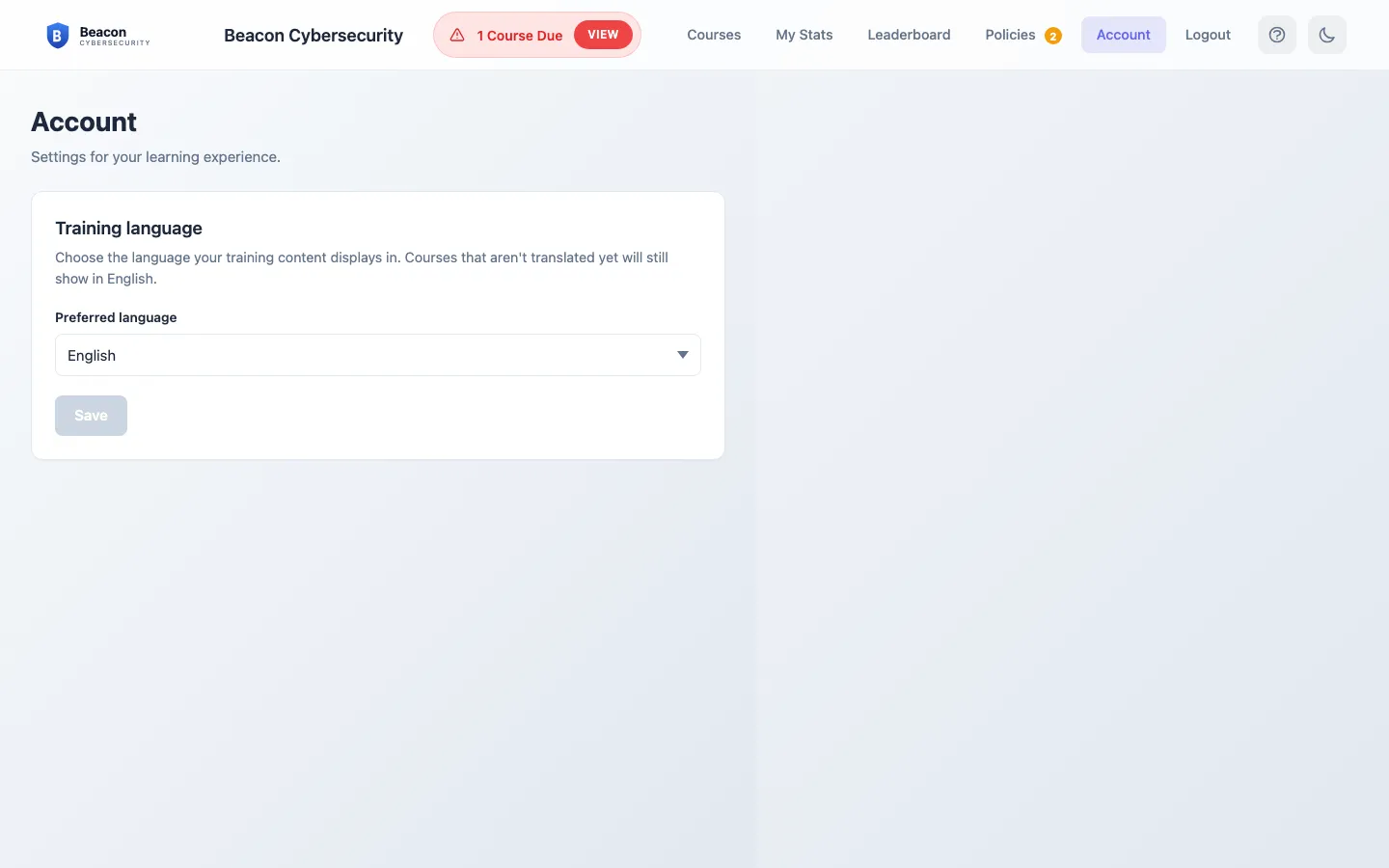
A user-set value also counts as a manual override — sync won’t overwrite it. If a client’s IT lead is going to manage language centrally through their directory, ask them to leave the portal picker alone (or use Revert to directory below to release the override after the fact).
Releasing the override
Section titled “Releasing the override”If you set a manual language and later want sync to take over again — the client updated their directory and you want our app to reflect it — open the user’s edit row, and you’ll see a Revert to directory button next to Save. That clears the override and lets the next sync repopulate the value from your sync source.
Frequently asked
Section titled “Frequently asked”I haven’t set this on anyone — what language do my users see? English. Until either sync writes a different value or someone overrides it, every user defaults to English.
Our client’s directory has a user set to European French (fr-fr). Do we ship that?
Not today. We ship Canadian French only; European French speakers see Canadian French content — the closest match available. When we add European French, those users switch over automatically.
A user’s M365 profile says Spanish but they show English in our app. Two possibilities. First, they may have synced before we shipped language support — re-run the sync and the value comes through. Second, someone may have overridden them manually — the Override tag on their language pill confirms this. Use Revert to directory to release the override and let sync take over.
A user’s certificate arrived in English even though their language is set to Spanish. Most likely the course they completed isn’t in the translated catalog yet (see the list above). Certificates follow the course — courses we haven’t translated yet email an English certificate even for users on Spanish or French.
Can a user opt out — take a translated course in English instead? Yes. They change their language to English in their portal Account page and the next course they open is in English. That counts as a manual override.
Do reminder emails and the welcome email translate too? Not today. Course content and the matching certificates are translated. Reminder emails, the welcome email, and breach notifications currently come out in English regardless of the user’s language preference. More email translation is on the roadmap.
What if our client doesn’t use any language other than English? You don’t have to do anything. The English default covers the whole catalog and nothing in the experience surfaces a language picker to users who don’t need one.
Related
Section titled “Related”- Learning Portal — what end users see in the portal, including where the self-service Account picker lives.
- Sync users — the sync flow that brings each user’s directory-level language preference into our app.