
Control when training reminders go out
Out of the box, we email training reminders to every user with unfinished training on our standard cadence — twice a month, no setup required. That works for most partners. But maybe your clients expect training emails on the first Monday of the month because that’s when you send your own newsletter, or one client wants reminders on paydays, or you’d just rather they land on a quieter day. The delivery schedule gives you that control at two levels: a partner-wide schedule that covers every client, and per-client schedules that override it.
The precedence is simple: a client’s own schedule wins, then your partner-wide schedule, then our standard cadence. A client is only ever on one of the three — setting a schedule moves them off the standard cadence entirely, and removing it moves them back.
Set a partner-wide schedule
Section titled “Set a partner-wide schedule”-
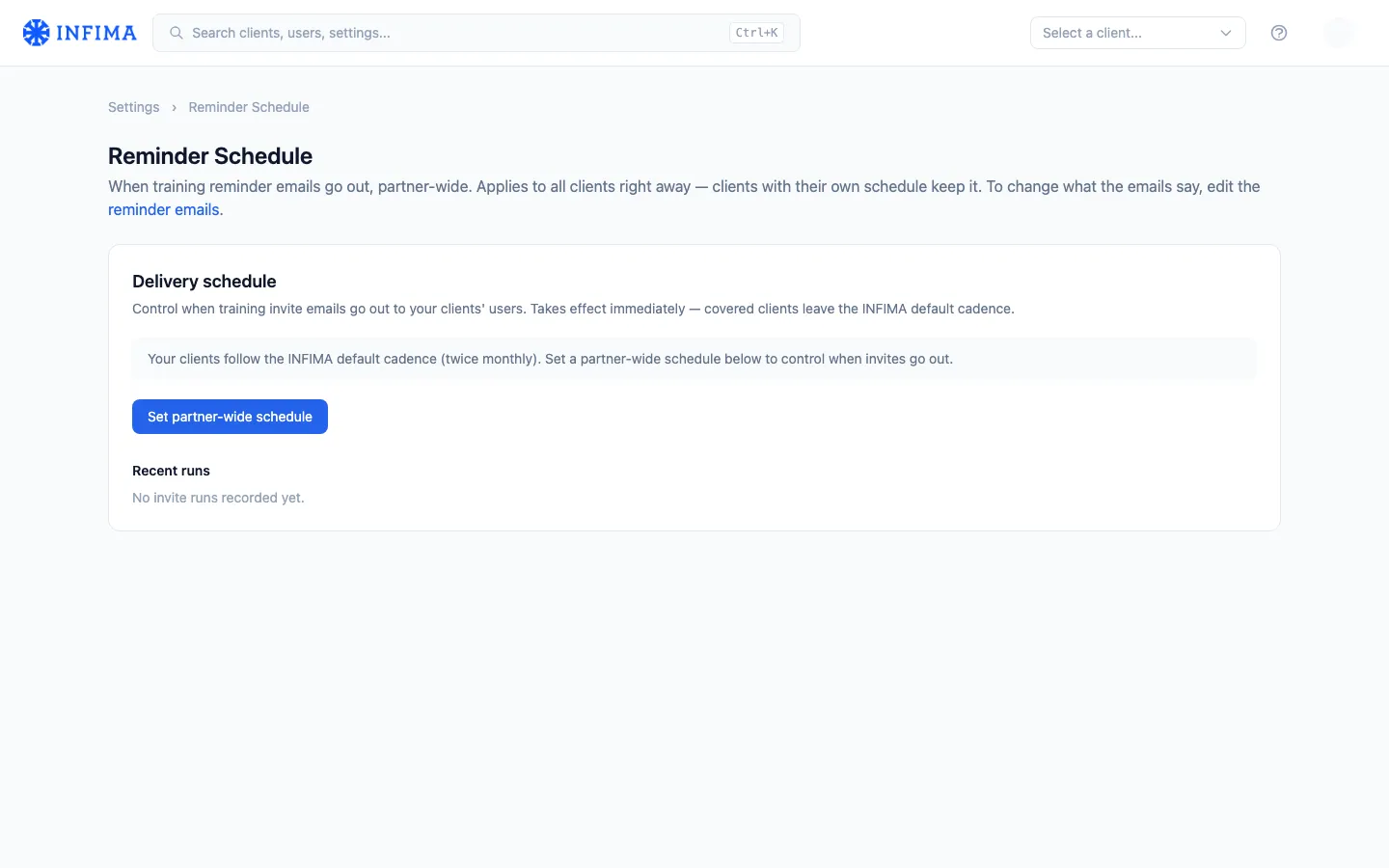
Open Settings from the partner menu and choose Reminder Schedule.
-
Click Set partner-wide schedule.
-
Pick the rhythm:
- Weekly — a day of the week and a time.
- Monthly — a day of the month and a time.
- Twice monthly — two days of the month and a time (for example, the 1st and the 15th).
Times are in UTC; the picker shows a plain-English summary of what you’ve chosen.
-
Click Save schedule. It takes effect immediately — every client without its own schedule now gets reminders on your cadence, and the card shows the next send date.
Override for a single client
Section titled “Override for a single client”-
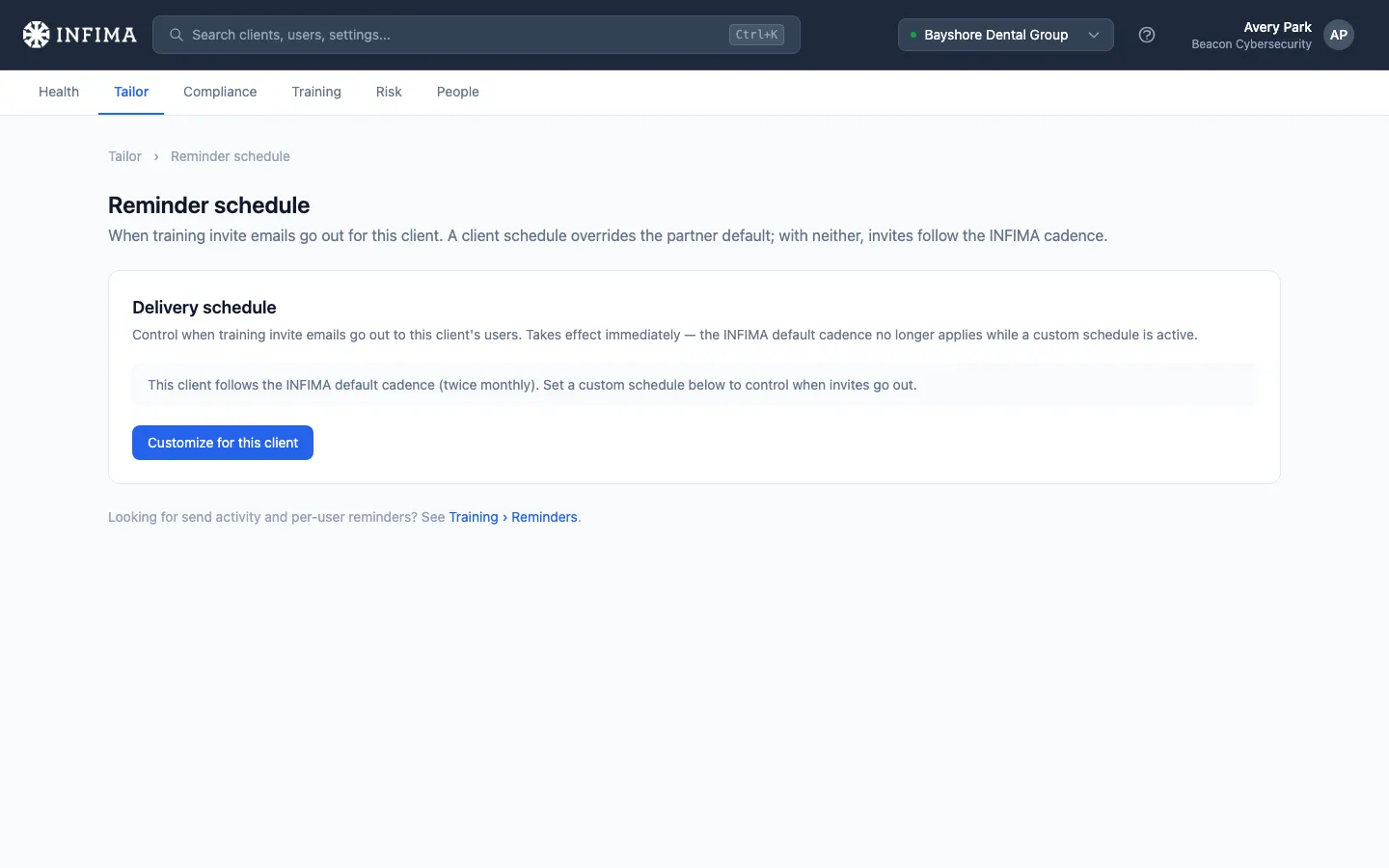
Open the client → Tailor → Reminder Schedule.
-
The banner tells you what currently governs this client — your partner schedule, the standard cadence, or its own custom schedule.
-
Click Customize for this client, pick the rhythm the same way, and save.
-
To undo the override later, click Revert to partner schedule (or Remove schedule if you don’t have a partner-wide one) — the client falls back to whatever is next in the precedence order.
What each send contains
Section titled “What each send contains”A schedule only decides when sends happen. Every send works the same way, whether it comes from our standard cadence, your partner-wide schedule, or a client’s own schedule:
- One email per user. Each user gets a single reminder per send, however many courses they have outstanding.
- Overdue wins over due. If any of the user’s courses is past its due date, they get the Course overdue version. Otherwise they get Course due. You can edit both in Training reminders.
- It names the user’s next course. That’s their highest-priority unfinished course, and among courses of equal priority, the one due soonest (see Set course priority). A course that just started doesn’t get an email of its own. A user who is also behind gets one overdue reminder, and it names whichever course comes first.
- It goes to everyone with unfinished training, not only users who are behind. Every user with a course that has started and isn’t completed gets an email, including users with nothing overdue. No send goes only to overdue users.
- Monthly and Twice monthly follow the calendar date. “Days 1 and 15” means the 1st and the 15th, whatever weekday they fall on, weekends included. A Monthly day of 29, 30 or 31 is skipped in months that don’t have that day. Use Weekly when you want a fixed weekday.
- A custom schedule replaces our cadence. A client covered by its own schedule or your partner-wide one stops getting the standard twice-monthly send. Reminders go out on your days instead, not in addition.
- At most one automatic send per client every 5 days. If the client had a send in the last 5 days, including a Send reminders now, the next automatic send is skipped and the one after it runs normally. Send reminders now itself is never held back.
- The welcome email is separate. New users get their welcome email on its own timing (see Welcome email and onboarding). Reminder sends don’t include it and don’t wait for it.
To see who the next send reaches, open the client → Training → Reminders and check Users with courses due. Each row shows the course the email will name. A number above 0 in the Overdue column means that user gets the overdue version. See Send training reminders and check they went out.
You’ll know it worked when
Section titled “You’ll know it worked when”- The Delivery schedule card shows your cadence and the next send date.
- On a client’s Training → Reminders page, the schedule card says “Partner-wide schedule” or “Custom schedule for this client” instead of the default cadence.
- After the first scheduled send, the client’s send history shows a run with the Custom schedule source.
Frequently asked
Section titled “Frequently asked”What’s the standard cadence if I don’t set anything? Twice a month. Every client starts there, and the next send date is always visible on the client’s Training → Reminders page.
If reminders go out on the 1st and 15th, does the send on the 1st cover new courses and remind users who are past due? Yes, with one email per user. Each send goes to everyone with a course that has started and isn’t completed. Users with anything past due get the overdue version, and everyone else gets the due version. Each email names the user’s next course, so a user who’s behind is pointed at whichever course comes first rather than getting a second email about the new one. See What each send contains.
Can I send reminders more often than weekly? No — weekly is the most frequent schedule we accept. Reminder emails go to every user with outstanding training, and more than weekly trains users to ignore them.
Will a client get reminders from both my schedule and the standard cadence? No. A client covered by any custom schedule — its own or your partner-wide one — leaves the standard cadence entirely. As an extra safeguard, we never run two automatic sends for the same client within 5 days of each other, even if schedules change mid-cycle.
What happens to the schedule when I change it? The next send date recalculates immediately from the new rhythm. Nothing is sent at save time.
Can I pause reminders without deleting the schedule? Yes — untick Schedule active and save. The schedule stays configured but stops firing. Note that an inactive client schedule doesn’t block your partner-wide schedule: the client falls back to it.
The times are UTC — can I schedule in my local timezone? Not yet. The picker’s summary line shows the UTC time; convert from your local zone when choosing. (For US Eastern, 13:00 UTC is 9:00 AM during daylight saving.)
Related
Section titled “Related”- Send training reminders and check they went out — manual sends, per-user reminders, and the send history.
- Training reminders — customize the subject, body, and sender of the reminder emails themselves.