
Sync users
You created the client in click one. Clicks two and three happen here: pick a provider, confirm the sync. After that, your customer is live — users are flowing in, training and phishing are armed, you’re done.
The three-click path is Microsoft 365 (and Google Workspace with default settings, once Domain Wide Delegation is set up). For anything outside that — no admin access on the customer’s side, manual entry, post-sync cleanup — see Sync setup details.
The three-click path
Section titled “The three-click path”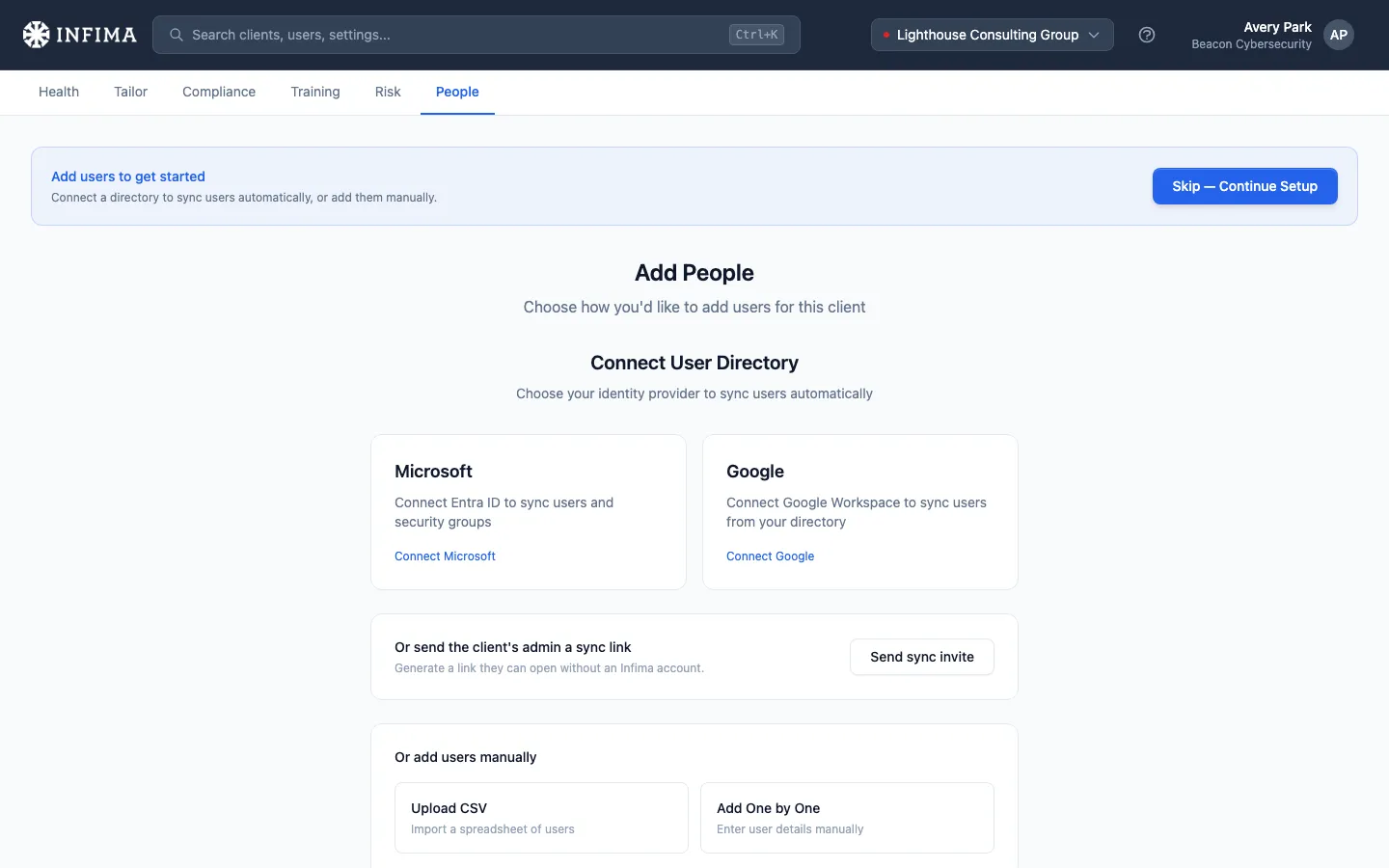
-
Click Sync with Microsoft (or Sync with Google). That’s click two.
-
Approve admin consent in the OAuth popup that opens, then confirm Sync All Users when the mode picker appears. That’s click three.
-
Done. We read the customer’s directory and the user list populates. Your customer is live.
You’ll know it worked when
Section titled “You’ll know it worked when”- The People tab shows the users you expected.
- The sync status indicator near the page header reads Connected with a timestamp of the last successful pull.
- Future directory changes on the customer’s side flow into our system automatically on the next sync.
Frequently asked
Section titled “Frequently asked”My customer is on Microsoft 365 but they’re asking me to grant permissions I don’t have. What now? Generate a sync-link invite instead. The link goes to whoever on their side has admin rights; they authorize us; the sync runs in your environment. You won’t see or store their credentials.
A user says they didn’t get a training email. What do I check? See the diagnostic walkthrough: A user isn’t getting training emails. Short version: open the Sent Email Log on the tenant, select the user, find the email — in most cases it’s in their Junk Email or Deleted Items and you can move it back to the Inbox right from the log.
Related
Section titled “Related”- Add your first client — the previous step.
- Sync setup details — provider deep dives, sync-link invites, manual entry, post-sync cleanup.
- Client admins — manage admin access for this specific client (different tab on the same People page).