
Welcome email and onboarding
The first impression your client’s users get from us is shaped on Training → Onboarding — the welcome email they receive on first sync and the onboarding flow they see when they log into the learning portal. This article covers both.
The welcome email
Section titled “The welcome email”The welcome email tells users what’s about to happen — that they’ve been enrolled in security training, when to expect their first course, and how to log in. We send it on the user’s first sync into our system, before any course assignments.
Who gets a welcome email
Section titled “Who gets a welcome email”This is the part that generates the most questions, so here it is plainly.
When welcome emails are on for a client, each scheduled run welcomes the users added since welcome emails last went out for that client — on a weekday morning. We don’t keep a per-user record of who has and hasn’t been welcomed; who gets one is decided purely by when a user was added relative to that line. In normal day-to-day use that works out to each new user being welcomed a single time. It also means Reset (below) re-sends to everyone currently at the client — including people who were already welcomed — because it clears that line entirely.
Turning welcome emails on does not blast the users who are already there. The moment you enable them — whether you flip the partner-wide default or a single client’s override — the users already at that client are left out by default. Only people added after you turn it on get welcomed. That’s deliberate: it stops a first-time setup from surprising an entire existing user base.
When you turn welcome emails on, we ask you directly which behavior you want:
- Only new users (the safe default) — everyone already at the client is skipped; only users added going forward are welcomed.
- Send to existing users — everyone currently at the client is welcomed on the next run, on top of future additions.
So an existing user receives a welcome email only if you explicitly choose Send to existing users when enabling.
Will receive a welcome email
- Any user added after welcome emails were turned on for their client.
- Every user already at the client — only if you chose Send to existing users when you enabled.
Will not receive a welcome email
- Users who were already at the client when you turned welcome emails on (unless you chose Send to existing users) — they sit behind the line, so normal runs skip them.
- Every user at a client whose override is pinned Off.
- (Delayed, not skipped: a user added over a weekend is welcomed the next weekday morning.)
There’s no “already received one” exclusion — we don’t track that. The only thing that keeps a user from being welcomed again is that line moving past them; Reset moves it back and re-sends to everyone.
Set your partner-wide default
Section titled “Set your partner-wide default”Most partners want welcome emails on for every client by default — that way every newly-onboarded client just inherits the right behavior without per-client clicks. Set it once:
-
Open the partner menu → Settings → Onboarding. The first card is Welcome Email.
-
Toggle Send welcome emails on. This is the master default — every client follows it unless you explicitly override per client.
-
Click Save. The first time you turn the default on, we ask whether to Send to existing users or welcome only new users going forward. Pick Only new users unless you specifically want to welcome everyone already at your inheriting clients — see Who gets a welcome email.
The default at a fresh install is off. Flip it on once and every client set to Inherit starts welcoming new users from that point forward.
Override for a specific client
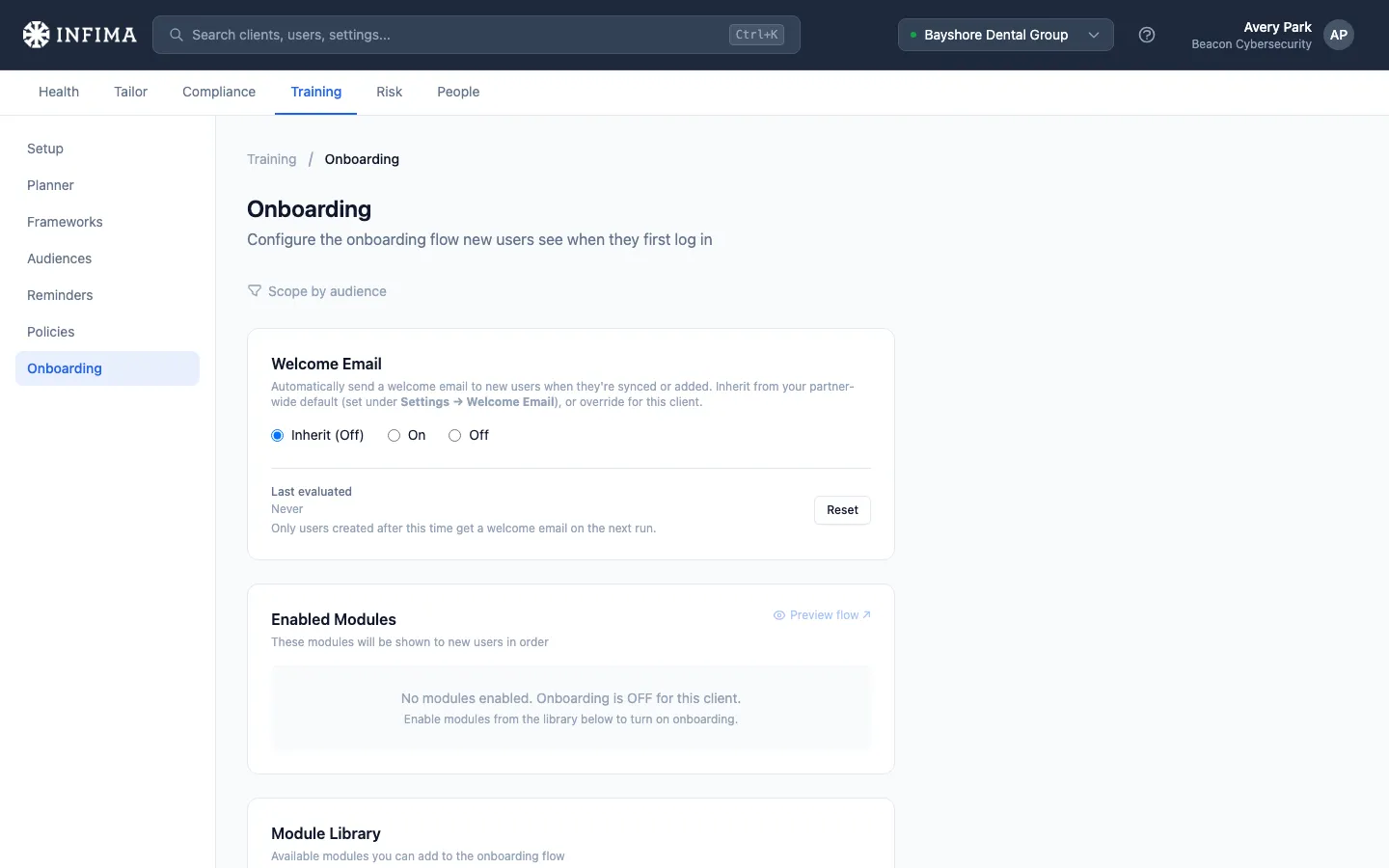
Section titled “Override for a specific client”Open the client → Training → Onboarding. The welcome email controls at the top are a tri-state radio:
- Inherit (currently: On / Off) — follow the partner default, including any future changes to it. Pick this for the 95% case.
- On — pin to On for this client even if the partner default is off.
- Off — pin to Off for this client even if the partner default is on. Useful for customers who specifically don’t want the welcome message.
And the send-hour control below picks which hour of the day welcome emails go out for this client (defaults to 8 AM UTC; we send on weekdays only).
Save when done. The new override applies starting from the next scheduled run. The first time a client starts sending — when you switch it to On, or to Inherit while the partner default is on — we ask the same Send to existing users vs. Only new users question described in Who gets a welcome email. The page also shows how many users are currently pending a welcome email at the next run, so you can confirm who’s included before anything goes out.
What the email looks like
Section titled “What the email looks like”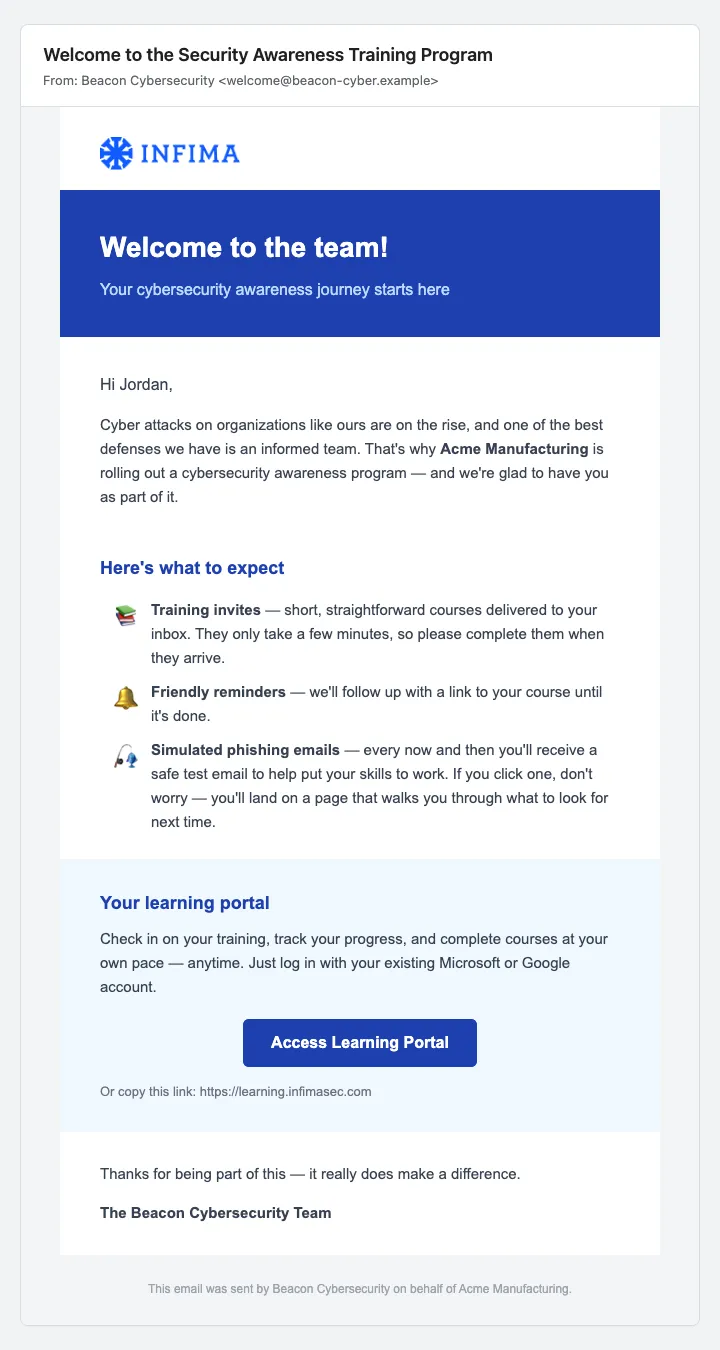
The email greets the user by first name, names both their company and your partner brand, and includes a single CTA — Access Learning Portal — that opens learning.infimasec.com for them.
That’s the default wording. If a client wants a different subject, their own tone, or the phishing mention left out, click Customize on the Welcome Email card — it opens an editor for the subject, body, and sender, with a partner-wide default and a per-client override. See Customize the welcome email.
Onboarding modules
Section titled “Onboarding modules”Below the welcome email controls, the same page configures the onboarding flow — the sequence of modules a new user sees when they log into the learning portal for the first time. Combine partner-library modules with your own custom video / PDF uploads.
Reorder the sequence with the drag handles. Enable / Disable gates whether each module is included. Custom modules can be deleted entirely; INFIMA-provided modules can only be enabled/disabled.
You’ll know it worked when
Section titled “You’ll know it worked when”- The welcome email toggle reads Enabled with your chosen send hour.
- A newly-synced user receives the welcome message during a weekday morning following their first sync.
- That user, on logging into the learning portal, sees the onboarding modules you’ve enabled in the order you set.
Frequently asked
Section titled “Frequently asked”If I turn welcome emails on, will all my existing users suddenly get one? No. Turning them on welcomes only users added from that point forward — the users already at the client are skipped by default. They get a welcome email only if you choose Send to existing users when you enable. See Who gets a welcome email.
How do I welcome the users who are already at a client? Choose Send to existing users at the moment you enable welcome emails. If welcome emails are already on and you want to welcome everyone currently there (say, after a bulk import), use the Reset button on the client’s Training → Onboarding page — the next run then welcomes every current user.
Will a user ever get the welcome email twice? We don’t track who’s already received a welcome email, so there’s no per-user “already sent” block. In normal use a user is welcomed once — but if you use Reset (or choose Send to existing users when enabling), the next run welcomes everyone currently at the client, including anyone who was welcomed before. Treat both as deliberate “re-welcome everyone” actions.
How can I see exactly who will be emailed before it sends? The client’s Training → Onboarding page shows a count of users pending a welcome email at the next run. Zero means nothing sends; a number is exactly who’s queued.
A new user was synced but didn’t get a welcome email. First check: is the welcome email enabled for the client? Second: was the user added on a weekend? We send on weekdays only, so a Saturday addition lands Monday morning. If neither explains it, see A user isn’t getting training emails.
Can I send the welcome message at a different time per user? No — the send hour is per-client. Same time for everyone synced into that client. Pick a sensible local-business hour for the customer’s headquarters.
Can I customize what the welcome email actually says? Yes. Click Customize on the Welcome Email card — on the client’s Training → Onboarding page for a per-client version, or under Settings → Onboarding for a partner-wide default every client inherits. You can change the subject, the body, and the sender, switch the optional sections (course invites, reminders, phishing mention, portal button) on or off, and send yourself a test before saving. See Customize the welcome email.
My client doesn’t want a welcome email at all. Set their override to Off. Their inherit-status changes from “follow the partner default” to a pinned no-send, and they keep their pinned setting even if you change the partner-wide default later. The first time the user sees us will be the training-assignment email instead — a perfectly fine onboarding pattern if the customer prefers minimal touchpoints.
I want welcome emails on for every client by default — do I have to flip the switch for each one? No — set the partner-wide default to On under Settings → Onboarding → Welcome Email. Every client whose per-client override is Inherit picks up the new default immediately. You only need to touch a specific client’s override when their needs differ from the partner default.
I turned on the partner default but one client isn’t sending. What’s wrong? Check that client’s per-client override. If it’s pinned to Off (vs. Inherit), the partner default is being ignored for that one client. Switch them back to Inherit or pin them to On.
Where do I set the training cadence? That’s a separate page — Training → Setup. See Control how training is scheduled for the cadence picker, adaptive scheduling toggle, topic priorities, and time-to-complete window.
Related
Section titled “Related”- Customize the welcome email — change the subject, body, and sender, partner-wide or per client.
- Partner-level settings → Onboarding — the partner default that new clients inherit at creation.
- Control how training is scheduled — cadence and topic priorities (separate page from this one).
- Training reminders — emails that go to users after a course is assigned.
- Tailor to your client — where this fits in the onboarding journey.