
Phishing templates
We ship with a catalog of phishing test templates organized by category — credential capture, attachment-based, social engineering, and others. We send phishing tests automatically at randomized times drawing from the templates you’ve enabled for the client. There’s no “send a campaign” step; you configure which templates are eligible and we handle the rest.
You’ll need
Section titled “You’ll need”- A sense of what kinds of phishing tests fit the client. The defaults are sensible for most clients; you only need to tune when there’s a specific reason (industry concerns, regulatory restrictions, a request from the customer).
Two levels of control
Section titled “Two levels of control”Category-level is the fast path; template-level is for when you need finer-grained control.
Categories (the default surface)
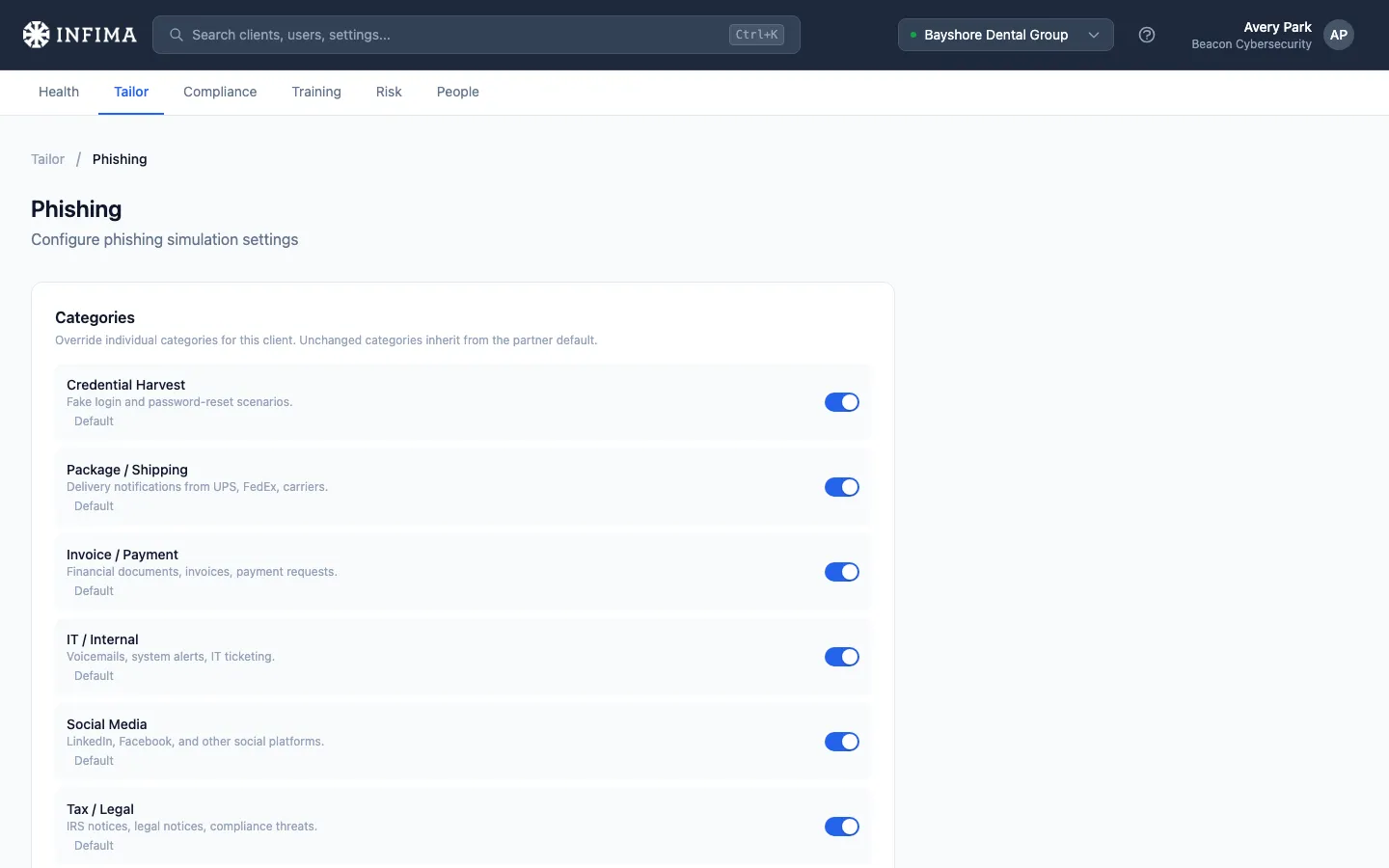
Section titled “Categories (the default surface)”Open the client → Tailor → Phishing. The top section is the category list. Toggle a category off and we stop drawing from any template in it; toggle one on and the whole category becomes eligible.
This is enough for ~90% of partner adjustments. A client that doesn’t want attachment-based tests? Turn off the attachment category. A client that wants extra coverage on credential phishing? Make sure that category is on (it is by default) and leave the rest.
Individual templates (the deep library)
Section titled “Individual templates (the deep library)”Need to enable a specific test or disable a specific one inside a category? Click Open template library from the Phishing page. You’ll see every template grouped by category, with a toggle on each one. Filter by category, search by subject or sender, override individual templates.
Template-level overrides beat category-level. If you’ve turned a whole category off but explicitly enabled one template inside it, that template is still eligible. The reverse is also true — a category on with a specific template off works fine.
Locale badges
Section titled “Locale badges”Templates that have a translation show a small ES or FR-CA badge next to them in the library. When a user’s preferred language matches a translated template, we send them the translation automatically — no per-language toggling on your end. Tests without a translation in a user’s language fall back to English.
Defensive-behavior tags
Section titled “Defensive-behavior tags”Many of our standard tests are tagged with the defensive habit they exercise — go direct, verify the sender, verify out-of-band, or skip unexpected attachments. The tags aren’t editable, and they don’t affect which tests are eligible. They drive behavior-based remediation: the post-click landing page routes the user into a short training module tied to the specific habit the test was built around.
Two other settings on the same page
Section titled “Two other settings on the same page”Worth knowing about since you’ll see them right under the categories.
Simulation Frequency
Section titled “Simulation Frequency”The average number of days between phishing emails per user. Default is 30; you can set it as low as 5. Actual send timing is randomized around the value you set, so users don’t see a predictable pattern.
External Email Header
Section titled “External Email Header”Some organizations tag emails sent from outside the company with a colored banner (“CAUTION: This email originated from outside the organization”). If the customer does this, paste their banner HTML here and we’ll inject it at the top of phishing tests. That makes the test look like a real external email at this customer, which is more realistic and a better test.
A Load Example button gives you a reasonable starting banner if the customer doesn’t have one. Format HTML prettifies whatever you’ve pasted.
You’ll know it worked when
Section titled “You’ll know it worked when”- The category toggles and any template-level overrides save without errors.
- On the next scheduled send (within the Simulation Frequency window), users receive a phishing test drawn from the templates you have enabled.
- If you turned a category off, no tests from that category land going forward; in-flight tests already sent continue to track normally.
Frequently asked
Section titled “Frequently asked”When does the change take effect? Immediately for future sends. We don’t recall tests that have already gone out — those keep their existing status (Sent, Opened, Clicked, etc.). The next scheduled send respects whatever the configuration looks like at that moment.
Can I send a specific phishing test on demand? Yes — see Send a phishing test on demand. It’s a separate page from the automatic rotation, intended for one-offs (after-incident reinforcement, a specific user, a make-up test). The automatic rotation continues unaffected.
Where do I see what got sent? Risk → Phishing on the client. That’s the activity log for every phishing test we’ve sent to that client’s users — see Read phishing activity.
How does Simulation Frequency interact with the user being on PTO or off the team? We only schedule tests for active users. Deactivating a user (on the People page) stops phishing tests for them immediately; reactivating resumes the rotation.
Can I build a custom phishing template just for this client? Yes — see the Custom Templates link further down the Phishing page. Custom templates are scoped to a single client.
What’s the right Simulation Frequency? The recommended value is 30 (monthly average per user). Tighter than that (e.g., 14) creates training fatigue; looser than that (e.g., 60+) loses momentum. Adjust if the customer has specific needs.
Will users receive tests in their own language? Yes, when a translation exists. A user whose preferred language is Spanish or French (Canadian) gets the translated version of any enabled test that has one — no per-language enablement on your end. Tests without a translation in that user’s language fall back to English. We’re filling out the translated catalog over time; the ES / FR-CA badges in the library tell you which tests have translations today.
Related
Section titled “Related”- Report Phishing button — deploy the Outlook add-in users click to flag phishing.
- Behavior-based remediation — what happens after a user fails a tagged test.
- Partner-level settings — set your default template / category configuration once at Settings → Phishing Templates.
- Tailor to your client — Phishing is one of the recommended Tailor steps after onboarding.