
ConnectWise PSA
The ConnectWise Manage integration keeps your INFIMA billing accurate by syncing each client’s active user count into ConnectWise nightly. New users get added to the right Agreement; deactivated users come off. Optional pro-rata math handles mid-month changes; optional cost overwrite updates unit cost from the INFIMA side. All of this means you stop hand-editing user counts before invoicing.
You’ll need
Section titled “You’ll need”- Admin access to ConnectWise Manage and your INFIMA partner settings.
- A Product Catalog item in ConnectWise representing the INFIMA service (created once, used across all clients).
- For each client you want to sync: an Agreement in ConnectWise containing an Addition that references that Product Catalog item.
Walkthrough — ConnectWise side
Section titled “Walkthrough — ConnectWise side”Set up an API user and security role in ConnectWise so we can write user counts. Both are one-time partner-level steps.
-
Create the INFIMA API security role. Under System → Security Roles, create a role named INFIMA API with the permissions in the tables below. Everything else can stay locked down.
Companies Add Level Edit Level Delete Level Inquire Level Company Maintenance None None None All Finance Add Level Edit Level Delete Level Inquire Level Agreements (customize) All All None All Procurement Add Level Edit Level Delete Level Inquire Level Product Catalog All None None All -
Create an API Member account. Under System → Members → API Members, create a new member. Fill the required fields (name like INFIMA API, contact email) and assign the INFIMA API security role.
-
Generate API keys. Open the API Member’s record, navigate to API Keys, generate a new pair. Copy the Public Key and Private Key somewhere safe — you’ll paste them into INFIMA next, and the private key is only visible once.
Walkthrough — INFIMA side
Section titled “Walkthrough — INFIMA side”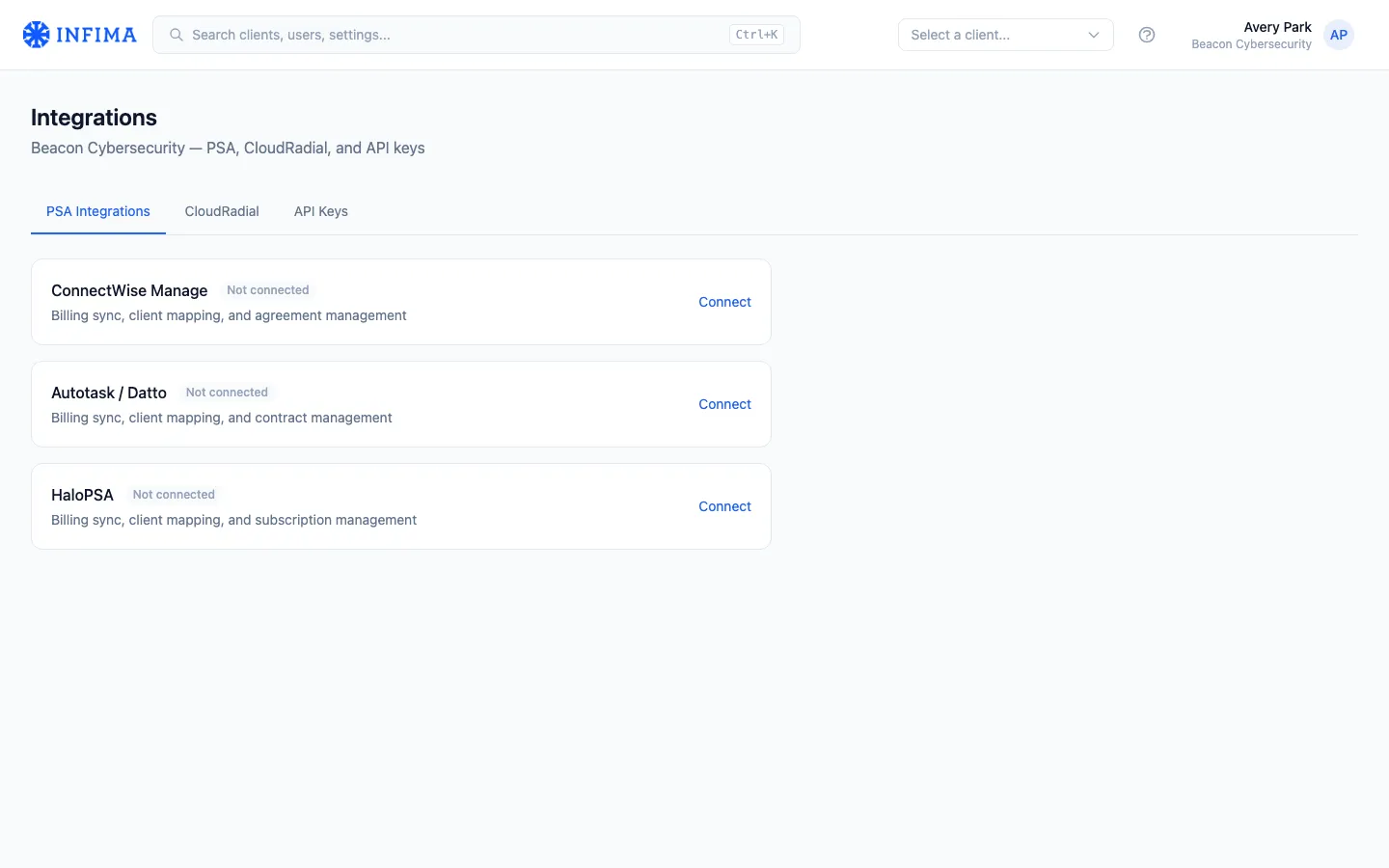
-
Open Settings → Integrations in your partner menu, then the PSA tab.
-
Click Connect on ConnectWise Manage. A form appears for the connection details:
- Site — your ConnectWise site URL (e.g.,
na.myconnectwise.net). - Company ID — your ConnectWise company identifier.
- Public Key and Private Key — paste from step 3 above.
- Site — your ConnectWise site URL (e.g.,
-
Save. We test the connection. If it succeeds, the integration shows as Connected.
-
Select the Product Catalog item that represents the INFIMA service. We’ll write user counts to Additions referencing this product across every client mapping.
-
Map each INFIMA client to a ConnectWise client. For each, search for the ConnectWise company, then select the Agreement and the Addition within that Agreement where INFIMA user counts should land.
-
(Optional) Enable Pro-rata. Check Prorate Agreement if you want mid-month user additions billed for a partial month rather than the full one. We create a new Addition with the partial-month start date when users are added; it’s marked cancelled after invoicing.
-
(Optional) Enable Overwrite Cost. Check this if you want the unit cost value in ConnectWise updated alongside the user count on every sync. Useful when you change INFIMA’s per-user pricing and want it reflected without manual edits.
What syncs and when
Section titled “What syncs and when”- Nightly user-count sync — for every mapped client, we count active INFIMA users and write the number to the Addition you mapped.
- Pro-rata adjustments (if enabled) — a separate Addition for the partial-month period covering net new users that month.
- Unit cost (if Overwrite Cost is enabled) — updates alongside the count.
That’s it. We don’t read invoices, generate quotes, create tickets, or touch anything outside Agreements and the configured Product Catalog item.
You’ll know it worked when
Section titled “You’ll know it worked when”- The integration shows Connected on the integrations page.
- Each mapped client has a paired ConnectWise company, Agreement, and Addition listed.
- The morning after configuration, the Addition’s quantity in ConnectWise matches the client’s INFIMA active user count.
Frequently asked
Section titled “Frequently asked”The sync changed a unit cost I’d customized. How do I prevent that? Disable Overwrite Cost on the integration’s settings. We only touch the user count after that — the unit cost stays whatever you set in ConnectWise.
A new user was added mid-month and showed full price instead of pro-rata. Check that Prorate Agreement is enabled. Without it, all mid-month additions count at the full month’s rate.
I changed an Agreement’s name in ConnectWise. Did I break the integration? No. Descriptions, names, prices, and costs on the Agreement, Addition, or Product Catalog item are safe to edit. Don’t delete the Product Catalog item, Agreement, or Addition itself — that breaks the mapping and you’ll have to re-map.
Can I sync different services to different Additions per client? The integration syncs one INFIMA-user-count value to one Addition per client. If you have a client where INFIMA users should land in two separate places, that’s not directly supported — contact our support team for guidance.
A client was deleted from ConnectWise and I forgot to unmap. Re-open the integration’s mapping panel, unmap that client. The next sync skips it cleanly.
Sync didn’t run last night. First check that the integration still shows Connected (an expired API key or revoked role will disconnect it). Confirm the mapped Agreement and Addition still exist in ConnectWise. If both look fine and the sync still didn’t run, contact our support team with the client name and the date you’d expected the sync.
Related
Section titled “Related”- Integrations overview — how partner-level integrations fit alongside per-client ones.
- Datto Autotask PSA — the alternative PSA most partners pick when they’re not on ConnectWise.
- HaloPSA — third option.
- ConnectWise Security 360 — separate integration for pushing training/phishing data into Asio. Independent of this billing integration.