
Set up audiences
Most of the time, every user at a client gets the same training — that’s what the tenant-wide settings (cadence, topics, frameworks) drive. But sometimes a subset of users needs something different. Engineers need a role-specific course the rest of the company doesn’t. Executives need an exec-targeted phishing rotation. A CMMC client needs the role-based course to land only on the privileged-access team.
Audiences are how you create those subsets. Once an audience exists, you can assign different frameworks and (where settings support it) different cadence and topic priorities to it.
Two kinds of audiences
Section titled “Two kinds of audiences”You’ll use one or both, depending on how the client’s users get into our system:
- Containers come from directory sync — they’re the Microsoft 365 groups or Google Workspace OUs you mapped during onboarding. They’re read-only here; we keep them in lockstep with what’s in your sync source. If you need a different membership, change it in Microsoft or Google and re-sync.
- Collections are admin-managed — you create them in our app, name them, and add users one at a time. Use these when sync doesn’t give you the right shape (a cross-departmental team, a special project, executives picked individually).
A user can be in at most one collection. Adding a user to a collection moves them out of any collection they were previously in. Container membership is independent — a user can be in a container and a collection at the same time.
Walkthrough
Section titled “Walkthrough”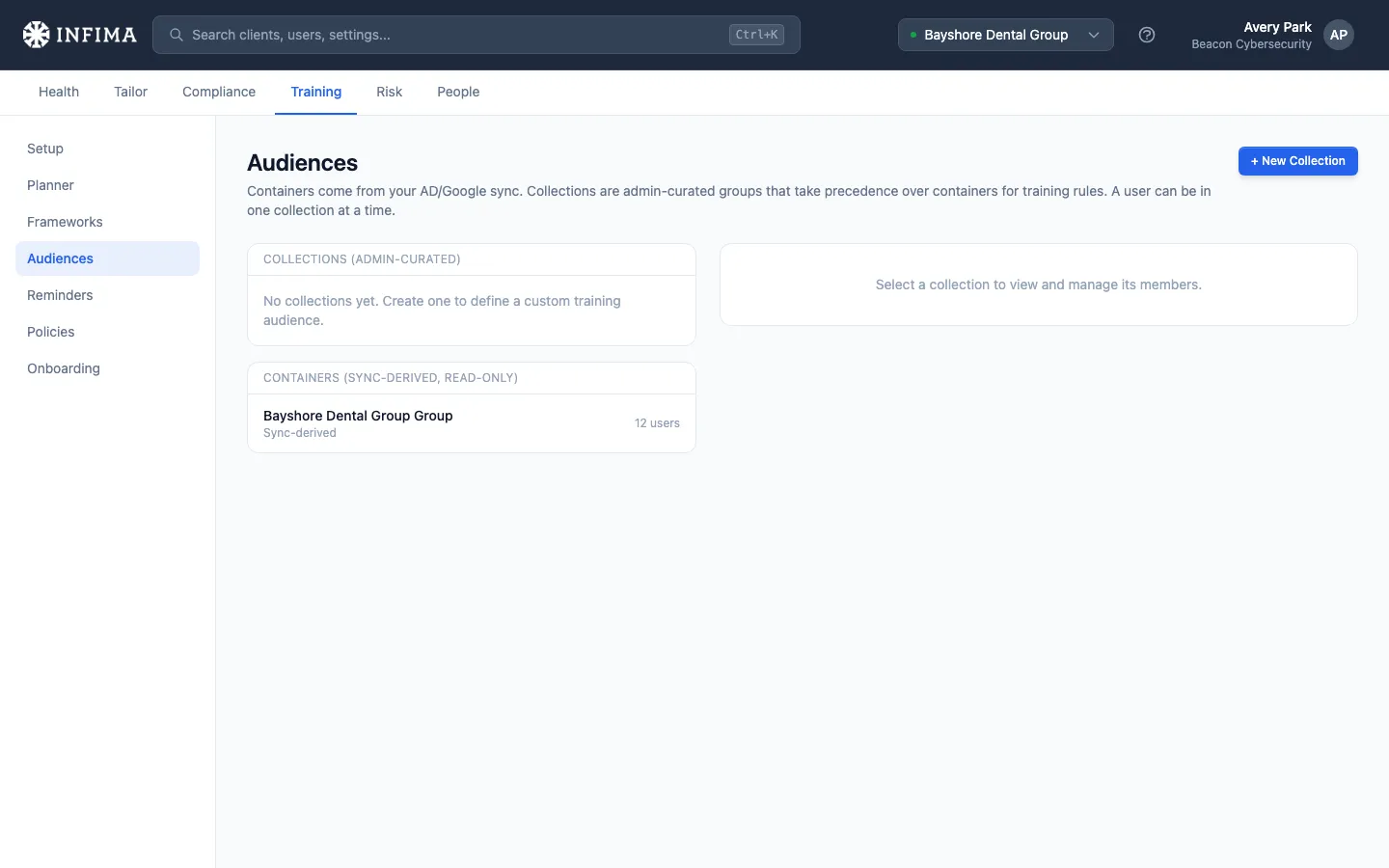
-
Open the client and go to Training → Audiences. Two sections: Collections on the left, Containers (sync-derived, read-only) below. Containers populate automatically from the People sync; collections start empty.
-
(Optional) Create a collection. Click New Collection, give it a name (e.g., Finance Team) and an optional description, then click Create. The new collection appears in the list, ready for members.
-
Add members. Select the collection in the left column. In the detail panel on the right, click + Add Member, search by name or email, and click a user to add them. Repeat for each member. Removing a member uses the Remove link on their row.
You’ll know it worked when
Section titled “You’ll know it worked when”- The collection shows up with the right member count in the left column.
- Selecting it shows the members you added in the detail panel.
- The collection now appears as an option in the audience picker on other Training pages (Frameworks, Setup, etc.).
Assigning frameworks per audience
Section titled “Assigning frameworks per audience”Once an audience exists, the Frameworks page lets you assign different frameworks — or different subsets of the same framework — to different audiences. An audience picker appears at the top of the Frameworks page when the client has more than just the default tenant audience. On a fresh client where nothing has been scoped yet, a Scope by audience button stands in the picker’s spot — click it to reveal the picker so you can scope settings to a specific container or collection from the start. The choice sticks for that client without needing to re-click each visit.
The pattern: change the audience picker to the audience you want, then add or adjust frameworks. The “Assigned to this …” heading tells you which scope you’re editing.
See Assign a compliance framework for the framework controls themselves.
Pattern: role-based training (the CMMC example)
Section titled “Pattern: role-based training (the CMMC example)”A common case for audiences is a framework like CMMC that requires role-based training: most of the workforce takes a few core courses, but a specific role (say, system administrators) also takes a role-targeted module. Here’s how that’s expressed:
-
Assign the framework at the tenant scope with the core courses only. On the Frameworks page with the audience picker set to All users (the tenant default), add CMMC. On the review screen, deselect the role-specific course from the Courses list — leave on only the core 3. Confirm. Every user at the client now gets the core 3 courses.
-
Create a collection for the role. Go to Training → Audiences. New Collection → name it after the role (System Administrators, Privileged Access Team). Add the relevant users as members.
-
Switch the audience picker and assign the framework again. Back on the Frameworks page, change the audience picker to the collection you just created. Add CMMC again. This time deselect the core 3 on the Courses list and leave only the role-specific course on. Confirm.
The collection’s members now get the core 3 (inherited from the tenant assignment) plus the role-specific course (from the collection assignment). Everyone else gets just the core 3. The schedule, training reminders, and compliance reporting honor the split.
The same pattern works with containers in place of collections — if your sync source already has the right group, skip the collection-creation step and just switch the audience picker to that container.
Frequently asked
Section titled “Frequently asked”A user is in a container and in a collection. Which one’s training applies? Collections take precedence over containers, which take precedence over the tenant-wide default. The most specific scope a user belongs to wins; settings that aren’t configured at a narrower scope inherit from the next level up.
Can I move a user between collections? Yes — add them to the new one and they’re automatically removed from the old. The Add Member modal calls out this behavior: “Adding a user moves them from any previous collection — one collection per user.”
Why are containers read-only? Because they represent your sync source. If we let you edit them here, the next sync would overwrite the change. To restructure container membership, do it in Microsoft 365 / Google Workspace and re-sync.
Do I have to use audiences at all? No. The tenant-wide default — every user gets the same training — is the right setup for the majority of clients. Reach for audiences when a client has differentiated requirements (compliance role splits, exec-only training, departmental cadence differences, etc.).
The audience picker isn’t showing up on a brand-new client and I want to scope a setting to one of their sync’d containers. Click the Scope by audience button at the top of the Training page where the picker would normally sit. The picker reveals, you can pick the container or collection you want, and it stays visible for that client from then on.
Can I delete a collection? Yes — the Delete link in the detail panel. Members aren’t deleted; they just lose the collection-scoped training and fall back to their container or tenant scope. Any framework assignments scoped to that collection are also removed.
Related
Section titled “Related”- Assign a compliance framework — the framework controls used in the CMMC pattern above.
- Sync users — how directory sync creates containers in the first place.