
Learning Portal
When a client’s user asks “how do I get into my training?” or “where’s my certificate?” — this is your reference. The entire user experience happens at learning.infimasec.com, under your branding, and this article tells you what they see and how to help them get unstuck.
You don’t manage anything here as the partner. The portal is for the client’s end users: training, certificates, their personal risk score, and (if Dark Web Monitoring is on) any breaches their email shows up in. This article is your support guide.
Signing in
Section titled “Signing in”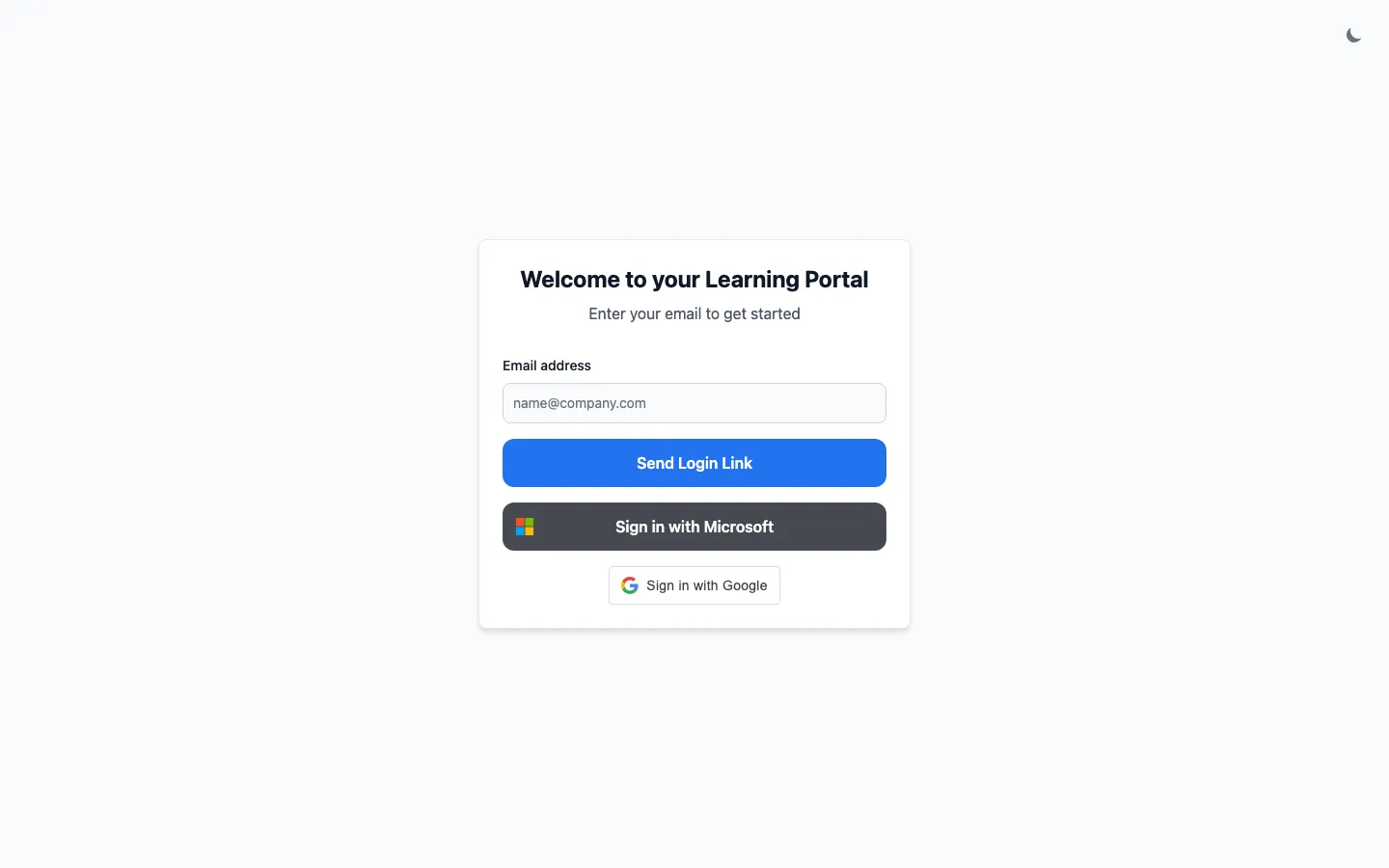
Three sign-in options on the welcome screen. Tell your user which one to pick:
- Sign in with Microsoft — for any user whose work email is on Microsoft 365, whether or not their organization is sync’d with us via Microsoft on your side.
- Sign in with Google — for any user whose work email is on Google Workspace. Google’s one-tap prompt may pop on its own for signed-in Google sessions.
- Email link — for manual-setup clients (no SSO sync) or as a fallback when SSO trips. The user types their email; we send a one-time sign-in link.
The portal figures out which methods work from the user’s email — there’s no per-client switch. If a user tries the wrong button (Microsoft for a Google account, for example), they’ll get rejected and can try a different one.
First sign-in: onboarding modules
Section titled “First sign-in: onboarding modules”Onboarding modules turn the portal into your training program — not a generic tool we hand the user. The moment a new user signs in for the first time, you get to shape the first impression: your MSP intro, the client’s specific IT policies, a “this is how we handle phishing here” video, whatever you want every user to internalize before they touch their first course. The portal makes it stick.
100% reach. The portal gates every other page until the user finishes the sequence. Unlike a welcome email that gets archived unread, this is the message they have to see. New hires get the same intro automatically going forward — no work for the client’s IT team to remember.
Mix and match content. Drop in your own training videos and policy PDFs alongside the ready-made screens we include (a partner-branded welcome introduction, plus optional Report Phishing button and Submit-a-Ticket walkthroughs). Reorder them any way you want.
Set it once. Users go through this on first sign-in only — returning users skip straight to their courses. The flow won’t nag them again. When you add a new module later, only the new module pushes to existing users; you don’t reset their progress on everything else.
Configure per-client under Tailor → Onboarding, or set a partner-wide default under Settings → Onboarding that every new client inherits. See Welcome email and onboarding (per-client) and Partner-level settings → Onboarding (partner default) for the configuration walkthroughs.
Finding the next course
Section titled “Finding the next course”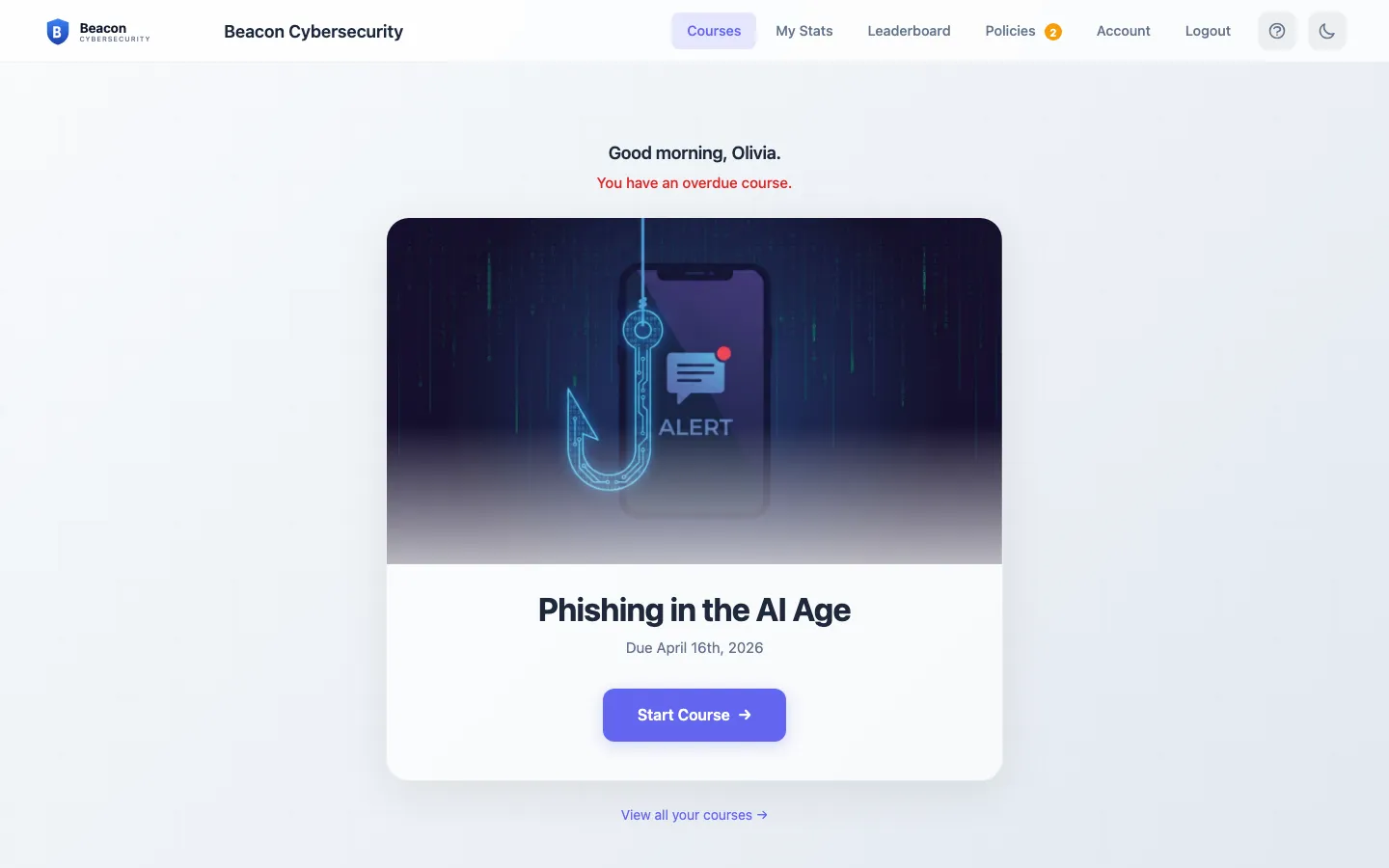
When a user signs in and asks “what am I supposed to do?”, the Courses page answers them in the most direct way possible: one course, one button.
- If they have training due, the hero card shows the single course we recommend they take next — first-name greeting, course title, due date, Start Course button. Big and obvious so they can’t miss it.
- If they’re caught up, the hero card celebrates the moment (“All caught up — 4 courses completed this year. Nice work.”) and previews the next scheduled course if one’s coming.
- If they want the full view — past completions, upcoming work, everything — the View all your courses → link switches to a tabbed Due / Upcoming / Completed list.
Clicking Start Course launches the course player in the same tab. A floating exit button stays visible so a user who has to step away doesn’t lose their place. When the course wraps up, they’re returned to the Courses page with the new completion in the Completed tab.
If a user is overdue or has multiple courses due, a banner across the top of every page nudges them (“3 Courses Due — View”) so they can’t easily forget.
Generating a certificate
Section titled “Generating a certificate”For any completed course, the user clicks Generate Certificate and we email them a personalized PDF — useful for compliance reviews, performance summaries, or forwarding to a manager. The certificate doesn’t open in the browser; it lands in their inbox. Clicking the button again re-sends, so a user who lost the email doesn’t have to worry.
How they’re doing — risk score and stats
Section titled “How they’re doing — risk score and stats”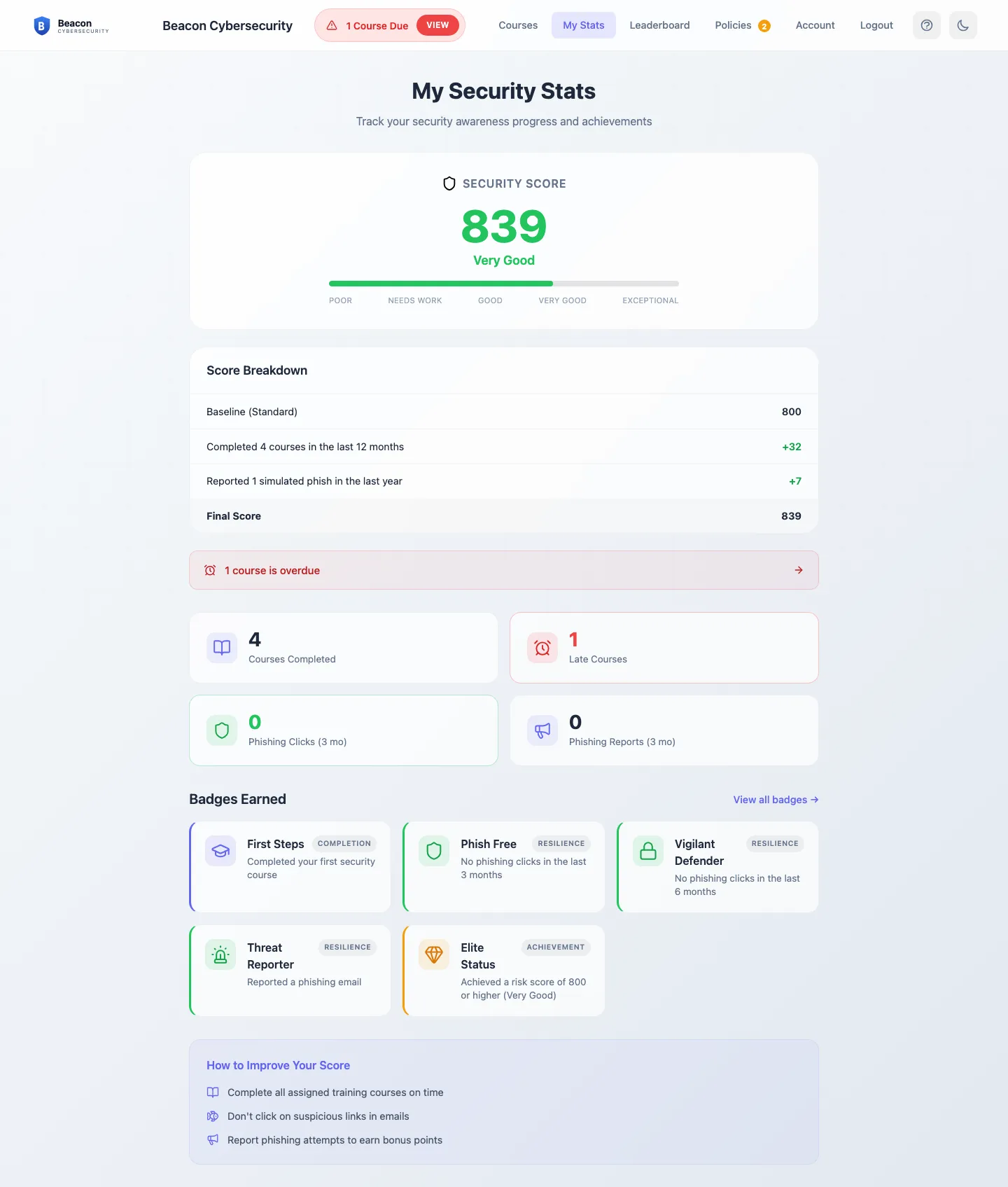
Most users come to My Stats to answer one of two questions: “am I behind?” and “what does my score mean?” The page is built around those.
The risk score sits at the top — one number with a plain-English label (Poor, Needs Work, Good, Very Good, Exceptional) so the user can read it without translating math. It’s the same risk view their organization sees, scoped to just them.
Below: completions, average quiz score, any badges they’ve earned. If Dark Web Monitoring is on and they have unresolved password breaches, a callout points them at the Breaches page.
When a user asks “why does my score say Needs Work?” — point them at completing the courses showing in their Due tab. That moves the score faster than anything else.
Leaderboard
Section titled “Leaderboard”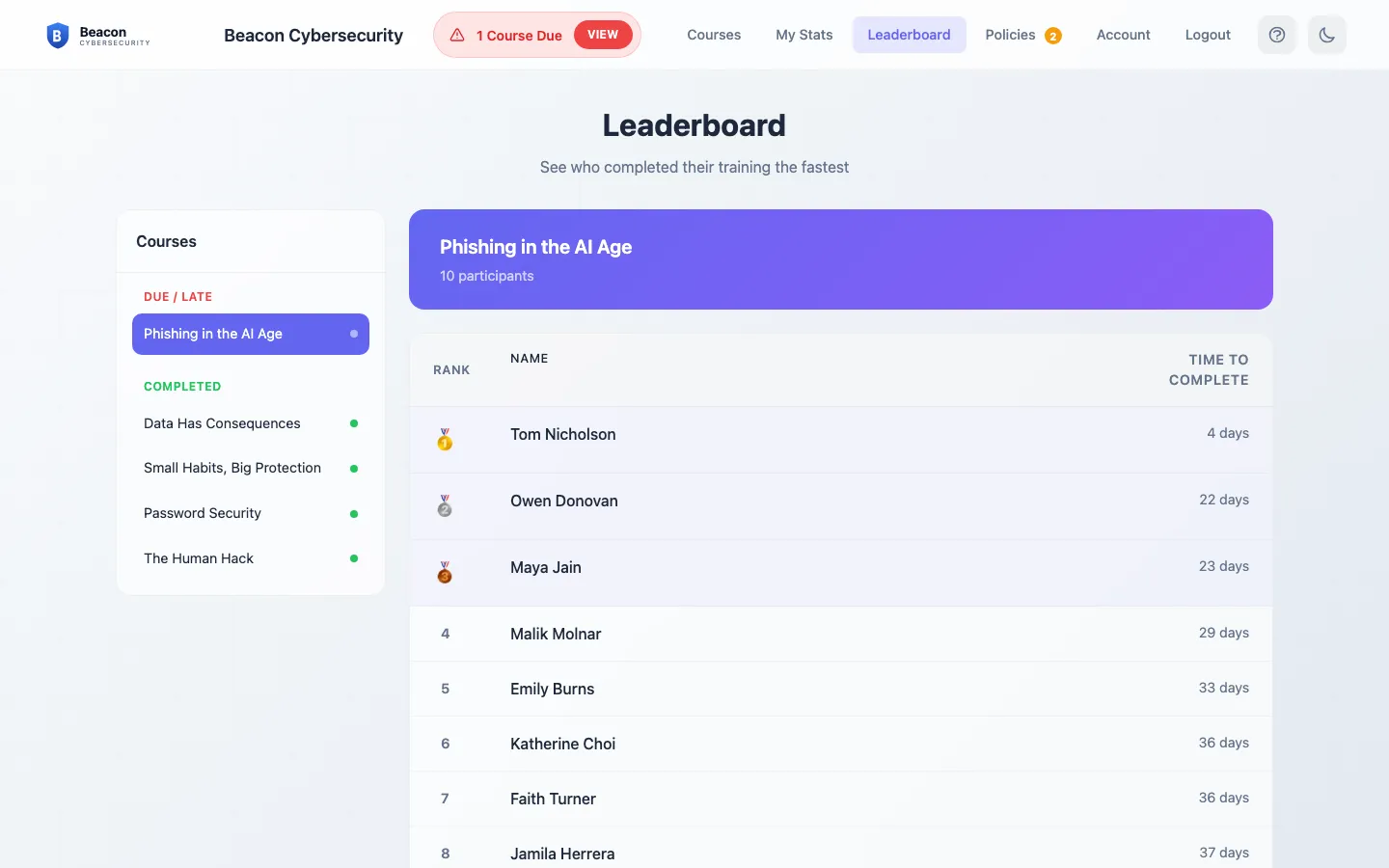
A per-course completion-time ranking. The user picks a course they’ve taken, sees who at their client finished fastest. Top three get gold / silver / bronze; everyone else is numbered.
Useful for: friendly competition, clients with strong “first one done” team cultures, gamifying mandatory training. Tone-deaf for: clients who consider competition inappropriate for security awareness. There isn’t currently a switch to hide it per-client; if a client objects strongly, contact our support team.
If a manager wants to see their team
Section titled “If a manager wants to see their team”Users flagged as managers in the client’s directory get a My Team tab — a list of their direct reports with each person’s status, plus a Remind button next to each row. The button greys out for 24 hours after one click so a manager can’t accidentally spam someone with a flurry of nudges.
This is the manager’s own “nudge them now” lever, separate from the automatic manager reminders the system fires on a schedule.
Reviewing breach exposures (Dark Web Monitoring)
Section titled “Reviewing breach exposures (Dark Web Monitoring)”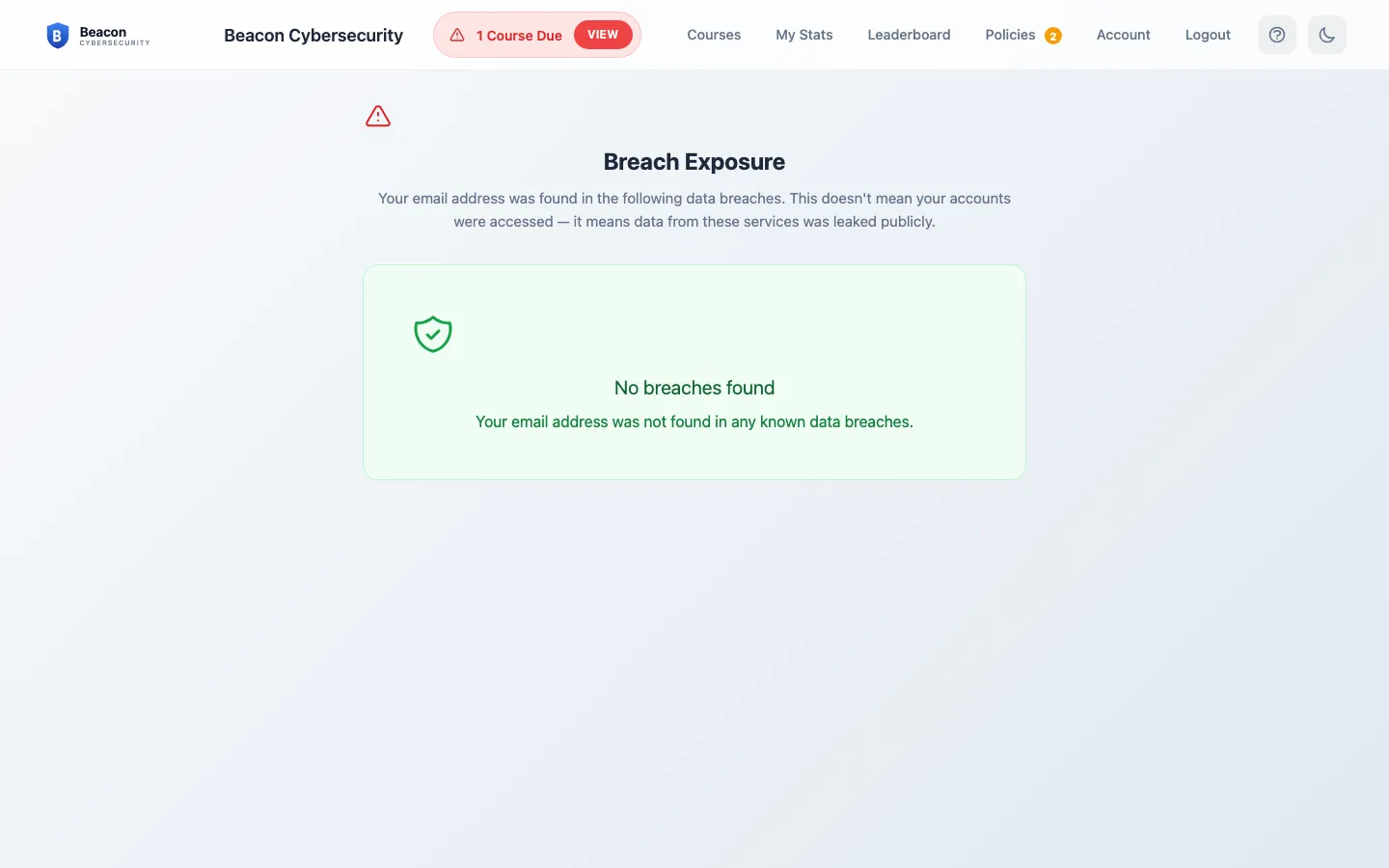
When a user lands on the Breaches page, they’re staring at every public breach their email has shown up in. They came here to figure out what’s serious and what to do about it. Help them prioritize:
- Password Exposed — credentials at risk. They should rotate that password right now, especially anywhere they’ve reused it.
- Personal Info Exposed — PII like credit card numbers, SSN, address. Worth a closer look depending on what specifically was exposed.
- Data Exposed — only the email itself was leaked. Note it, no urgent action.
The Mark resolved button records that the user took action (“I changed the password,” “I updated the card”). Resolved breaches stay in the list as a record but drop out of the active count on My Stats.
If Dark Web Monitoring isn’t enabled for the client, this page doesn’t exist for that user — no broken link, no confusion.
Switching language
Section titled “Switching language”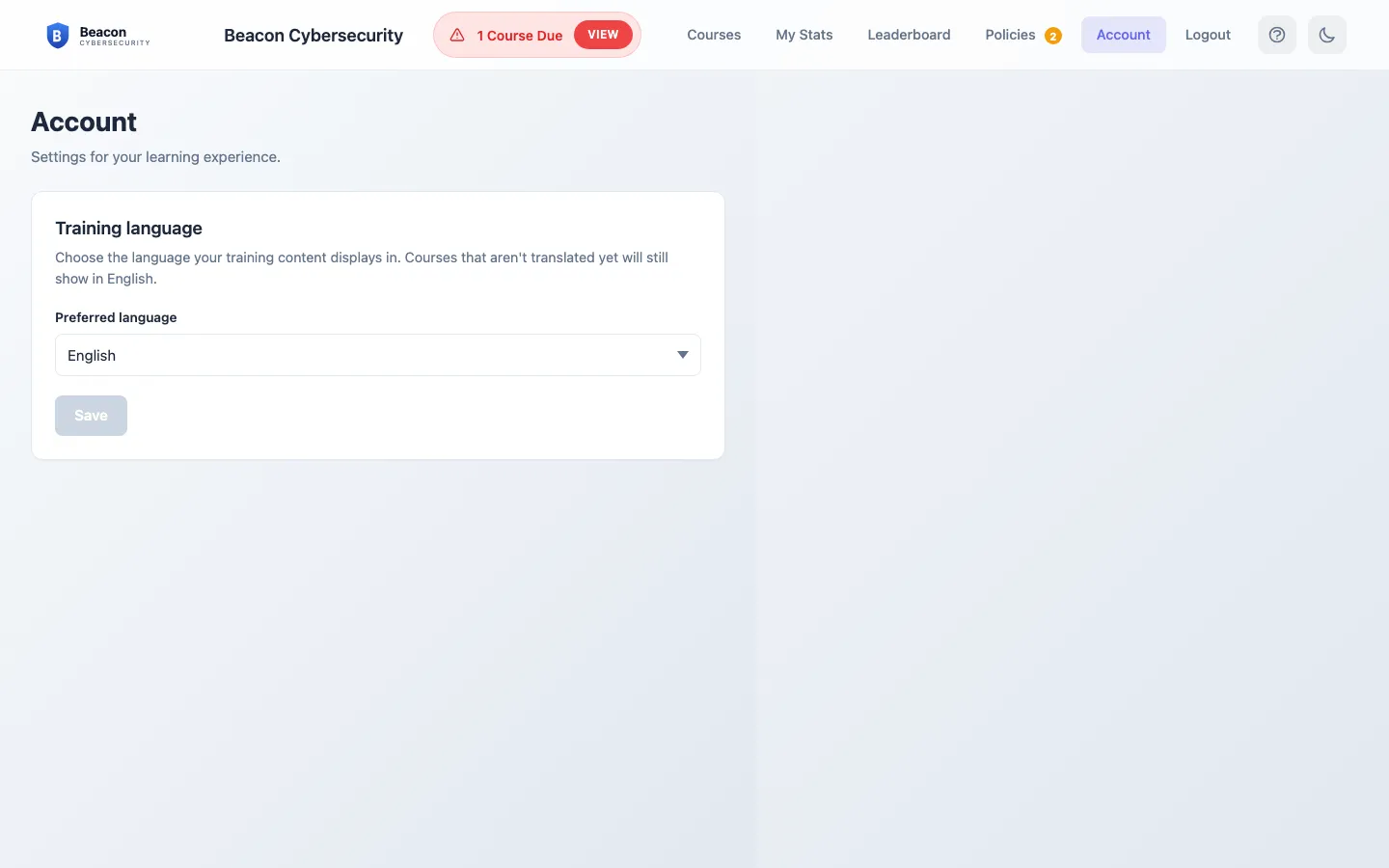
End users can take training in English, Spanish (Español), or Canadian French (Français Canada). They pick from the user menu in the portal header → Account, choose a language, and save. The portal chrome flips on the next page load; the next translated course they open renders in the new language.
Most users won’t touch this themselves — their language usually comes through from your sync source, and they never see a need to change it. But the picker exists for the cases where a user wants a different language than their directory profile says, or where directory profiles aren’t set at all.
When a user changes their language in their Account page, that becomes a manual override on their record — sync won’t overwrite it on the next pass. If a partner wants to manage language centrally, the partner-admin override and “Revert to directory” controls are documented in Training languages.
Four of our courses ship in all three languages today: Phishing in the AI Age, The Human Hack, Data Has Consequences, and Small Habits, Big Protection. Other courses render in English regardless of the user’s language preference — we add translations on a rolling basis.
Partner-branded throughout
Section titled “Partner-branded throughout”Every page wears your logo and partner name in the header — not ours. Same for completion certificates, welcome and reminder emails, and breach notifications. The end user’s relationship is with your business; the portal reflects that, top to bottom.
If your branding looks off — old logo, missing accent color — see White-label & branding for where to update it.
Frequently asked
Section titled “Frequently asked”A user says they didn’t get the email link after entering their email. Check whether they’re a sync’d Microsoft 365 or Google user first — if so, point them at the SSO button instead; the email link is for manual-setup clients. If they’re genuinely a manual user and the link didn’t arrive, see A user isn’t getting training emails for the diagnostic flow.
A user signed in with the wrong method and now sees no data. The portal looks up the user by email after auth — same email through Google or Microsoft resolves to the same data. If they somehow end up at an empty portal, log them out and have them sign in with whichever method matches the email on file.
A user has Dark Web Monitoring data but doesn’t see the Breaches page. Dark Web Monitoring must be on for the client and at your partner-level master switch. The Breaches link only appears when both are true.
Can a manager see their team’s individual quiz scores or course-by-course detail? Managers see aggregate status only — each direct report’s completion percentage, overdue count, and current status. Per-quiz scores and individual responses are intentionally kept out of the manager view. When a manager has a specific reason to dig deeper (a remediation conversation, an audit), your client’s IT lead can pull a Training Performance report from the dashboard (Generate a report) and share what’s appropriate.
Can users take training on mobile? Yes — the portal is responsive and most course content runs in a mobile browser.
A user keeps getting bounced to onboarding and can’t reach their courses. That means they have one or more incomplete onboarding modules. The portal won’t let them past until they finish. Have them work through the modules in sequence — there’s a Next button on each card. If a video or PDF won’t load, refreshing the page typically resolves it.
An existing user keeps seeing the same onboarding flow every sign-in. Shouldn’t happen — completion is recorded per-user and the portal only pushes incomplete modules. If a single user reports this, check whether their browser clears storage between sessions. If multiple users at the client are affected, contact our support team.
I added a new onboarding module — will my existing users see it? Yes. The portal pushes any module the user hasn’t completed yet. They won’t be re-pushed through the modules they already finished — just the new one.
A user completed a course but the certificate email never arrived. Have them click Generate Certificate again — it’s a re-send, not a single-use action. If the second attempt also doesn’t land, check their Junk / Deleted Items before escalating.
Is the leaderboard scoped to the whole company or per team? Per client — every user at the client can see every other user’s completion times. No per-team or per-department slicing today.
Can I disable the leaderboard for a client who objects? Not from the dashboard. Contact our support team if you have a client who specifically asks.
A user wants their training in Spanish or French — can they switch it themselves? Yes. From the user menu in the portal header, Account → pick a language → Save. Today we ship English, Spanish, and Canadian French. Four of our courses are translated into all three languages; the rest of the catalog renders in English regardless of the user’s choice. See Training languages for the full picture, including the partner-admin override path.
Related
Section titled “Related”- Welcome email and onboarding — what new users receive in their inbox before they first land on the portal.
- Training reminders — the “course due” / “course overdue” reminders that link users back into the portal.
- Manager reminders — the automatic emails that loop in managers when their team falls behind.
- Training languages — how to set Spanish or Canadian French training for individual users, and which courses are translated today.
- White-label & branding — control how your logo and name appear on the portal.