
Scheduled reports
Once a month, we email a bundle of reports to the recipients you’ve configured for the client. This is the standard “here’s how it’s going” rollup — training completion, phishing performance, risk, compliance. You choose which reports go in the bundle and who gets it.
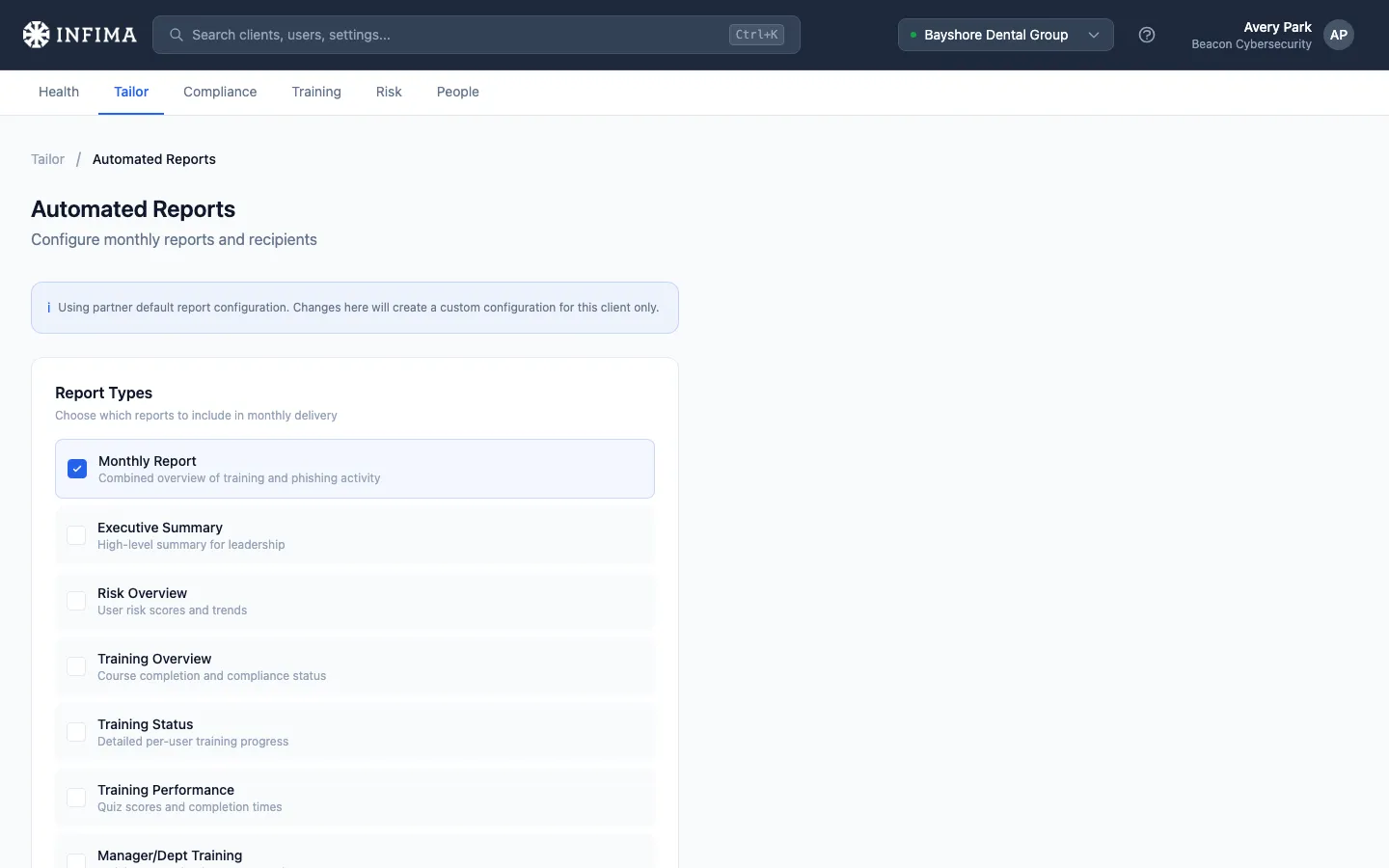
The report types
Section titled “The report types”Nine reports are available in the monthly bundle. Mix and match for the client’s needs:
- Monthly Report — combined overview of training and phishing activity. The default for most clients.
- Executive Summary — high-level summary for leadership.
- Risk Overview — user risk scores and trends.
- Training Overview — course completion and compliance status.
- Training Status — detailed per-user training progress.
- Training Performance — quiz scores and completion times.
- Manager/Dept Training — training status by department and manager.
- Phishing Overview — phishing simulation results and trends.
- Compliance Report — framework requirement status and audit-ready evidence (relevant when the client has compliance frameworks assigned — see Assign a compliance framework).
Configure for a client
Section titled “Configure for a client”Open the client → Tailor → Automated Reports.
-
Toggle the reports you want. Each report type has an on/off toggle. The first time you save, the client gets a custom configuration; before that, they inherit your partner default. A banner at the top tells you which state you’re in.
-
Add recipients. Type an email address in the recipient field and click to add. The list is incremental — you can add several. Remove with the × on a chip.
-
Save.
Partner defaults
Section titled “Partner defaults”The same nine report types and recipient list also exist at the partner level — set them once under Settings → Automated Reports and every new client onboards with that configuration. The per-client view exists for overrides; most clients won’t need one. See Partner-level settings for the rest of the partner-default surface.
When you first open a client that’s never been customized, the banner reads “Using partner default report configuration. Changes here will create a custom configuration for this client only.” Once you save anything, that client switches to a custom configuration and stops inheriting future partner-default changes.
You’ll know it worked when
Section titled “You’ll know it worked when”- The report toggles reflect what you saved (the banner no longer says “Using partner default” for this client).
- Recipients appear in the recipient list with the addresses you added.
- On the first of the next month, recipients receive the bundle by email.
Frequently asked
Section titled “Frequently asked”When exactly does the monthly report go out? First of the month for the preceding month’s activity. Recipients receive a PDF bundle of the report types you have enabled.
Can I send the monthly report to a partner-side mailbox in addition to client recipients? Yes — set up a partner-default recipient (your own mailbox or a security@ alias) so you get a copy alongside the client. Adding partner-side addresses at the partner-default level means every client’s monthly bundle CCs you automatically.
A new client should get reports immediately, not wait until next month. The monthly bundle is monthly — it runs on the 1st. For an immediate need, use Custom reports → Trigger Now on a configured schedule, or generate the relevant report on demand.
Can I change the cadence to quarterly? The bundled monthly report is monthly by design. For different cadences (quarterly, weekly), set up an equivalent custom report schedule.
A client wants no monthly reports at all. Turn off every report type for that client. They’ll keep their custom configuration (no reports), regardless of what partner defaults say.
One of my report types looks empty in the PDF. That’s typically because there’s nothing to report — no phishing tests in the window, no completed courses, no framework assignments. Verify there’s activity to summarize for that report type at this client before tagging it as a problem.
Related
Section titled “Related”- Custom reports — ad-hoc schedules outside the monthly bundle (different recipients, different cadence, single-course reports, phishing-click notifications).
- Tailor to your client — reports are a Tailor-time configuration.