
Set course priority
You’ve assigned a user more than one course, and you want to make sure they do the important one first — a just-assigned incident-response course ahead of the quarterly refresher, or a compliance course before anything optional. Priority is how you steer that order.
How priority works
Section titled “How priority works”When a user has several courses outstanding, we point them at the highest-priority one first. That’s the course named in their training reminders and the one that sits at the top of their training list. When two courses share the same priority, the one due soonest comes first.
There are three levels you can set, plus framework courses, which sit at a fixed level of their own. From highest to lowest:
- Urgent — jumps ahead of everything, including framework courses. Use it for a course that genuinely can’t wait.
- Framework (fixed) — compliance-framework courses sit here automatically. You can’t change it, and it always outranks ordinary training.
- High — above normal courses, just below framework. A strong nudge that still lets compliance lead.
- Normal — the default. Adaptive picks and standard injected courses live here.
Only manually injected courses take a priority you set. Adaptive courses are always Normal and framework courses stay fixed — that keeps compliance predictable and means priority is something you reach for deliberately, on the specific course that needs it.
You’ll need
Section titled “You’ll need”- A course you’re injecting, or an injected course already on the schedule. Adaptive and framework courses don’t take a manual priority — if you need one of those to lead, inject the course instead and set its priority.
Walkthrough
Section titled “Walkthrough”-
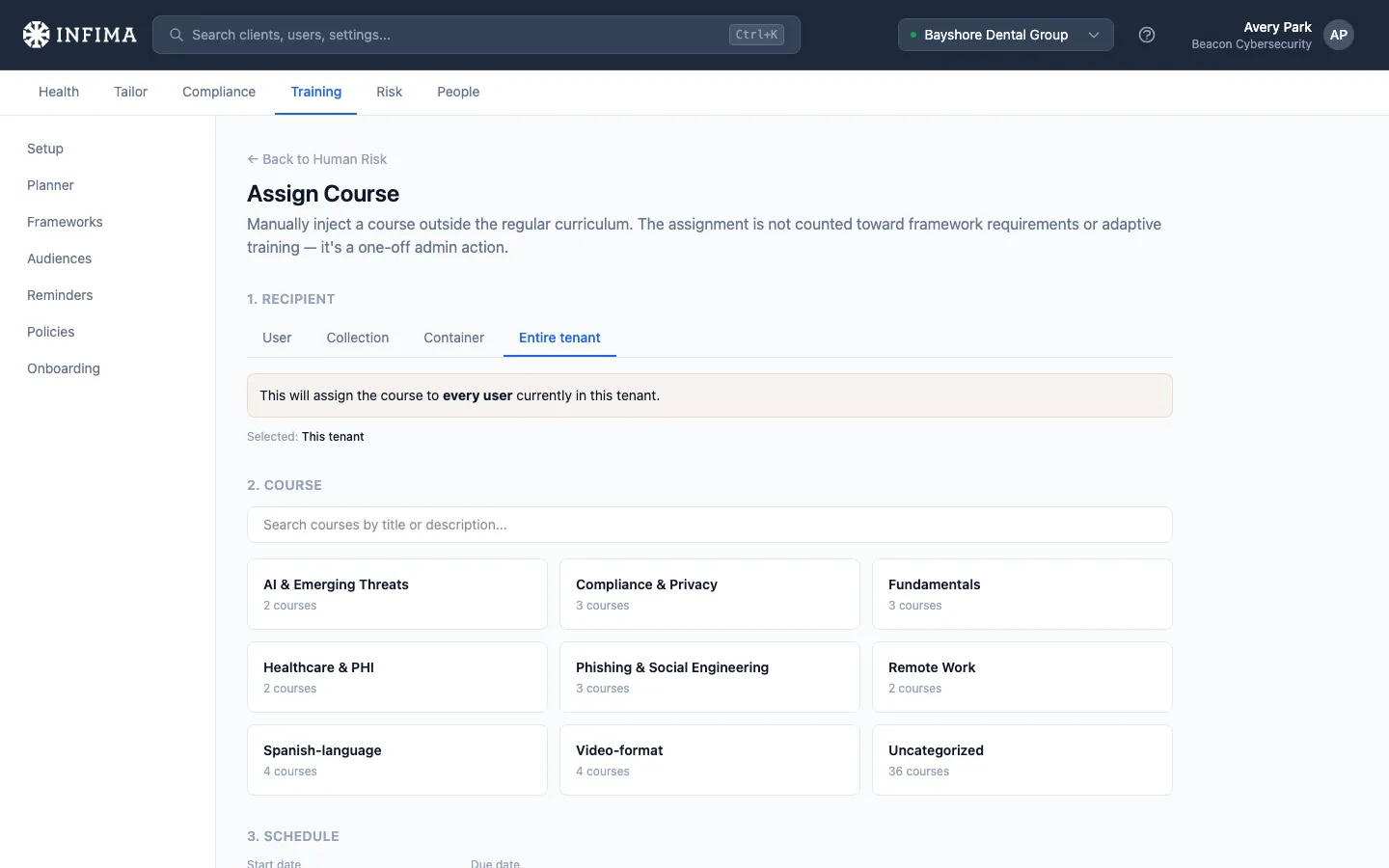
Set it when you inject a course. On the Assign Course page, after you’ve picked the recipient, the course, and the dates, choose a Priority — Normal, High, or Urgent. Then submit. New injections default to Normal, so you only change this when a course needs to lead.
-
Change it later from the Planner. Open the course from the Planner to reach its detail page, then use the Edit assignment panel. Injected courses show a priority control alongside the dates — pick a new level and save. Framework and adaptive rows don’t show it; their priority is set for them.
You’ll know it worked when
Section titled “You’ll know it worked when”- The Edit assignment panel shows the priority you chose on the course’s detail page.
- For a user with several courses due, the higher-priority one leads their reminder email and sits at the top of their training list. Within the same priority, the course due soonest is first.
Frequently asked
Section titled “Frequently asked”Can I change a framework or adaptive course’s priority? No — only manually injected courses. Framework courses are fixed above ordinary training, and adaptive picks are Normal. When you need a specific course to lead, inject it and set the priority there.
Does Urgent really beat a compliance course? Yes. Urgent is the one level that jumps ahead of framework courses, so use it sparingly. High sits just below framework — that’s usually what you want for “important, but not ahead of compliance.”
Two courses are both due — which one does the user see first? The higher priority. If they’re the same priority, the one with the earlier due date wins.
I set a course to Urgent but the user still sees a different one first. Check whether the other course is also Urgent, or is a framework course they haven’t finished (framework still leads anything at High or Normal). Also confirm the course has actually started — a course scheduled to begin later won’t lead until its start date arrives.
Where does priority show up for the user? It decides which course we name in their training reminders and which sits at the top of their training list. It doesn’t change the due dates or add any extra emails — just the order things are presented in.
Related
Section titled “Related”- Control how training is scheduled — the Planner, injecting a course, and the Edit assignment panel.
- Send training reminders — how the reminder that leads with the priority course goes out.
- Human risk for a user — see everything a single user has outstanding.