
Phishing landing pages
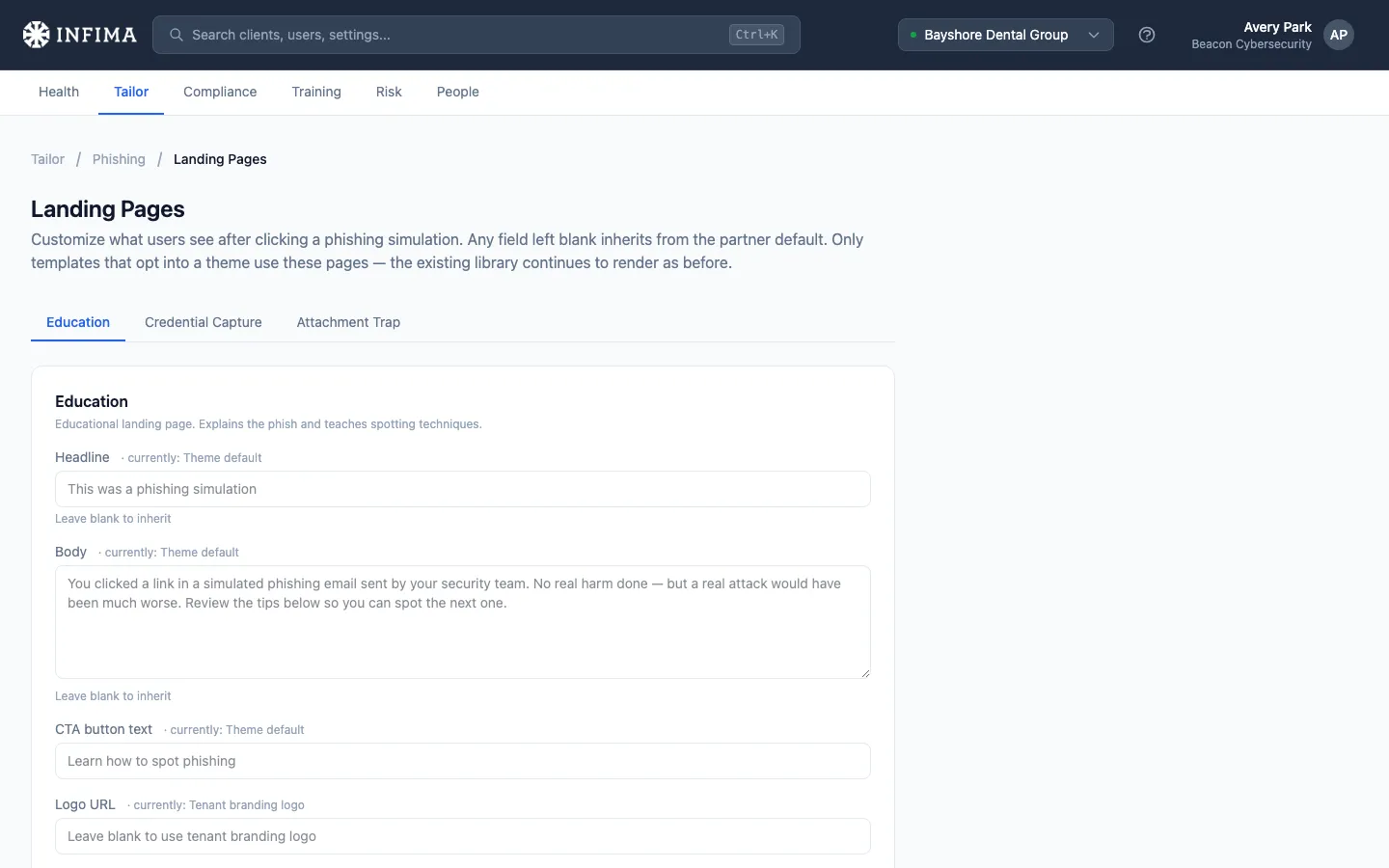
When a user clicks a link in one of the phishing tests we send, they land on a teachable-moment page explaining what they clicked on and what to watch for next time. Most landing pages render from our standard library and don’t need any configuration. Some phishing templates opt into a theme — a themed landing page that lets you customize the headline, body, CTA button text, and logo for that page’s appearance at this client.
Two other landing experiences worth knowing about
Section titled “Two other landing experiences worth knowing about”Neither is configurable here; both are worth knowing exist so the screenshots a client shares with you make sense.
Brand-matched credential pages. Credential-capture tests (the user clicks a “log in” link in the email) first land on a brand-matched sign-in page — Microsoft 365, a generic bank, a popular consumer brand, and so on — picked to match the look of the email’s sender. The page captures whatever the user types (no real credentials are stored) and then routes them onward. This is automatic per template; the brand match is part of the test itself, not a per-client choice.
Defensive-behavior landing pages. With behavior-based remediation on, tests tagged with a defensive behavior route the failing user to a behavior-specific teachable-moment page that opens a short training module inline. This replaces the generic post-click page for those tests; it isn’t theme-editable.
If the client’s email security scans URLs
Section titled “If the client’s email security scans URLs”Our phishing test links resolve to a small set of landing domains. If the client runs an email security tool that scans or rewrites the URLs in incoming mail, that tool can block or flag these domains before the user ever reaches the teachable-moment page. Add the following to the tool’s URL allow list:
*.cdn-statichost.com*.static-storagehost.com*.staticcontenthost.com*.storage-cdn.com*.storagecdn24.com
If the client uses Mailprotector, there’s nothing to do — these domains are already allow-listed with Mailprotector at the global level.
This applies to any client whose email security scans URLs, however their users are set up — URL scanning acts on links after the email is delivered, so it’s separate from mail-delivery whitelisting (which sync’d clients never need).
You’ll need
Section titled “You’ll need”- Whatever wording or branding you want the customer’s users to see when they land on a themed page. If you’re happy with the partner default (or the theme default if you haven’t set a partner default), you don’t need to touch anything here.
Walkthrough
Section titled “Walkthrough”-
Open the client → Tailor → Phishing → Landing Pages. Each landing-page theme appears as a tab across the top. Click a theme to edit it.
-
Fill in any field you want to override. Each row shows what the field currently resolves to and where the value came from — Custom for this client, Partner default, or Theme default. Type a new value to override; leave the field blank to inherit the next level up.
- Headline — the page’s main heading.
- Body — the message under the headline.
- CTA button text — the call-to-action button label.
- Logo URL — link to a hosted image. Leave blank to use the tenant’s branding logo (or the theme’s default if branding isn’t set).
-
Save. Changes apply to any future clicks on templates that use this theme. Already-rendered landing pages don’t change retroactively.
You’ll know it worked when
Section titled “You’ll know it worked when”- The row’s “currently” indicator on each saved field reads Custom for this client.
- Click-through a test that uses this theme (or preview the theme if a preview is available in your environment) and the customized content renders.
Frequently asked
Section titled “Frequently asked”How do I know which templates use a theme? The template library shows the theme on each template that opts in. Most templates in our standard catalog use the built-in library landing pages and aren’t affected by this configuration.
The headline I see while editing isn’t what I typed — why? Each field shows what currently resolves for this client. If you haven’t overridden a value at this scope, the field shows what’s coming from the partner default (or the theme default). The placeholder text is the inherited value; the field itself is empty until you type.
Can I set logos per theme, or just one for the whole client? Per theme. If you want all themes to use the same logo, set the same logo URL on each. The Logo URL on a theme defaults to the tenant’s branding logo when unset, so often you just leave it blank and rely on client branding.
Where do I host the logo image? Anywhere reachable by the user’s browser over HTTPS. Many partners use their own marketing site or asset CDN.
What if a user clicked a phishing test before I customized the theme? The landing page they saw used whatever values were in place at the moment they clicked. Customizing now affects future clicks only.
Related
Section titled “Related”- Phishing templates — choose which phishing tests are eligible for the client.
- Behavior-based remediation — the defensive-behavior landing pages that fire on tagged tests.
- Branding defaults and per-client overrides — the logo source most themes inherit when Logo URL is blank.
- Tailor to your client — landing pages are typically a touch-up step rather than first-day configuration.