
Customize the welcome email
A client has asked that the first email their staff get from the training program sound like them — their tone, their sign-off, maybe without the mention of phishing tests until they’ve announced the program internally. Or you simply want every client you onboard to get a welcome message written in your voice rather than ours.
The welcome email ships with default content that works for most clients. This article is where you change what it says: the subject, the body, and who it appears to come from. Turning welcome emails on or off and picking the send hour is a separate task — see Welcome email and onboarding.
You’ll need
Section titled “You’ll need”- Welcome emails turned on for the client (or the partner-wide default on) — customizing the content doesn’t send anything by itself.
- A decision on scope: a partner-wide default that every client inherits, or a per-client override for one customer.
Customize for one client
Section titled “Customize for one client”-
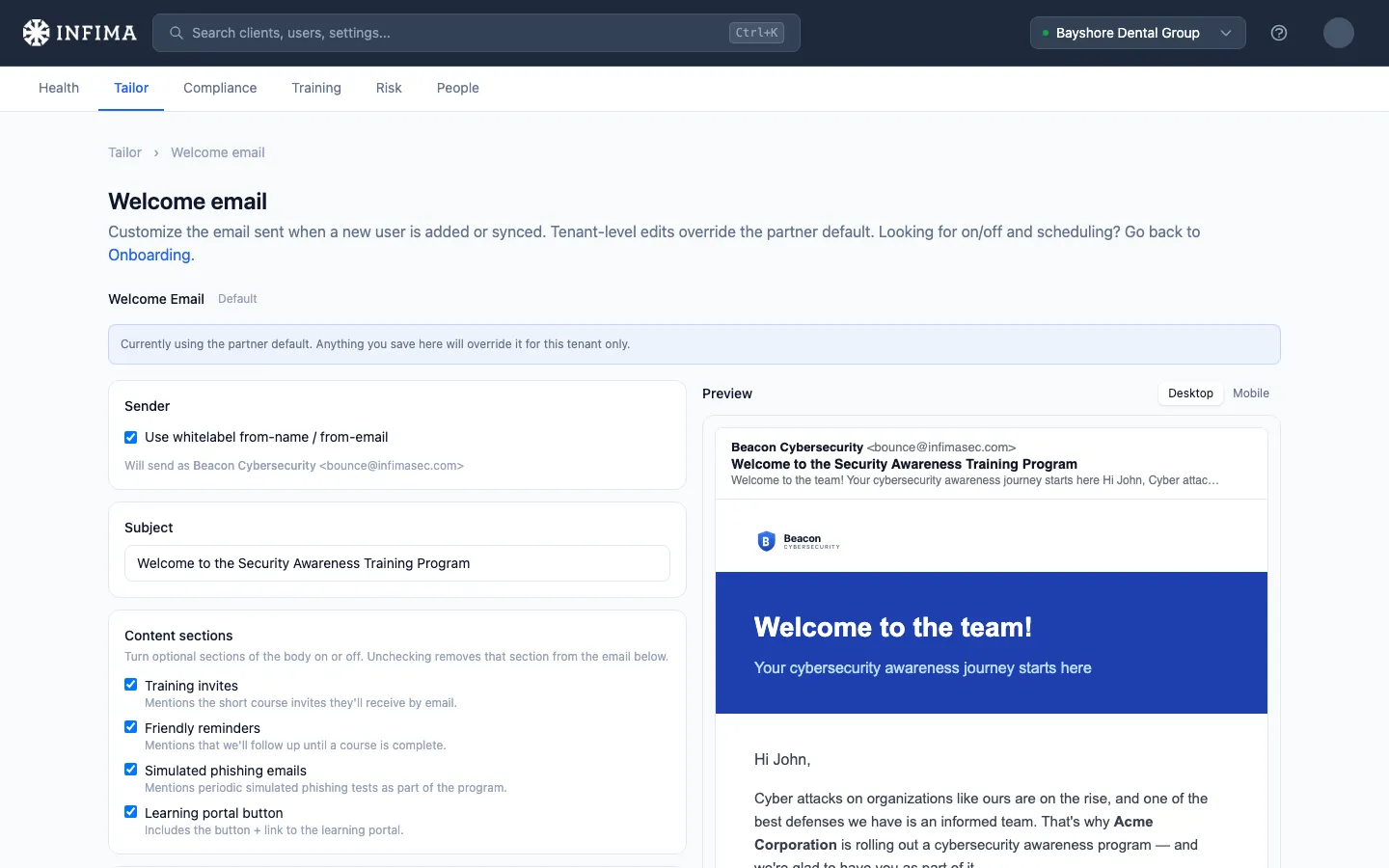
Open the client → Training → Onboarding, and click Customize on the Welcome Email card. The editor opens with the current email pre-filled — our default wording, or the partner default if you’ve set one — so you edit rather than start from a blank page. A Default or Custom badge at the top tells you which you’re looking at.
-
Set the sender. The Use whitelabel from-name / from-email box is on by default, which means the email goes out under the client’s branding sender (see Branding defaults and per-client overrides). Untick it only if this one email should come from a different name or address.
-
Write the subject. Leave it as-is to keep Welcome to the Security Awareness Training Program, or replace it.
-
Turn optional sections on or off. The Content sections checkboxes remove or restore the paragraphs in the default body that clients most often ask about:
- Training invites — mentions the short course invites they’ll receive by email.
- Friendly reminders — mentions that we’ll follow up until a course is complete.
- Simulated phishing emails — mentions periodic simulated phishing tests as part of the program.
- Learning portal button — the button and link to the learning portal.
Unticking a box removes that section from the body immediately; tick it again to put it back in its original spot.
-
Edit the body. The rich text editor accepts your own wording, pasted HTML, or a fresh layout from Apply template (two options — Professional Classic and Minimal — either of which replaces the current body and can then be edited freely). Use + Variable in the toolbar to drop in the recipient’s first name, the client’s company name, your partner name, the learning portal link, or the branding logo. The preview on the right updates as you type; switch between Desktop and Mobile to check both.
-
Click Send test to me. A copy of the email, with sample values in place of the variables, goes to your own admin address so you can see it in a real inbox before anyone else does. You can send a test before saving.
-
Click Save changes. The button stays greyed out until you’ve changed something. The next welcome run for this client uses your wording.
Set a partner-wide default
Section titled “Set a partner-wide default”Open the partner menu → Settings → Onboarding and click Customize on the Welcome Email card. It’s the same editor with the same fields, sections, templates, and variables. Anything you save here is what every client that hasn’t customized its own welcome email will send. The one difference: Send test to me isn’t available at the partner level, because the test needs a specific client to fill in the company name and branding — open any client’s editor to preview the result.
You’ll know it worked when
Section titled “You’ll know it worked when”- The badge at the top of the editor reads Custom instead of Default.
- The test email in your inbox shows your subject, your wording, and the sender you expect.
- The next new user welcomed at the client receives the customized email. Check the client’s Emails page for the sent copy.
Frequently asked
Section titled “Frequently asked”Which wording does a user actually get — mine, the client’s, or the default? The client’s own customization wins if there is one. Otherwise the partner-wide default, if you’ve set one. Otherwise our default. A client editor that shows the Default badge is telling you it’s currently inheriting from the level above.
I customized the email for one client — did that change it for everyone? No. Edits made from a client’s Training → Onboarding → Customize page apply to that client only. Edits made from Settings → Onboarding → Customize are the partner-wide default and reach every client that hasn’t customized its own.
How do I go back to the default? Click Reset to default at the bottom of the editor and confirm. For a client, that returns them to the partner default; for the partner-wide editor, it returns to our default wording. The button is only active when there’s a customization to clear.
Can I remove the mention of phishing tests? Yes — untick Simulated phishing emails under Content sections. That removes the paragraph without touching the rest of the email. The same goes for the reminders paragraph, the course-invite paragraph, and the learning portal button.
I picked a template and lost my edits. Applying a template replaces the whole body. If you want to start over from our default wording instead, use Reset to default.
Can I write it in another language? Yes. Type the subject and body in whatever language fits the client. The variables substitute values, not labels, so they work the same in any language.
Does customizing the content change who receives the welcome email or when? No. Sending is governed by the on/off setting and send hour on the Onboarding page; the editor only changes what the email says. See Who gets a welcome email.
I saved a customization but a user still got the old wording. Welcome emails that had already gone out keep whatever wording was in place at the time; anything sent after you save uses the new content. If a later send still shows the old text, check whether the client has its own customization overriding the partner default you edited — the client editor’s badge will read Custom if so.
Related
Section titled “Related”- Welcome email and onboarding — turning welcome emails on or off, the send hour, and who gets one.
- Training reminders — the same kind of editor for the “course due” and “course overdue” emails.
- Branding defaults and per-client overrides — the sender the whitelabel checkbox inherits from.
- Partner-level settings — the rest of the Settings surface, including the welcome email default.