
Course feedback
A client’s user hits a quiz question they’re sure has two right answers, or a screen that doesn’t load properly, and asks you who to tell. Or a client asks what the little speech-bubble button in their training is. This article is your reference.
Every screen of every course in the Learning Portal has a feedback button: a small speech bubble, labeled Give feedback when you hover over it on a computer. Users pick what’s wrong (or what they liked), can add a comment and a screenshot, and send it. It comes straight to our course team, along with which course and screen it was sent from, so we can see exactly what the user saw and fix it.
Where users find it
Section titled “Where users find it”- On a computer, the button sits in the bottom-right corner of every course screen, the quiz included. (The exit button is top-left and the course speed control is top-right.)
- On a phone, the exit button, the course speed control and the feedback button share a slim bar across the top. The bar slides out of the way while the user scrolls down through a screen and comes back when they scroll up, so it never covers the course.
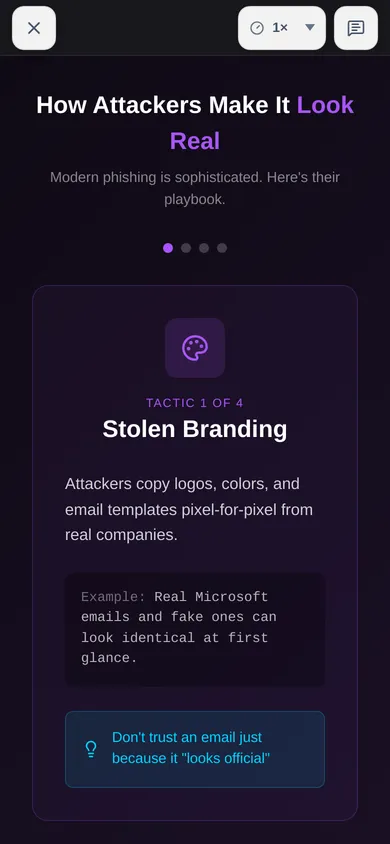
How a user sends feedback
Section titled “How a user sends feedback”-
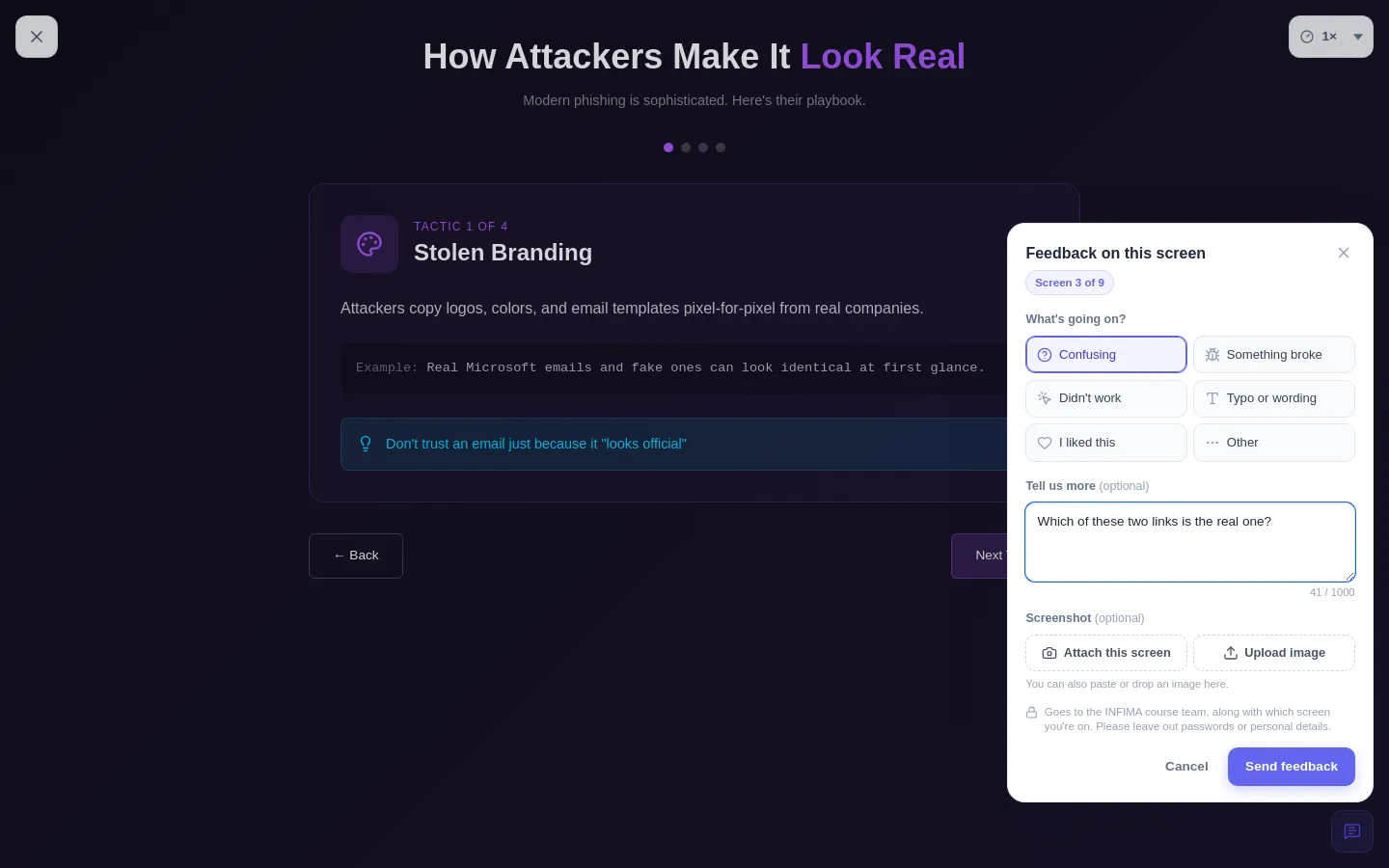
Click the speech-bubble button on the screen they want to comment on. A short form opens over the course; the course stays exactly where it was underneath. The top of the form shows which screen the feedback is about, for example Screen 3 of 9, plus the question number on the quiz.
-
Pick a reason. One of Confusing, Something broke, Didn’t work, Typo or wording, I liked this or Other. This is the only thing the form requires.
-
Add a comment (optional). Up to 1,000 characters on what they were trying to do and what happened.
-
Add a screenshot (optional).
- Attach this screen takes a picture of the course area only: never the rest of their screen, other tabs or the form itself.
- Upload image picks a picture from their computer or phone. They can also paste one, or drop one on the Screenshot area of the form.
-
Click Send feedback. They see Thanks — we got it and close the form when they’re ready. They’re right where they left off in the course.
You’ll know it worked when
Section titled “You’ll know it worked when”- The user sees Thanks — we got it after sending.
- Their place in the course hasn’t moved: same screen, same quiz question, nothing answered on their behalf.
Frequently asked
Section titled “Frequently asked”Can I see the feedback my clients’ users send?
No. Feedback goes only to our course team, and neither you nor your clients see it. That’s on purpose: users can be candid about a course without worrying who reads it. We use it to fix and improve the courses, and every client benefits from those fixes.
Does sending feedback affect a user’s training, quiz or risk score?
No. Feedback is separate from training. It doesn’t count as progress, doesn’t change quiz answers or scores, and doesn’t affect their risk score.
Will anyone reply to the user?
We read every piece of feedback, but we don’t reply to individuals. If a user is stuck and can’t finish a course or sign in, they should reach out to you or their IT contact as usual. The feedback button isn’t a support channel.
What does the screenshot capture?
Only the course area of the screen they’re on, and only if they click Attach this screen. It never captures their desktop, other tabs or windows, or anything outside the course. An image they upload or paste is sent as they chose it. The form also asks users to leave passwords and personal details out of their comment and screenshot.
How long do you keep feedback?
Twelve months. After that, the feedback and any screenshot with it are deleted.
Is the form in the user’s language?
Yes. The button and form follow the user’s training language: English, Spanish or Canadian French. See Training languages.
A user says the form told them to try again later.
That happens when one user sends, or tries to send, a lot of feedback in a short time. Anything they saw Thanks — we got it for has reached us; anything that showed an error didn’t. After a while they can send more.
A user says the form told them feedback isn’t available for this course.
That’s usually a temporary problem on our side. Ask them to try again later, and contact our support team if it keeps happening.
Related
Section titled “Related”- Learning Portal: what your clients’ users see in the portal, and how to help them.
- Training languages: set the language users see their training, and this form, in.